+$%&
6
HP
PrecisionScan Pro
User’s Guide
108
Saving scanned images
Book Contents Index
➮
➮
Copy to the Clipboard
Copying the image
1
Create a selection area (see page
58
).
2
Click , the
Copy
button in the toolbar, or
from the
Edit
menu select
Copy
, or
or press
Ctrl+C
.
A final scan of the image is performed.
A copy of the image is placed in the
Clipboard
.
Pasting the image
1
Start the destination program.
2
Open the document and view the page that will
receive the image.
3
Position the pointer where you want to place the
image, then click.
4
From the program’s
Edit
menu, choose
Paste
, or
press
Ctrl+V
.
The image appears where you pasted it.
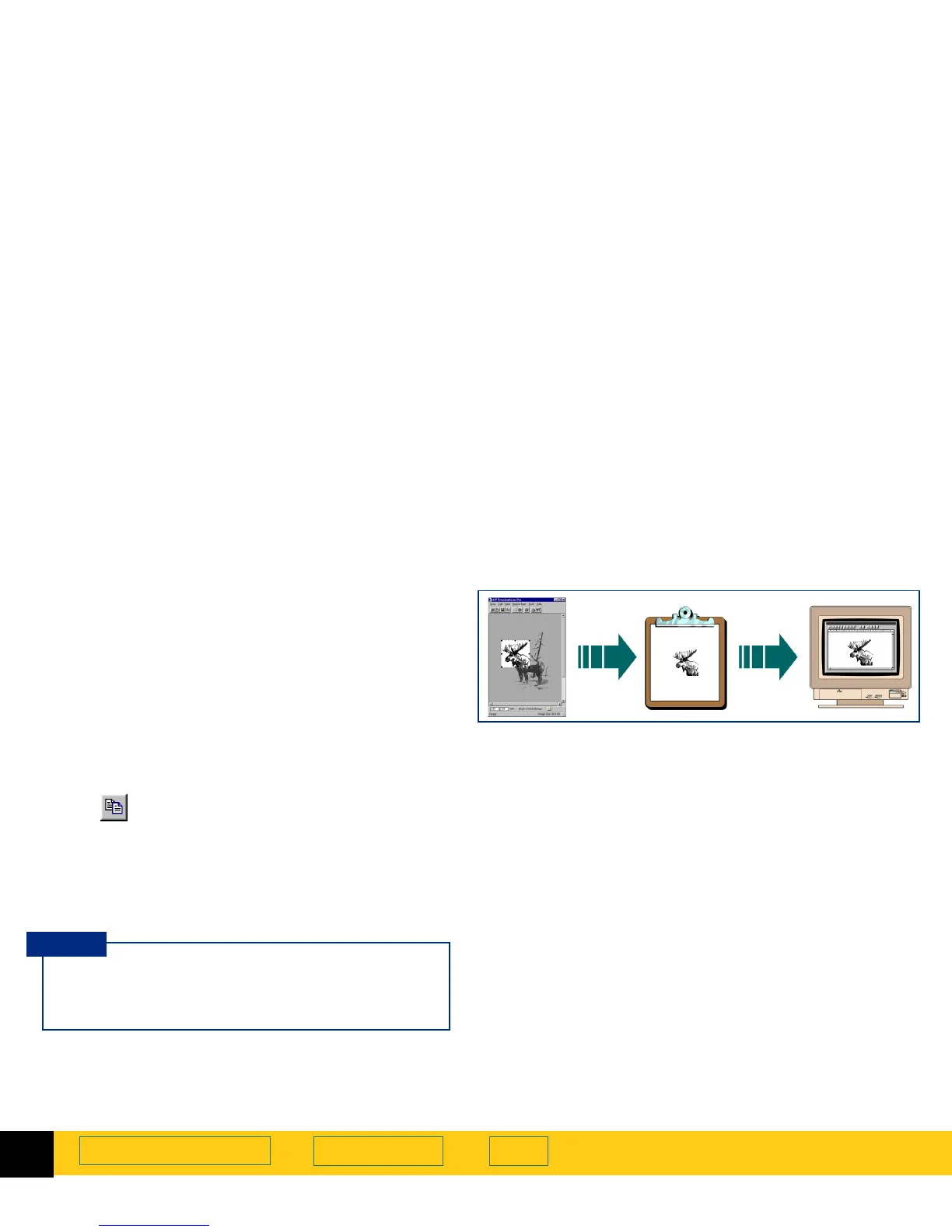
The image in the selection area can be copied to the
Clipboard
, then pasted into the destination program.
After the image is pasted into the destination
program, the image becomes part of the document
file.
Be sure to keep the original in the same place on
the scanner glass until the final scan of the image is
completed.
TIP








 To Next Page