+$%&
5
HP
PrecisionScan Pro
User’s Guide
101
Scanning text
Book Contents Index
➮
➮
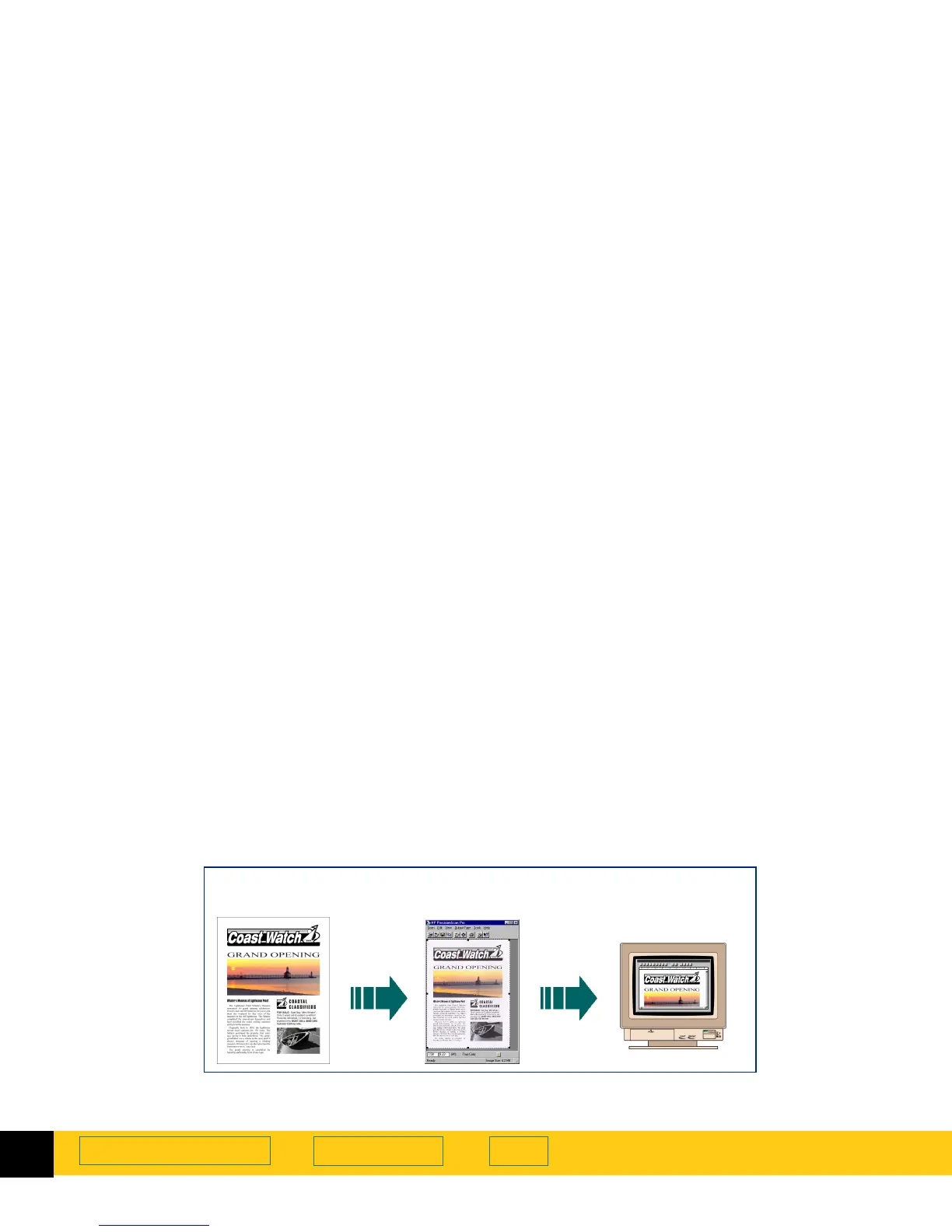
Scan a whole page
A entire page of text, or text and pictures, can be saved
to a PDF file, rich text format (.rtf), or HTML file that
contains editable, formatted text and images.
1 Preview
scan (page
57
).
It is not necessary to create a selection area or
choose an output type.
2
From the
Edit
menu, choose
Select All
.
3
From the Output Type menu, select Text & Image.
4
From the Scan menu, select
Save As.
The
Save As
dialog box appears.
The only file format choices in the
Save as type
list
box are
PDF (.pdf)
,
Rich Text Format (.rtf)
,
and
HTML
.
5
In the
Save in
box, choose the directory where you
want to save the file.
6
In the
File name
box, type a name for the file.
7
Click
Save
.
A final scan of the entire area of the scanner glass is
performed.
The text is converted to editable text.
The text and images are saved to the .rtf file.
8
To use the
.rtf
file, open it in a program that can
interpret rich text format files.
Original Preview image
with selection area
RTF file opened in
another program








 To Next Page