+$%&
4
HP
PrecisionScan Pro
User’s Guide
87
Adjusting images of
pictures
Book Contents
Index
➮
➮
Adjust color
The scanning software automatically selects the
optimal color settings for any color output type applied
to the image. If the overall color in the original picture
is out of balance, or the picture needs more or less
color, you can use the
Color Adjustment
tool to increase
or decrease:
■
color balance, or hue (see page
87
)
■
color saturation (see page
88
)
The
Color Adjustment
tool is active for these output
types:
■
True Color
■
256 Color Web Palette
■
256 Color System Palette
■
256 Color Optimized Palette
1
From the
Tools
menu, select
Color Adjustment
.
The
Color Adjustment
tool appears (see page
37
).
2
Change the color balance or saturation as described
below.
The color settings you select will be applied to the final
scan.
Changing color balance
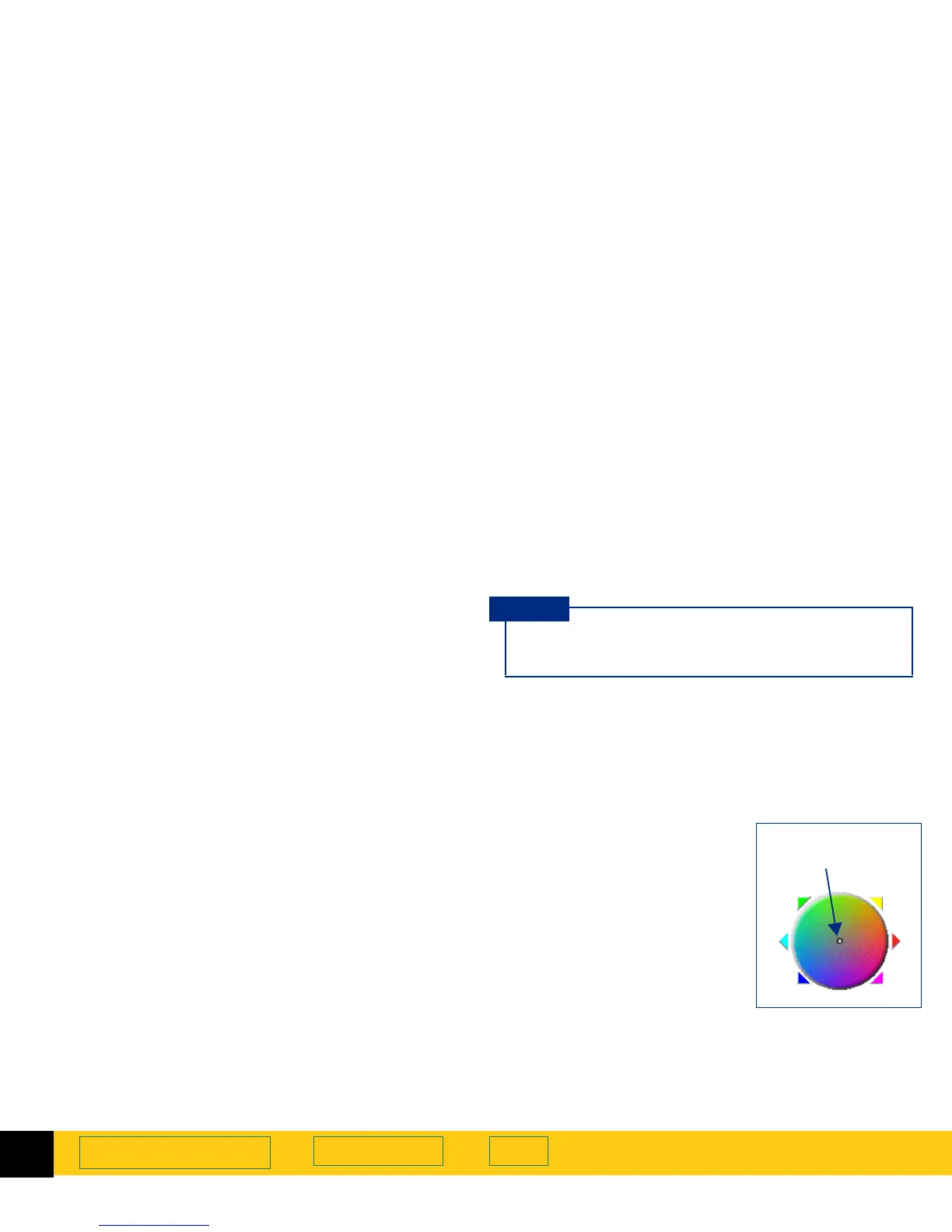
Use the
Color Wheel
in the
Color Adjustment
tool to
change color balance (hue).
Moving the indicator circle
When the image has too much
of one color, move the
indicator circle toward the
opposite side (opposite color)
on the
Color Wheel
.
■
drag the indicator circle with
the mouse, or
■
click a color’s triangle
The result of the change to
the hue can be seen in the
preview area.
Adjust image color for photographs that are faded
or have too much of one color.
TIP
Indicator circle in
the
Color Wheel








 To Next Page