+$%&
3
HP
PrecisionScan Pro
User’s Guide
69
Scanning pictures
Book Contents Index
➮
➮
Choose an output type
The output type selected in the
Output Type
menu
determines the bit depth and color palette applied to
the final scan of pictures and drawings, but not for
images that will be converted to text. The table on
page
71
lists bit depths and color palettes for each
output type that is appropriate for images of pictures
and drawings.
The scanning software automatically selects an
appropriate output type based on the contents of the
selection area. The current output type setting displays
in the info bar of the scanning software window.
However, the output type selected by the scanning
software may not be the most appropriate for the way
you will use the image. For example, when you want to
print the image of a color photograph on a black and
white printer, you may want to set the output type to
Grayscale
.
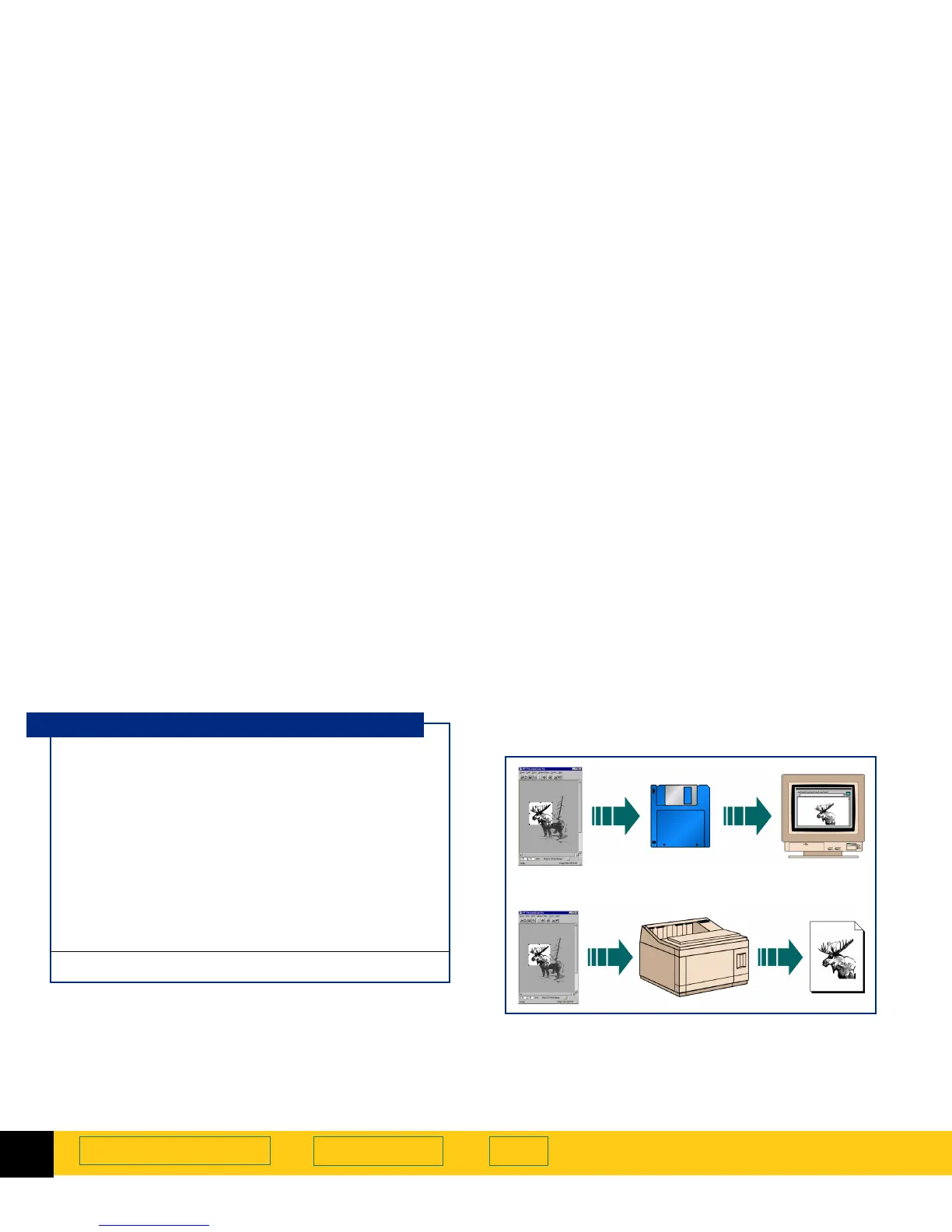
Some output types are more suitable for images that
will be displayed on a monitor, others are more
suitable for printing.
The table on page
71
lists results you can get with each
output type for various types of originals.
True Color
24-bit, millions of colors
Grayscale
8-bit, 256 shades of gray
Black & White
Bitmap (raster),
Scalable (vector)
1-bit black and white
256 Color
Web Palette
System Palette
Optimized Palette
8-bit, 256 colors
Spot Color
8-bit, 256 colors
Output types for pictures








 To Next Page