+$%&
2
HP
PrecisionScan Pro
User’s Guide
35
A tour of the scanning
software
Book Contents
Index
➮
➮
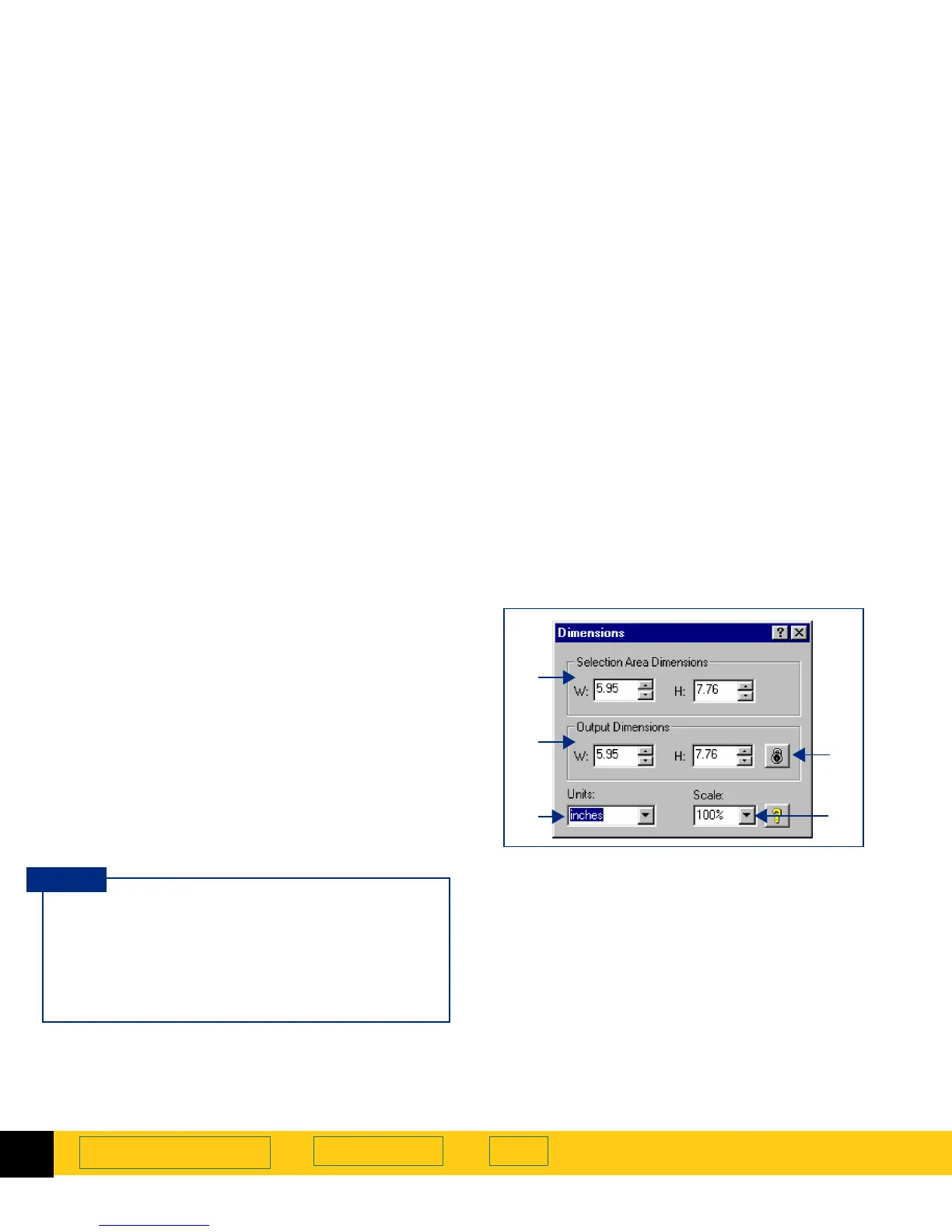
After you have drawn a selection area, use the
Dimensions
tool to:
See
Set the output dimensions
on page
65
for more
about how to use the
Dimensions
tool.
➊
adjust the dimensions of the selection area
➋
set values for the width and height of the image to
be included in the final scan
➌
select the units you want to work with
➍
enlarge or reduce output dimensions of the image
for the final scan proportionally by scaling to a
percentage of the original’s size
➎
lock the output dimensions so you can change the
dimensions of the selection area without changing
the output dimensions
➊
➋
➌
➎
➍
To preserve image quality when you use it in
another program:
■
measure the dimensions of the area in which
you will place the image, then
■
use the
Dimensions
tool in
HP PrecisionScan Pro
to
scale or resize the image
to fit that area.
TIP








 To Next Page