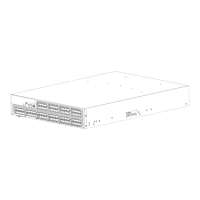
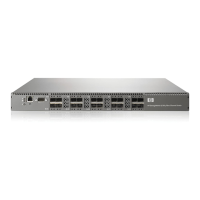
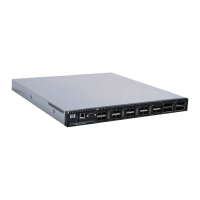
To install the device in a rack:
1. Verify that the required parts and hardware are available. See Table 8.
2. Choose a mounting location for the device in the rack.
3. Attach the rear mounting brackets to the rear rack uprights:
• For HP 10000 series racks, assemble each of the t wo brackets with two #10-32 x 1/2-inch
Phillips pan-head screws with captive star lock-washers and two #10 adapter washers, as
shown in Figure 8.
• For an HP System/e Rack, install the two rear mounting brackets with two #10-32 x 1/2-inch
Phillips pan-hea d screws and two #10 alignment washers, as shown in Figure 9.
Figure 8 Installing the rear mounting brackets (HP 10000 series racks)
Figure 9 Ins talling the rear mountin g brackets (H P System/e Rack)
NOTE:
Your SAN Switch Rack Mount Kit contains both right rails and left rails. The rails are
labelled Right and Left.
32
Installing and configuring an 8Gb SAN Switch



 To Next Page
 Loading...