Chapter 16 Logs
B222s User’s Guide
146
16.2 The System Log Screen
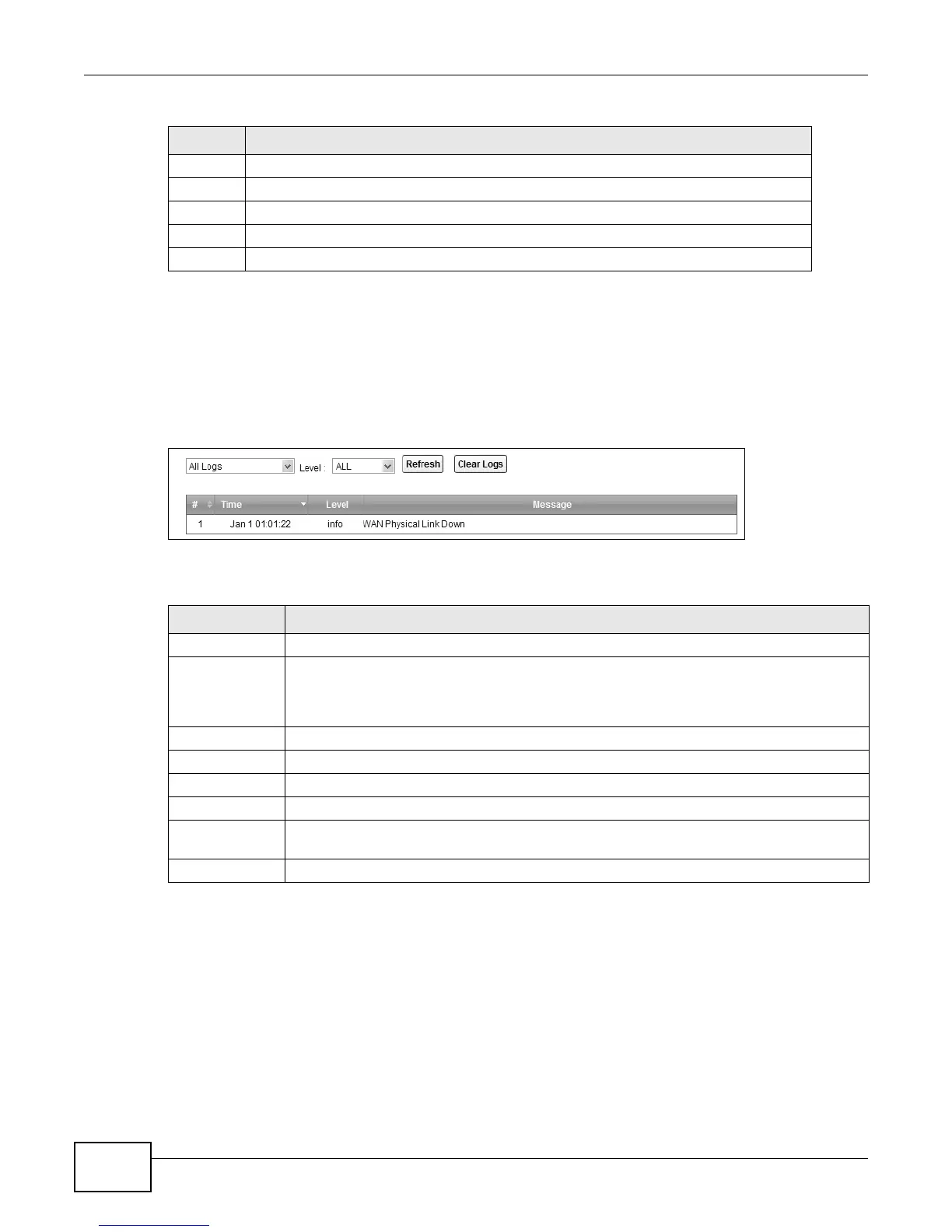
Click System Monitor > Log to open the System Log screen. Use the System Log screen to see
the system logs for the categories that you select in the upper left drop-down list box.
Figure 80 System Monitor > Log > System Log
The following table describes the fields in this screen.
3 Error (ERROR): There is an error condition on the system.
4 Warning (WARNING): There is a warning condition on the system.
5 Notice (NOTICE): There is a normal but significant condition on the system.
6 Informational (INFO): The syslog contains an informational message.
7 Debug (DEBUG): The message is intended for debug-level purposes.
Table 58 Syslog Severity Levels
CODE SEVERITY
Table 59 System Monitor > Log > System Log
LABEL DESCRIPTION
Select the type of the logs that you want to search in the first drop-down list box.
Level Select a severity level from this drop-down list box. This filters search results according to
the severity level you have selected. When you select a severity, the LTE Device searches
through all logs of that severity or higher. See Table 58 on page 145 for more information
about severity levels.
Refresh Click this to renew the log screen.
Clear Logs Click this to delete all the logs.
# This field is a sequential value and is not associated with a specific entry.
Time This field displays the date and time the log was recorded.
Level This field displays the severity level of the logs that the device is to send to this syslog
server.
Message This field states the reason for the log.



 To Next Page