Chapter 10 Network Address Translation (NAT)
B222s User’s Guide
99
10.3 The DMZ Screen
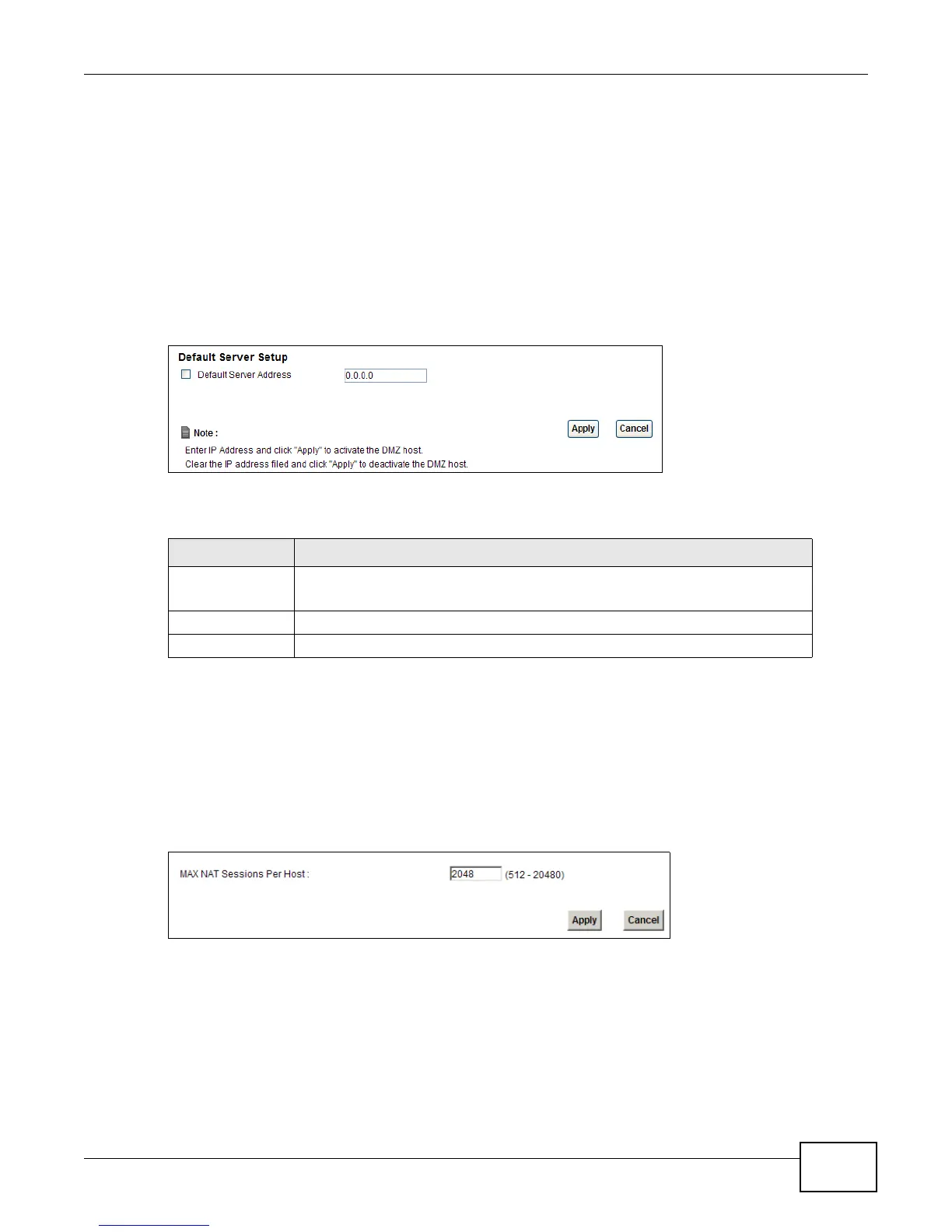
Use this page to set the IP address of your network DMZ (if you have one) for the LTE Device. All
incoming packets received by this LTE Device’s WAN interface will be forwarded to the default
server you set.
Click Network Setting > NAT > DMZ to display the following screen.
Note: The configuration you set in this screen takes priority than the Network Setting >
NAT > Port Forwarding screen.
Figure 55 Network Setting > NAT > DMZ
The following table describes the fields in this screen.
10.4 The Sessions Screen
Use the Sessions screen to limit the number of concurrent NAT sessions each client can use.
Click Network Setting > NAT > Sessions to display the following screen.
Figure 56 Network Setting > NAT > Sessions
Table 36 Network Setting > NAT > DMZ
LABEL DESCRIPTION
Default Server
Address
Enter the IP address of your network DMZ host, if you have one. 0.0.0.0 means
this feature is disabled.
Apply Click Apply to save your changes.
Cancel Click Cancel to restore your previously saved settings.



 To Next Page