Chapter 2 Introducing the Web Configurator
B222s User’s Guide
24
2.2.2 Main Window
The main window displays information and configuration fields. It is discussed in the rest of this
document.
After you click System Info on the Connection Status screen, the System Info screen is
displayed. See Chapter 3 on page 31 for more information about the System Info screen.
If you click LAN Device on the System Info screen (a in Figure 9 on page 23), the Connection
Status screen appears. See Chapter 3 on page 29 for more information about the Connection
Status screen.
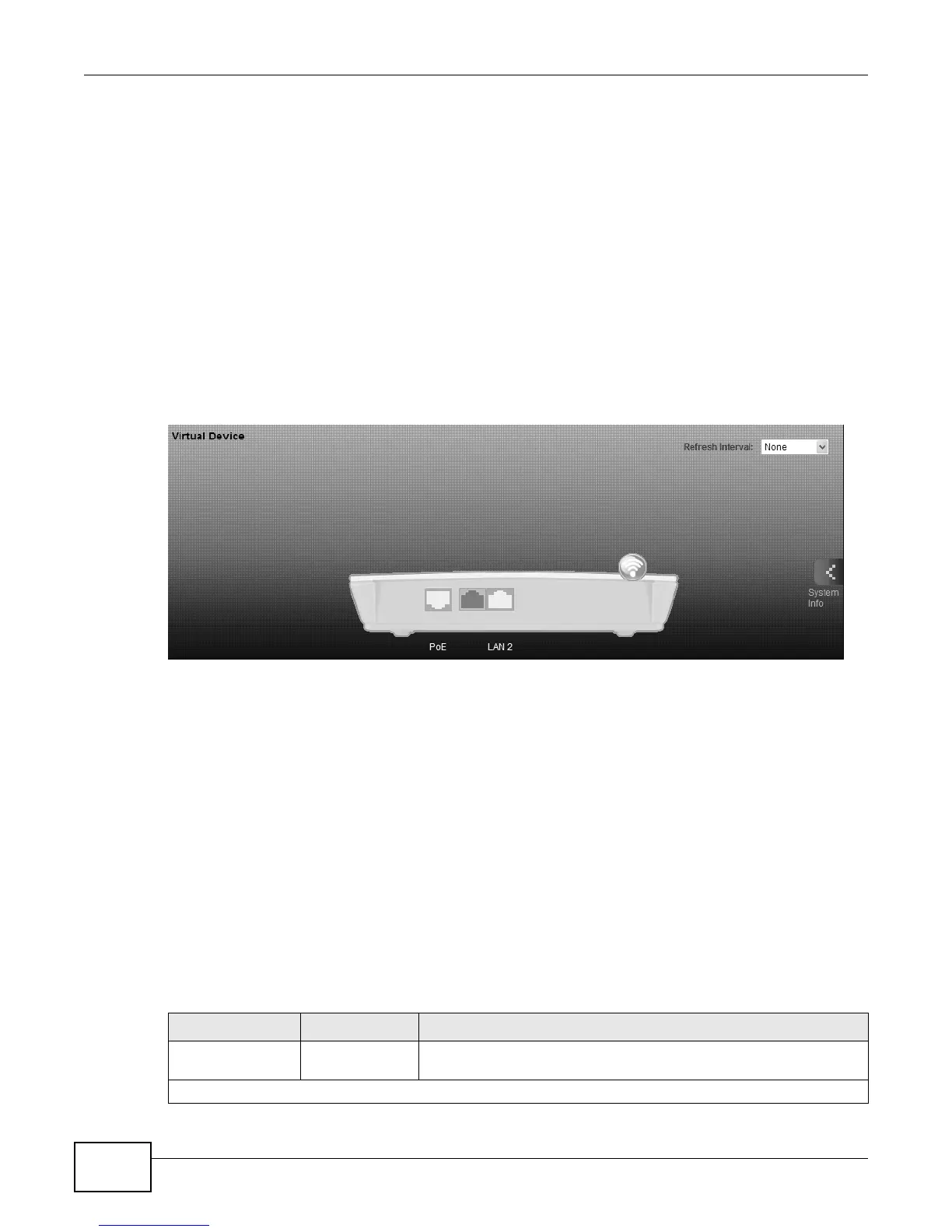
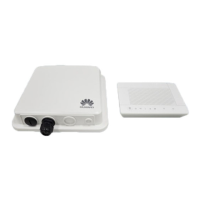
If you click Virtual Device on the System Info screen (b in Figure 9 on page 23), a visual graphic
appears, showing the connection status of the LTE Device’s ports. The connected ports are in color
and disconnected ports are gray.
Figure 10 Virtual Device
2.2.3 Traffic Status
Use the Maintenance > Traffic Status screens to look at network traffic status and statistics of
the WAN, LAN interfaces and NAT. See Chapter 20 on page 159 for more information.
2.2.4 User Account
Use the Maintenance > User Accounts screen to configure system password for different user
accounts. See Chapter 18 on page 155 for more information.
2.2.5 Navigation Panel
Use the menu items on the navigation panel to open screens to configure LTE Device features. The
following table describes each menu item.
Table 2 Navigation Panel Summary
LINK TAB FUNCTION
Connection Status This screen shows the network status of the LTE Device and
computers/devices connected to it.
Network Setting



 To Next Page