Chapter 17 Traffic Status
B222s User’s Guide
151
17.4 The NAT Status Screen
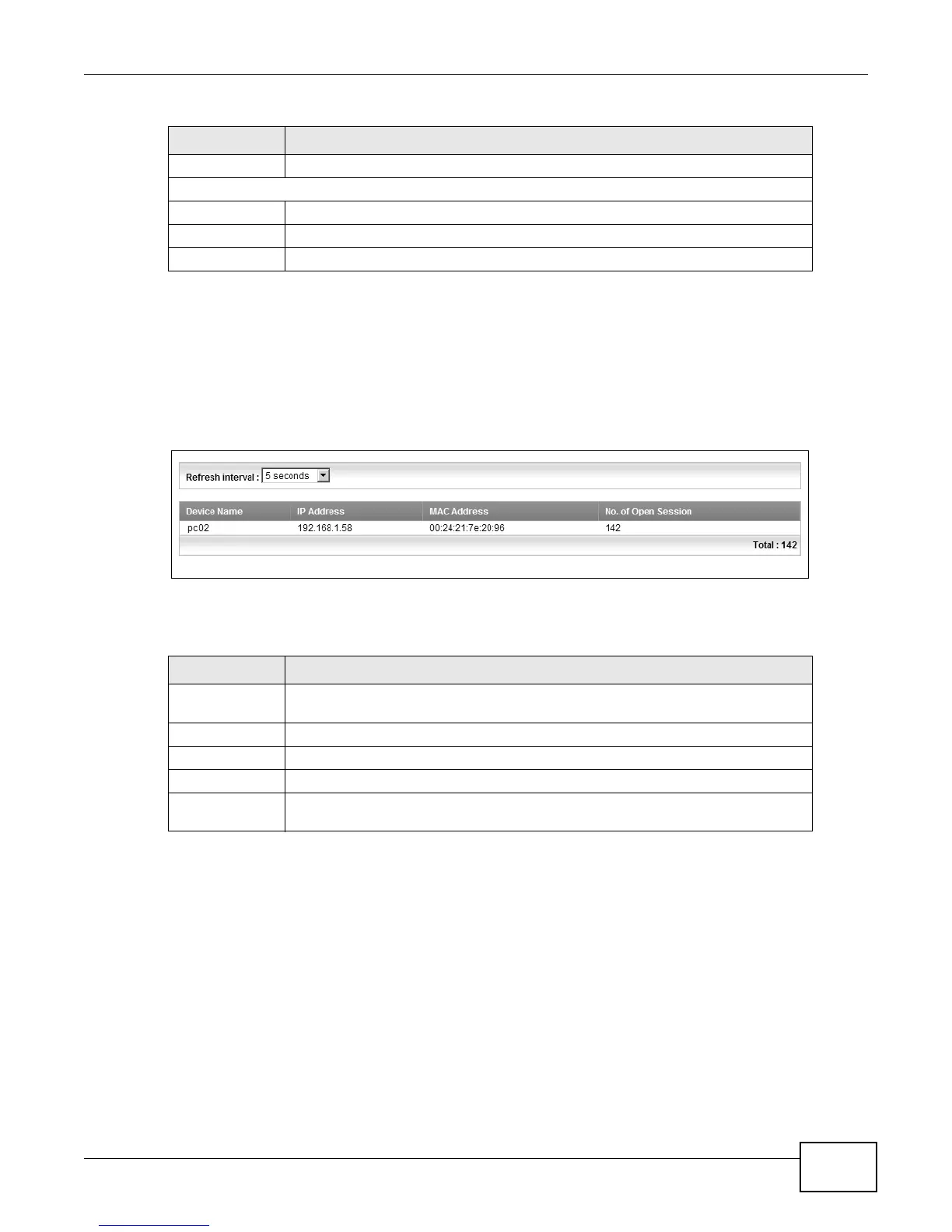
Click System Monitor > Traffic Status > NAT to open the following screen. You can view the NAT
status of the LTE Device’s client(s) in this screen.
Figure 85 System Monitor > Traffic Status > NAT
The following table describes the fields in this screen.
Drop This indicates the number of outgoing packets dropped on this interface.
Received (Packet)
Data This indicates the number of received packets on this interface.
Error This indicates the number of frames with errors received on this interface.
Drop This indicates the number of received packets dropped on this interface.
Table 63 System Monitor > Traffic Status > LAN (continued)
LABEL DESCRIPTION
Table 64 System Monitor > Traffic Status > NAT
LABEL DESCRIPTION
Refresh Interval Select how often you want the LTE Device to update this screen from the drop-
down list box.
Device Name This shows the name of the client.
IP Address This shows the IP address of the client.
MAC Address This shows the MAC address of the client.
No. of Open
Session
This shows the number of NAT sessions used by the client.




 To Next Page