Chapter 5 Wireless
B222s User’s Guide
53
5.4 The WPS Screen
Use this screen to configure WiFi Protected Setup (WPS) on your LTE Device.
WPS allows you to quickly set up a wireless network with strong security, without having to
configure security settings manually. Set up each WPS connection between two devices. Both
devices must support WPS. See Section 5.7.6.3 on page 64 for more information about WPS.
Note: The LTE Device applies the security settings of the SSID1 profile (see Section 5.2
on page 45). If you want to use the WPS feature, make sure you have set the
security mode of SSID1 to WPA-PSK, WPA2-PSK or No Security.
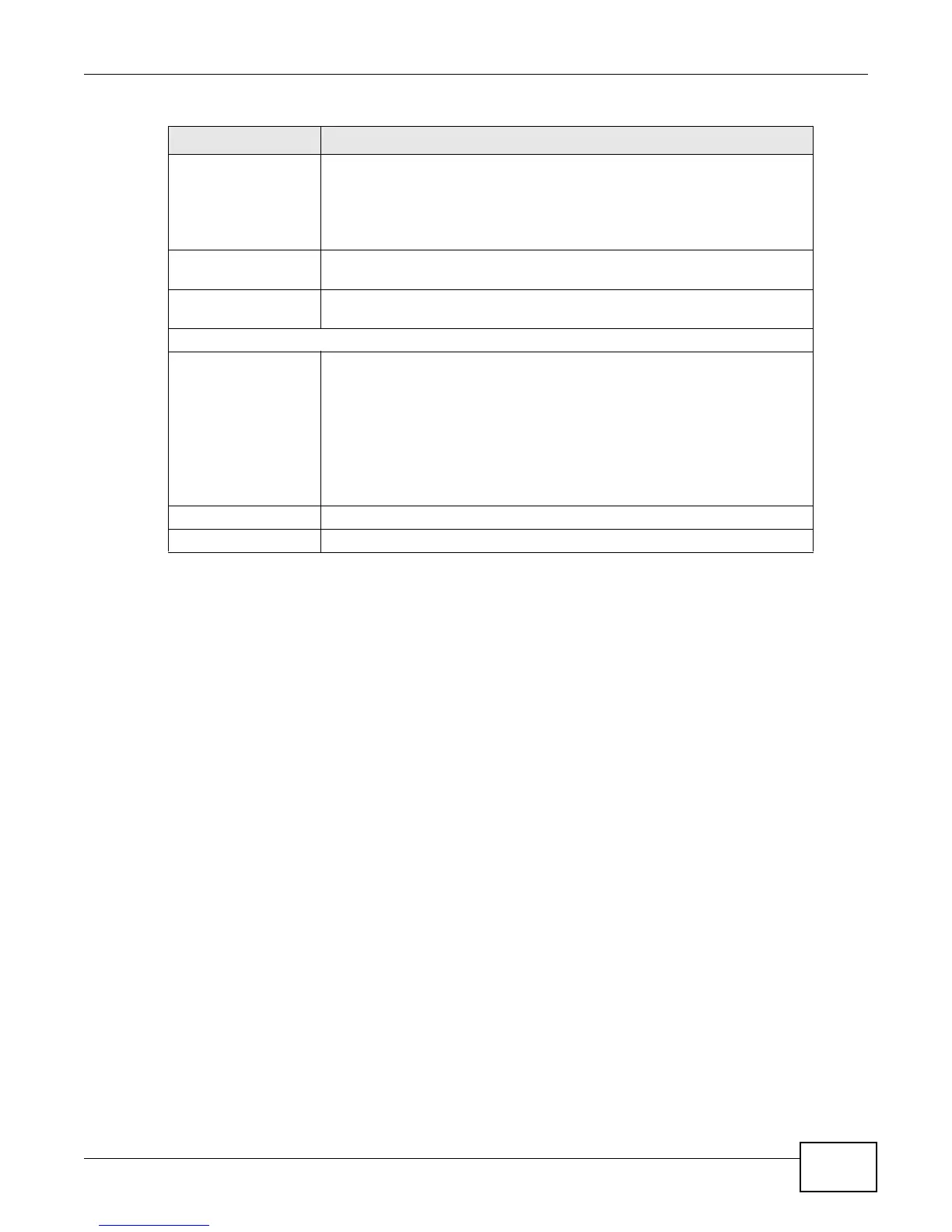
Wireless Network
Name (SSID)
The SSID (Service Set IDentity) identifies the service set with which a
wireless device is associated. Wireless devices associating to the access
point (AP) must have the same SSID.
Enter a descriptive name (up to 32 English keyboard characters) for the
wireless LAN.
Hide SSID Select this check box to hide the SSID in the outgoing beacon frame so a
station cannot obtain the SSID through scanning using a site survey tool.
BSSID This shows the MAC address of the wireless interface on the LTE Device
when wireless LAN is enabled.
Security Level
Security Mode Select Basic (WEP) or More Secure (WPA(2)-PSK, WPA(2)) to add
security on this wireless network. The wireless clients which want to
associate to this network must have same wireless security settings as the
LTE Device. After you select to use a security, additional options appears in
this screen.
Or you can select No Security to allow any client to associate this network
without any data encryption or authentication.
See Section 5.2.1 on page 47 for more details about this field.
Apply Click Apply to save your changes.
Back Click Back to exit this screen without saving.
Table 13 Wireless > More AP: Edit (continued)
LABEL DESCRIPTION



 To Next Page