Chapter 6 Home Networking
B222s User’s Guide
71
6.2 The LAN Setup Screen
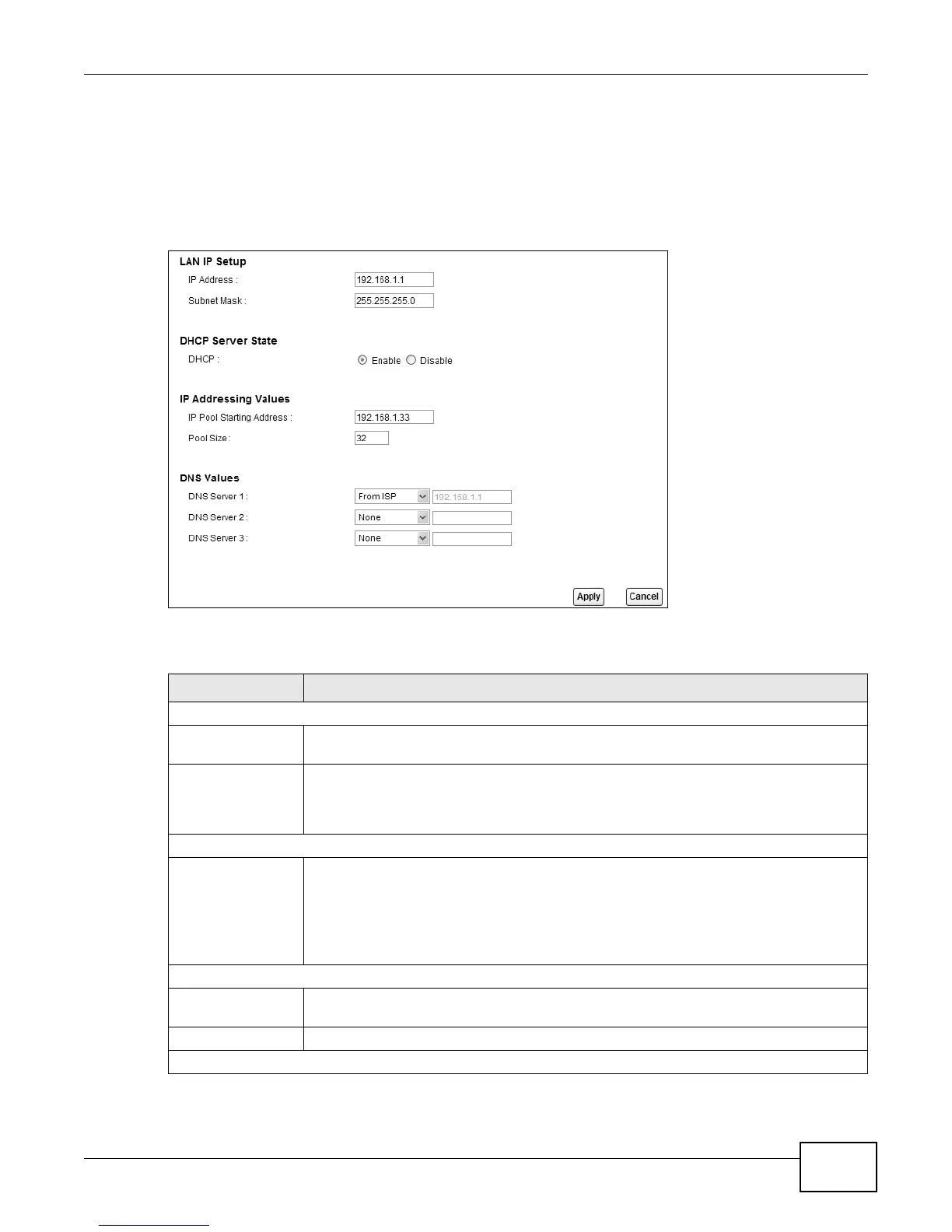
Click Network Setting > Home Networking to open the LAN Setup screen. Use this screen to
set the Local Area Network IP address and subnet mask of your LTE Device and configure the DNS
server information that the LTE Device sends to the DHCP client devices on the LAN.
Figure 36 Network Setting > Home Networking > LAN Setup
The following table describes the fields in this screen.
Table 19 Network Setting > Home Networking > LAN Setup
LABEL DESCRIPTION
LAN IP Setup
IP Address Enter the LAN IP address you want to assign to your LTE Device in dotted decimal
notation, for example, 192.168.1.1 (factory default).
IP Subnet Mask Type the subnet mask of your network in dotted decimal notation, for example
255.255.255.0 (factory default). Your LTE Device automatically computes the subnet
mask based on the IP address you enter, so do not change this field unless you are
instructed to do so.
DHCP Server State
DHCP Select Enable to have your LTE Device assign IP addresses, an IP default gateway and
DNS servers to LAN computers and other devices that are DHCP clients.
If you select Disable, you need to manually configure the IP addresses of the
computers and other devices on your LAN.
When DHCP is used, the following fields need to be set.
IP Addressing Values
IP Pool Starting
Address
This field specifies the first of the contiguous addresses in the IP address pool.
Pool Size This field specifies the size, or count of the IP address pool.
DNS Values



 To Next Page