Chapter 5 Wireless
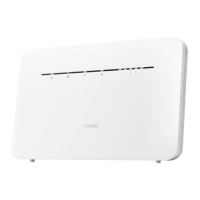
B222s User’s Guide
55
5.5 The WMM Screen
Use this screen to enable or disable Wi-Fi MultiMedia (WMM) wireless networks for multimedia
applications.
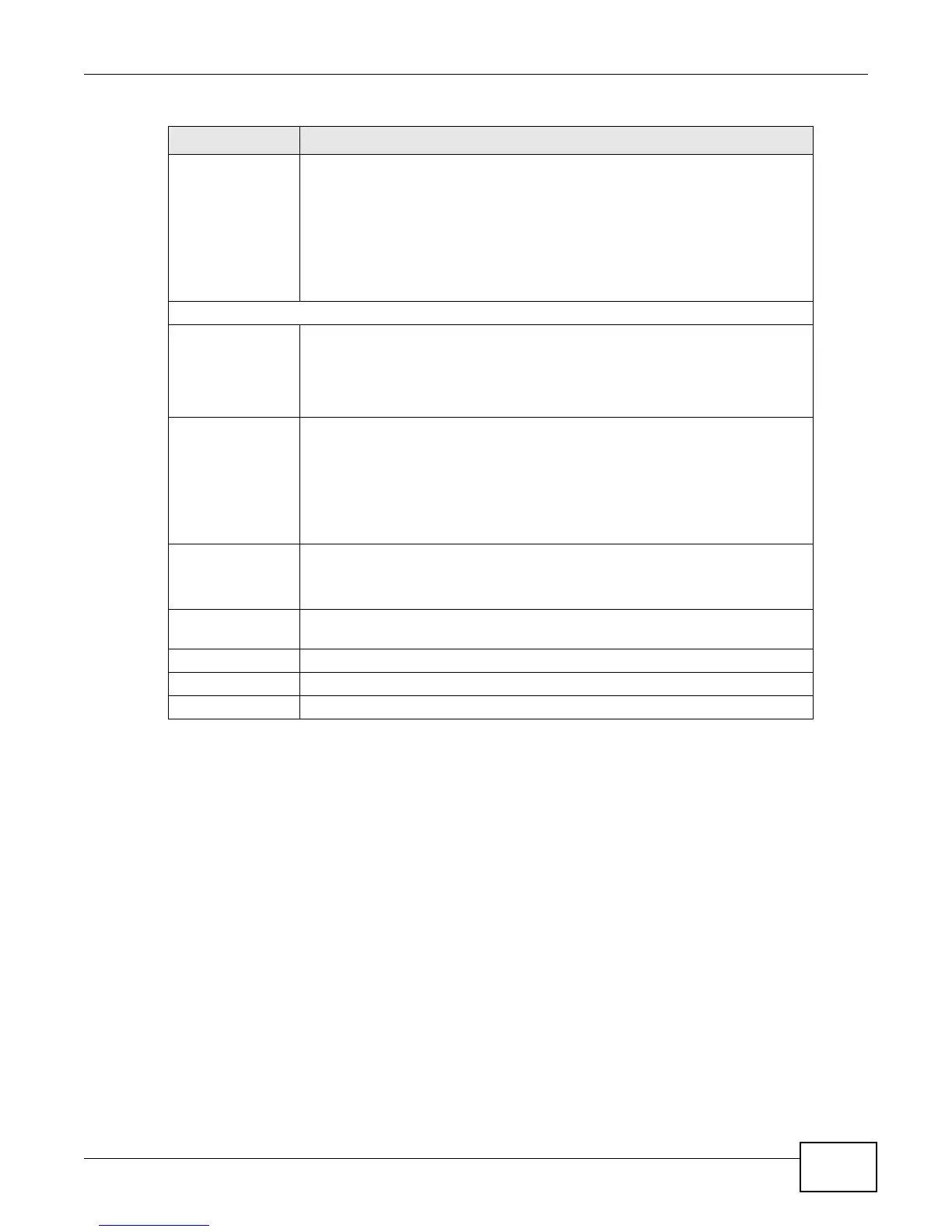
Register Enter the PIN of the device that you are setting up a WPS connection with and
click Register to authenticate and add the wireless device to your wireless
network.
You can find the PIN either on the outside of the device, or by checking the
device’s settings.
Note: You must also activate WPS on that device within two minutes to have it
present its PIN to the LTE Device.
WPS Configuration Summary
AP PIN The PIN of the LTE Device is shown here. Enter this PIN in the configuration
utility of the device you want to connect to using WPS.
The PIN is not necessary when you use WPS push-button method.
Click the Generate New PIN button to have the LTE Device create a new PIN.
Status This displays Configured when the LTE Device has connected to a wireless
network using WPS or Enable WPS is selected and wireless or wireless security
settings have been changed. The current wireless and wireless security settings
also appear in the screen.
This displays Not Configured when there is no wireless or wireless security
changes on the LTE Device or you click Release Configuration to remove the
configured wireless and wireless security settings.
Release
Configuration
This button is available when the WPS status is Configured.
Click this button to remove all configured wireless and wireless security settings
for WPS connections on the LTE Device.
802.11 Mode This is the 802.11 mode used. Only compliant WLAN devices can associate with
the LTE Device.
SSID This is the name of the wireless network.
Security This is the type of wireless security employed by the network.
Apply Click Apply to save your changes.
Table 14 Network Setting > Wireless > WPS (continued)
LABEL DESCRIPTION



 To Next Page