Chapter 6 Home Networking
B222s User’s Guide
73
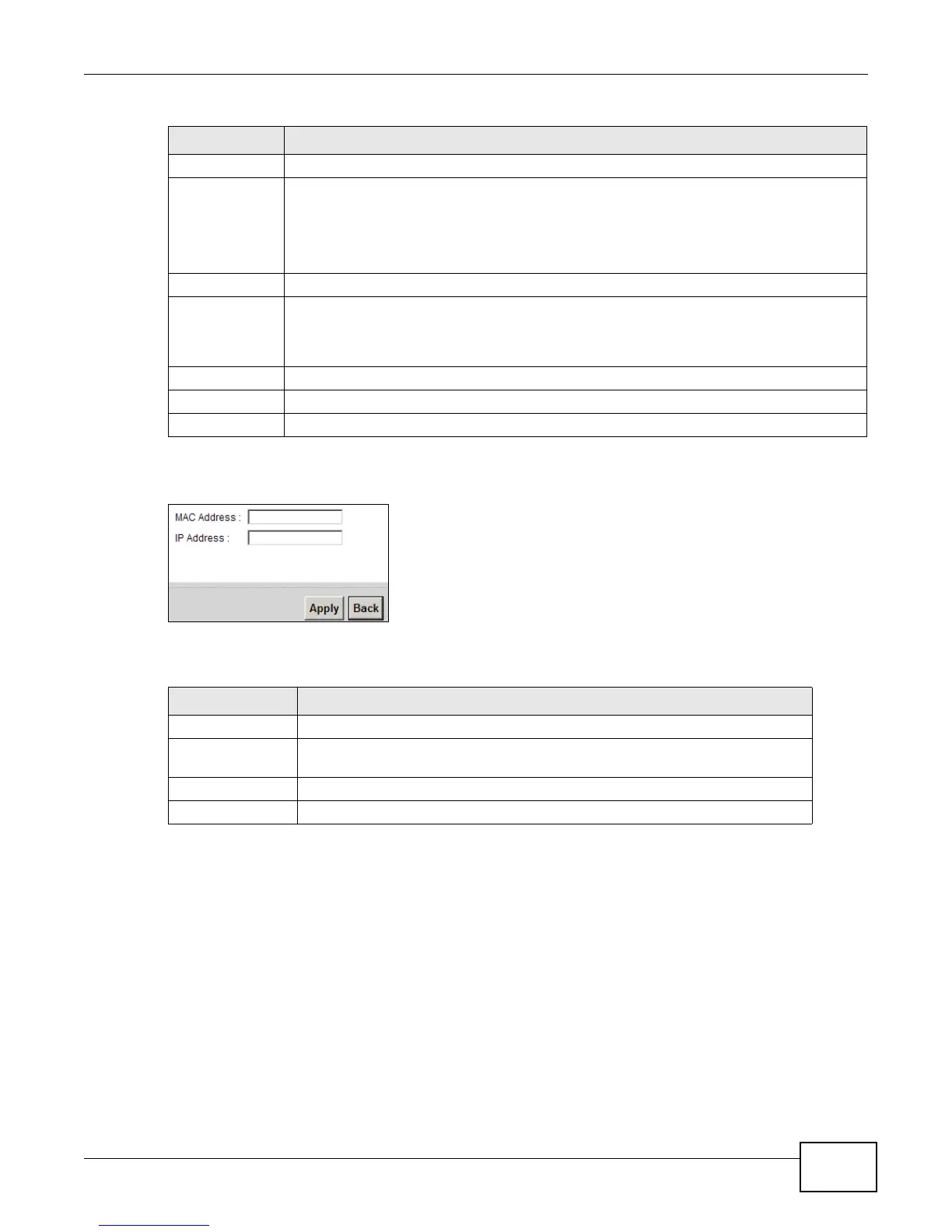
If you click Add new static lease in the Static DHCP screen, the following screen displays.
Figure 38 Static DHCP: Add
The following table describes the labels in this screen.
6.4 The UPnP Screen
Universal Plug and Play (UPnP) is a distributed, open networking standard that uses TCP/IP for
simple peer-to-peer network connectivity between devices. A UPnP device can dynamically join a
network, obtain an IP address, convey its capabilities and learn about other devices on the network.
In turn, a device can leave a network smoothly and automatically when it is no longer in use.
See page 74 for more information on UPnP.
Host Name This field displays the client host name.
MAC Address The MAC (Media Access Control) or Ethernet address on a LAN (Local Area Network) is
unique to your computer (six pairs of hexadecimal notation).
A network interface card such as an Ethernet adapter has a hardwired address that is
assigned at the factory. This address follows an industry standard that ensures no other
adapter has a similar address.
IP Address This field displays the IP address relative to the # field listed above.
Reserve Select the check box in the heading row to automatically select all check boxes or select
the check box(es) in each entry to have the LTE Device always assign the selected
entry(ies)’s IP address(es) to the corresponding MAC address(es) (and host name(s)). You
can select up to 128 entries in this table.
Apply Click Apply to save your changes.
Cancel Click Cancel to restore your previously saved settings.
Refresh Click Refresh to reload the DHCP table.
Table 21 Static DHCP: Add
LABEL DESCRIPTION
MAC Address Enter the MAC address of a computer on your LAN.
IP Address Enter the IP address that you want to assign to the computer on your LAN with
the MAC address that you will also specify.
Apply Click Apply to save your changes.
Back Click Back to exit this screen without saving.
Table 20 Network Setting > Home Networking > Static DHCP (continued)
LABEL DESCRIPTION



 To Next Page