Chapter 16 Logs
B222s User’s Guide
147
16.3 The Phone Log Screen
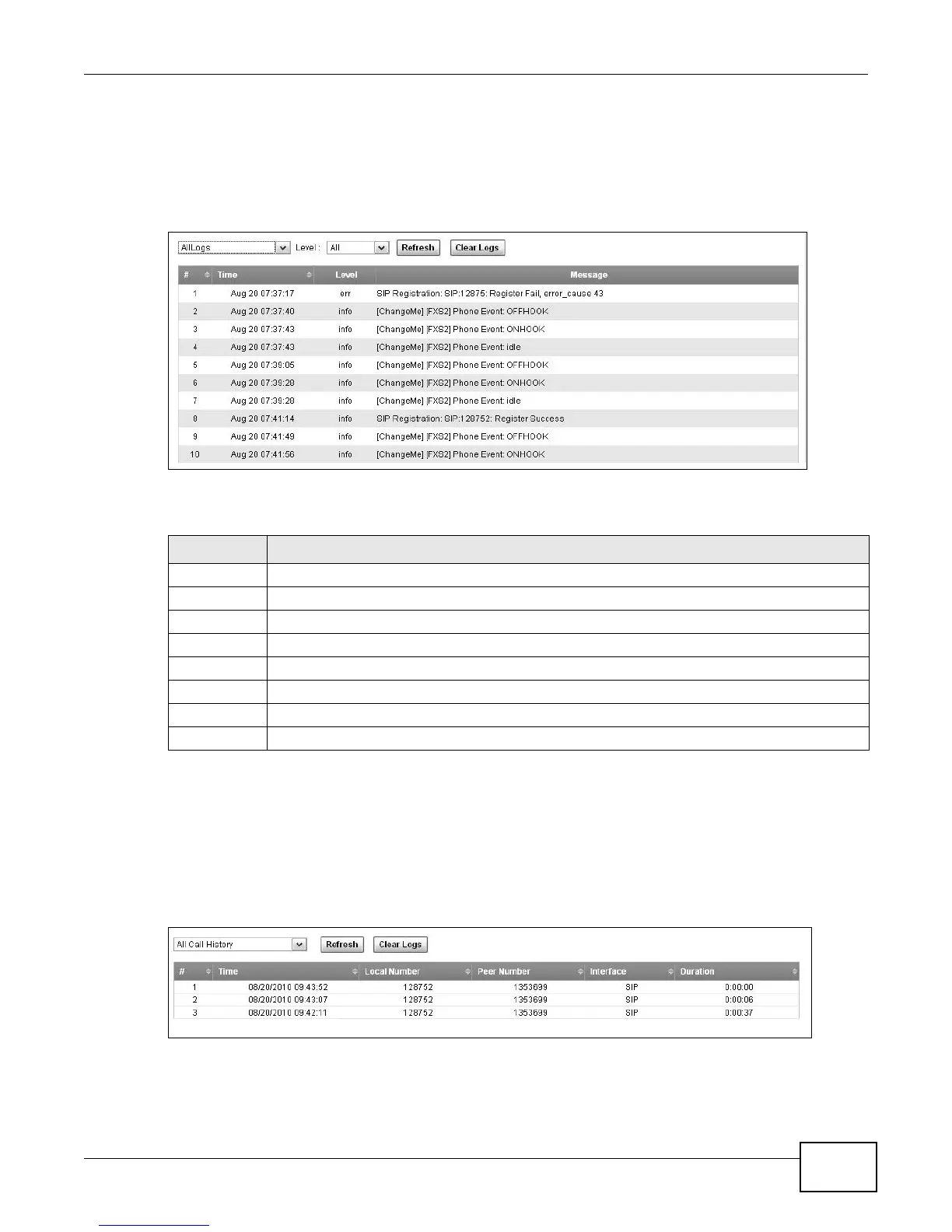
Click System Monitor > Log to open the Phone Log screen. Use this screen to view phone logs
and alert messages. You can select the type of log and level of severity to display.
Figure 81 System Monitor > Log > Phone Log
The following table describes the fields in this screen.
16.4 The VoIP Call History Screen
Click System Monitor > Log > VoIP Call History to open the VoIP Call History screen.
Use this screen to see the details of the calls performed on the LTE Device.
Figure 82 System Monitor > Log > VoIP Call History
Table 60 System Monitor > Log > Phone Log
LABEL DESCRIPTION
Select a category of logs to view from the drop-down list box. select All Logs to view all logs.
Level Select the severity level that you want to view.
Refresh Click this to renew the log screen.
Clear Logs Click this to delete all the logs.
# This field is a sequential value and is not associated with a specific entry.
Time This field displays the time the log was recorded.
Level This field displays the severity level of the logs that the device is to send to this syslog server.
Message This field states the reason for the log.



 To Next Page