Chapter 5 Wireless
B222s User’s Guide
54
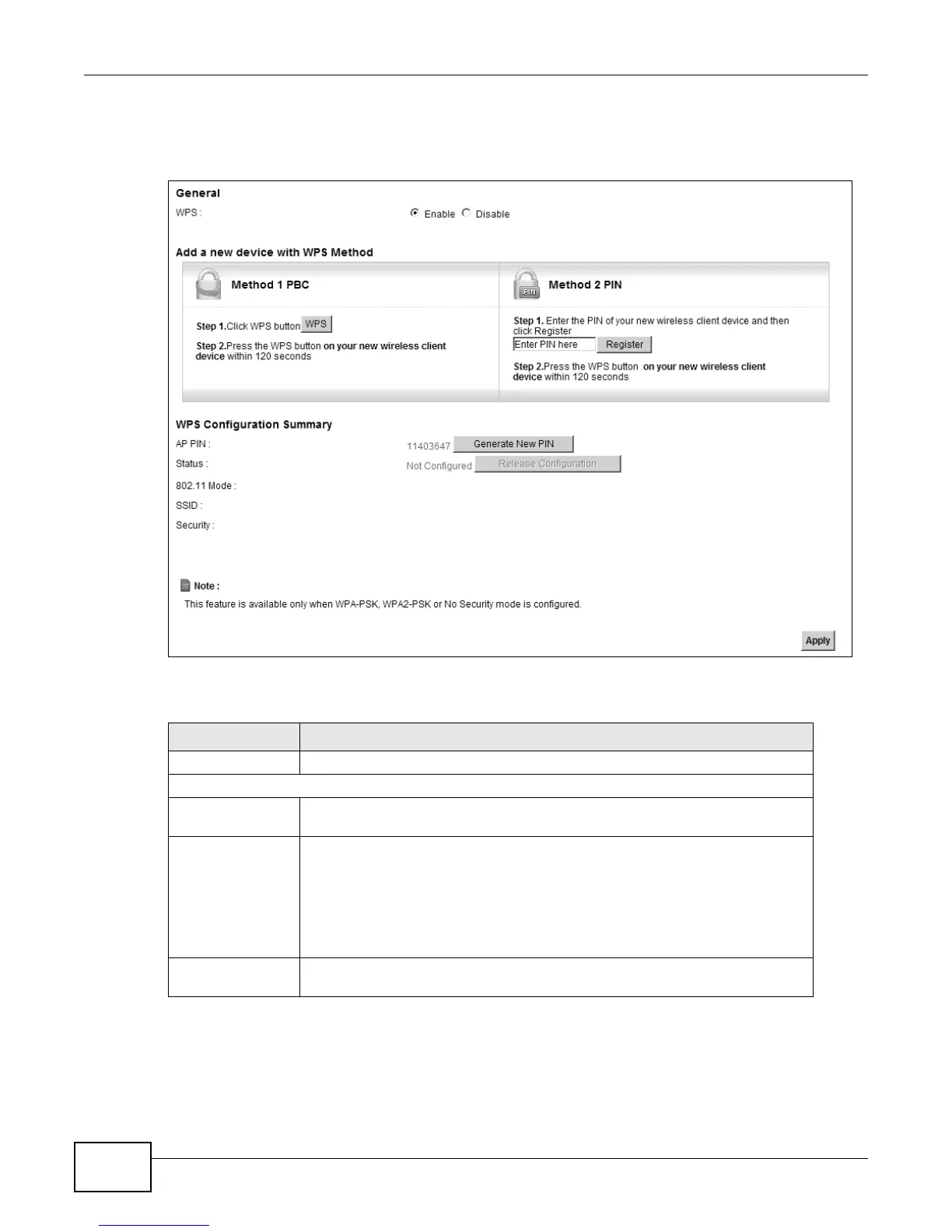
Click Network Setting > Wireless > WPS. The following screen displays. Select Enable and click
Apply to activate the WPS function. Then you can configure the WPS settings in this screen.
Figure 27 Network Setting > Wireless > WPS
The following table describes the labels in this screen.
Table 14 Network Setting > Wireless > WPS
LABEL DESCRIPTION
Enable WPS Select Enable to activate WPS on the LTE Device.
Add a new device with WPS Method
Method 1 PBC Use this section to set up a WPS wireless network using Push Button
Configuration (PBC).
WPS Click this button to add another WPS-enabled wireless device (within wireless
range of the LTE Device) to your wireless network. This button may either be a
physical button on the outside of device, or a menu button similar to the WPS
button on this screen.
Note: You must press the other wireless device’s WPS button within two minutes
of pressing this button.
Method 2 PIN Use this section to set up a WPS wireless network by entering the PIN (Personal
Identification Number) of the client into the LTE Device.



 To Next Page