Chapter 24 Backup/Restore
B222s User’s Guide
168
Restore Configuration
Restore Configuration allows you to upload a new or previously saved configuration file from your
computer to your LTE Device.
Do not turn off the LTE Device while configuration file upload is in
progress.
After the LTE Device configuration has been restored successfully, the login screen appears. Login
again to restart the LTE Device.
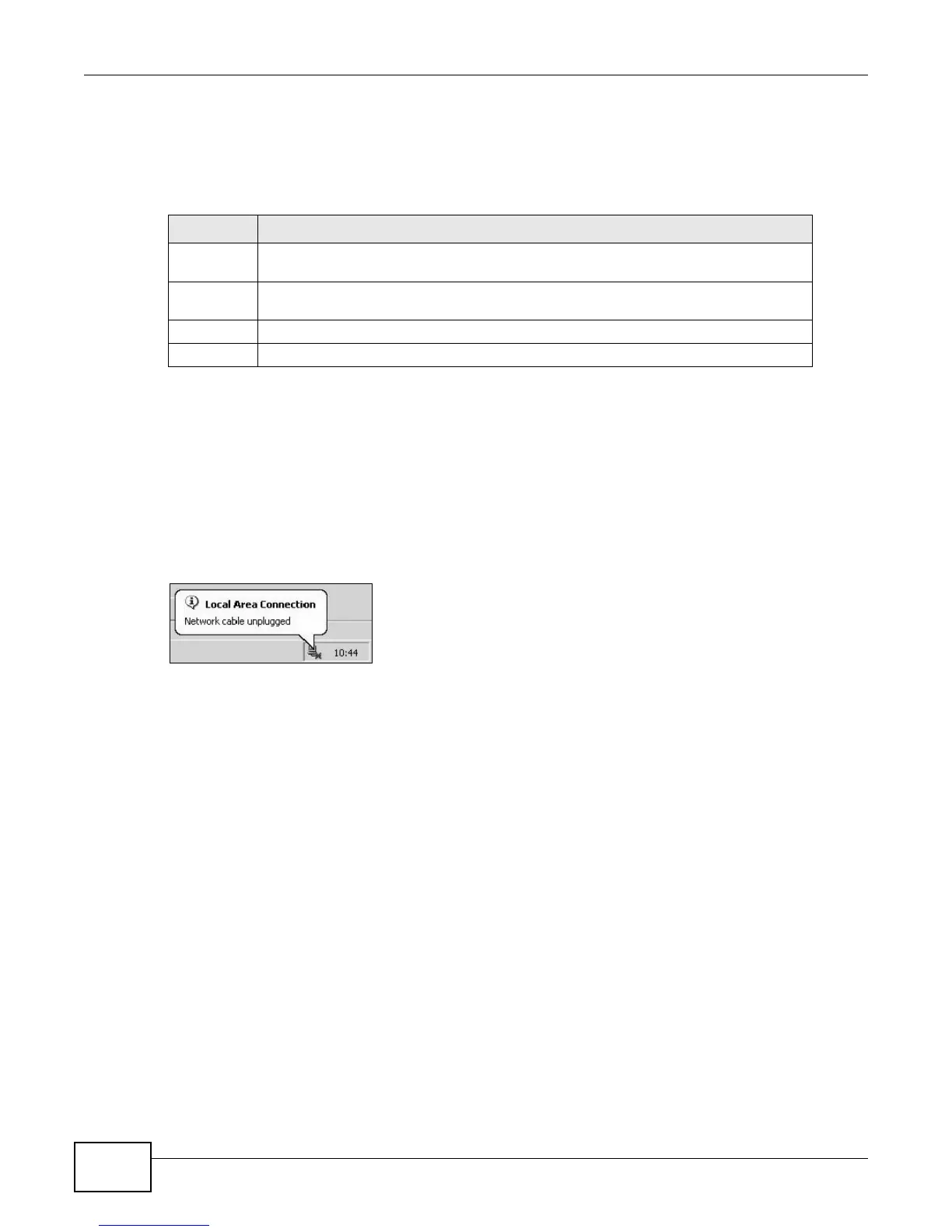
The LTE Device automatically restarts in this time causing a temporary network disconnect. In
some operating systems, you may see the following icon on your desktop.
Figure 97 Network Temporarily Disconnected
If you restore the default configuration, you may need to change the IP address of your computer
to be in the same subnet as that of the default device IP address (192.168.1.1). See Appendix B on
page 189 for details on how to set up your computer’s IP address.
If the upload was not successful, an error screen will appear. Click OK to go back to the
Configuration screen.
Table 72 Restore Configuration
LABEL DESCRIPTION
File Path Type in the location of the file you want to upload in this field or click Browse ... to
find it.
Browse... Click this to find the file you want to upload. Remember that you must decompress
compressed (.ZIP) files before you can upload them.
Upload Click this to begin the upload process.
Reset Click this to reset your device settings back to the factory default.



 To Next Page