Chapter 4 Broadband
B222s User’s Guide
40
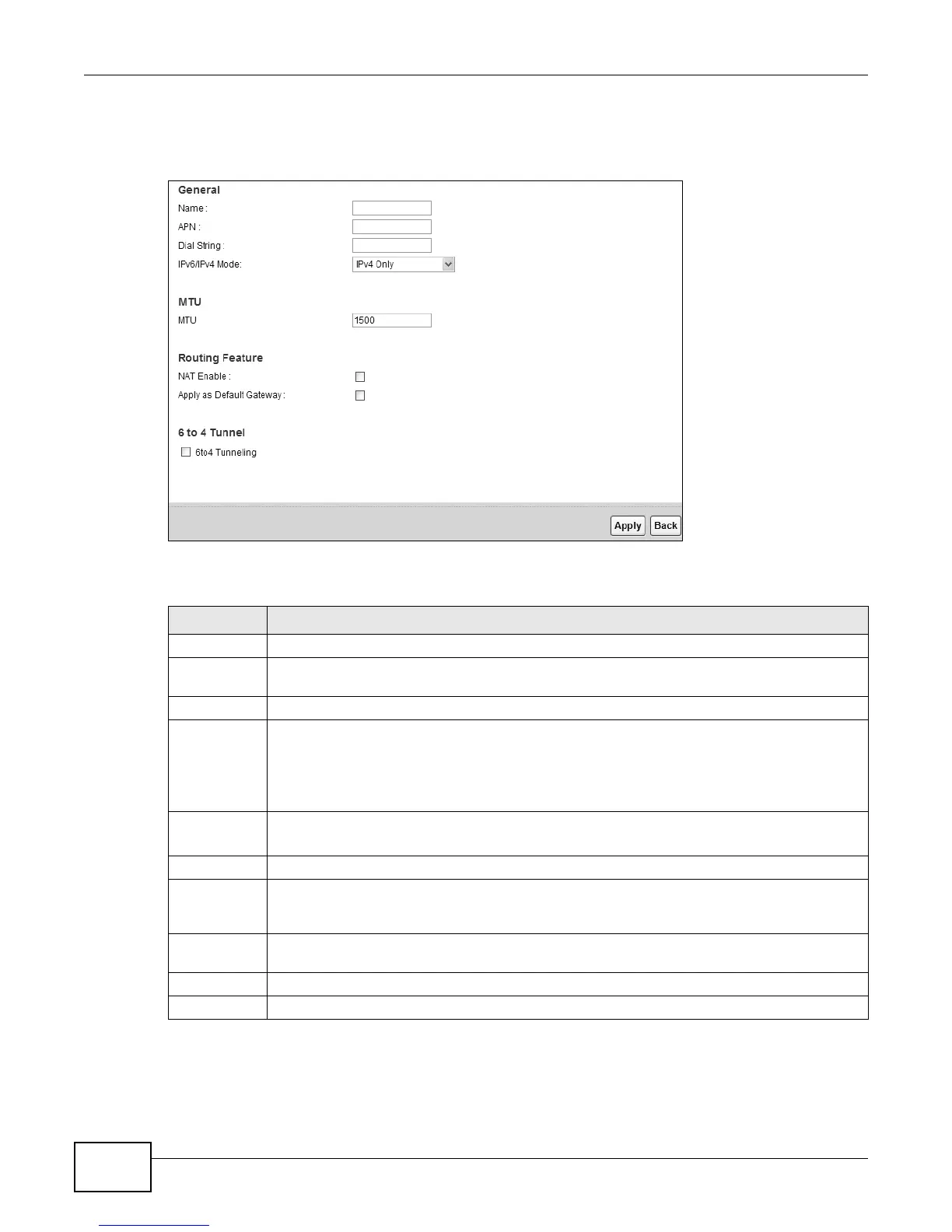
Click the Add new WAN Interface in the Network Setting > Broadband screen or the Edit icon
next to the connection you want to configure, the screen displays as shown next.
Figure 18 Broadband Add/Edit
The following table describes the fields in this screen.
Table 5 Broadband Add/Edit
LABEL DESCRIPTION
Name Specify the name for this WAN interface.??
APN Enter the Access Point Name (APN) of an LTE network, which your service provider gave
you.??
Dial String Enter the dial string of your 3G net card.??
IPv6/IPv4
Mode
Select IPv4 Only if you just connect this WAN interface to an IPv4 network.
Select IPv6/IPv4 Dual Stack if you connect this WAN interface to both an IPv6 and an IPv4
networks.
Select IPv6 Only if you just connect this WAN interface to an IPv6 network.??
MTU
The Maximum Transmission Unit (MTU) defines the size of the largest packet allowed on an
interface or connection. Enter the MTU for this WAN interface in this field.
NAT Enable Select this to activate NAT on the WAN.
Apply as
Default
Gateway
??
6to4
Tunneling
Select this if you need to transmit IPv6 packets over the IPv4 network through this WAN
interface, the IPv6 packets are encapsulated inside IPv4 packets.??
Apply Click Apply to save your changes.
Back Click Back to return to the previous screen.



 To Next Page