11-21
11
SET MODE
■ File copying
Memory channel contents, set mode settings, etc. in
CF card or USB-Memory can be copied between
memory devices for backup.
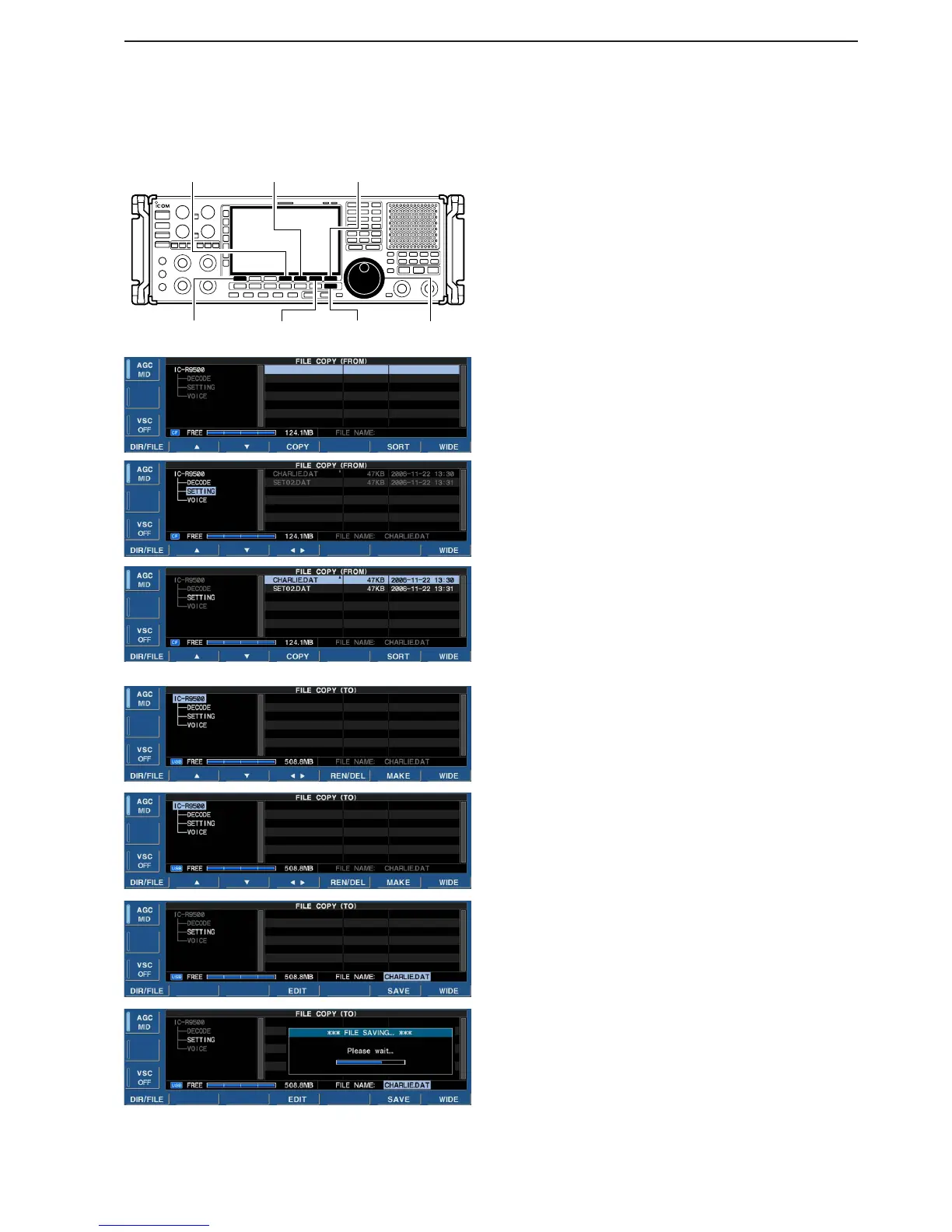
q During set mode menu screen indication, push
[F-7•CF/USB] to select CF/USB-Memory set menu
screen.
w Push [F-3•COPY] to select file copy screen.
• Select the original file
(Example Copying CF card to USB-Memory)
z Push [F-1•DIR/FILE] to select tree view screen.
• Push and hold [F-1•DIR/FILE] for 1 sec. to select the
CF card, if USB-Memory is selected.
• Push [F-2•Y] or [F-3•Z] to select the desired folder.
• After the folder is selected, push and hold [F-4•Ω≈]
for 1 sec. to display content folder(s), if available.
x Push [F-1•DIR/FILE] to select file list screen.
c Push [F-2•Y] or [F-3•Z] to select the desired file.
v Push [F-4•COPY] to select the file.
• Saving location
z Push and hold [F-1•DIR/FILE] for 1 sec. to select
the USB-Memory.
x Select the desired directory or folder in the USB-
Memory.
• Push [F-4•Ω≈] to select the upper directory.
• Push [F-2•Y] or [F-3•Z] to select folder in the same
directory.
• Push and hold [F-4•Ω≈] for 1 sec. to select a folder
in the directory.
• Push [F-5•REN/DEL] to rename the folder.
• Push and hold [F-5•REN/DEL] for 1 sec. to delete the
folder.
• Push [F-6•MAKE] for 1 sec. to making a new folder
c Push [F-1•DIR/FILE] twice to select the file
name.
e Push [F-6•SAVE].
• After saving is completed, return to CF/USB-Memory set
menu automatically.


 To Next Page