69
4.4. Firmware update
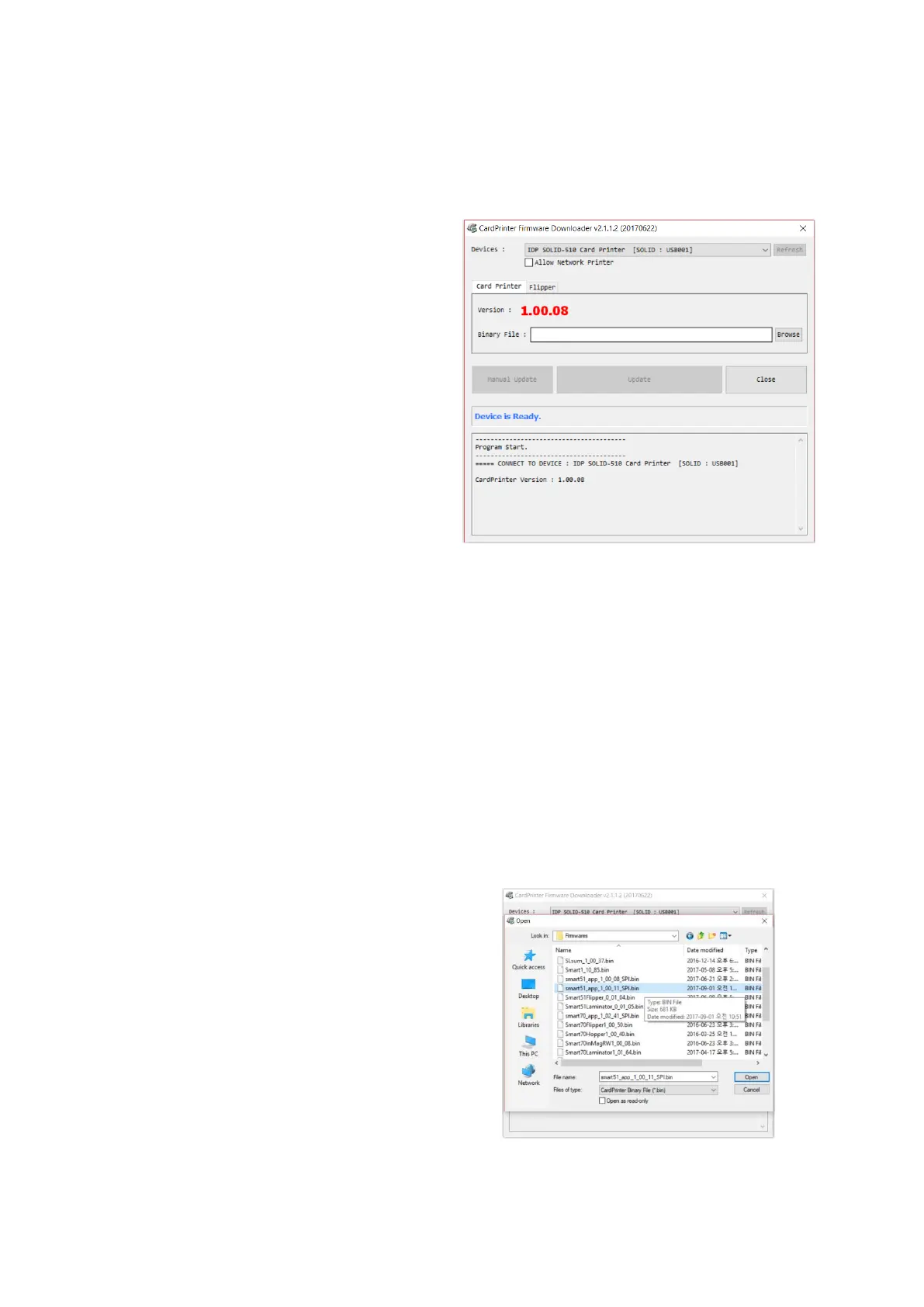
When you run the CardPrinterFirmware, you can see the pop-up window.
(1) CardPrinterFirmware Menu
Device: Select the local printer that you
want to upgrade.
Card Printer / Flipper / Laminator: Select
the device you want upgrade.
Device Version: Displays the current
firmware version of selected printer.
Binary File: Click “Browse” button and
select new firmware file to update.
Manual Update: It is used when you want
to update manually.
Update: Updates automatically. In
generally, we recommend updating
automatically.
Close: Exit.
Message : It displays information of
updating.
Figure 93 run CardPrinterFirmware
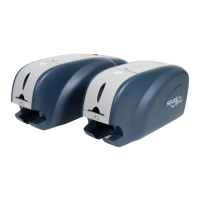
(2) Ready for Firmware Update
Select the printer to update the
firmware on the ‘Device’ list.
Select the device to update the
firmware among
Printer/Flipper/Laminator tab. The
Flipper and Laminator tab is shown if
that option is installed only.
Click “Browse” and select the new
firmware
Figure 94 Select Firmware



 To Next Page