80
HDK-99 1803 VER1 (E)
5.1 Settings Using Switches on the Camera
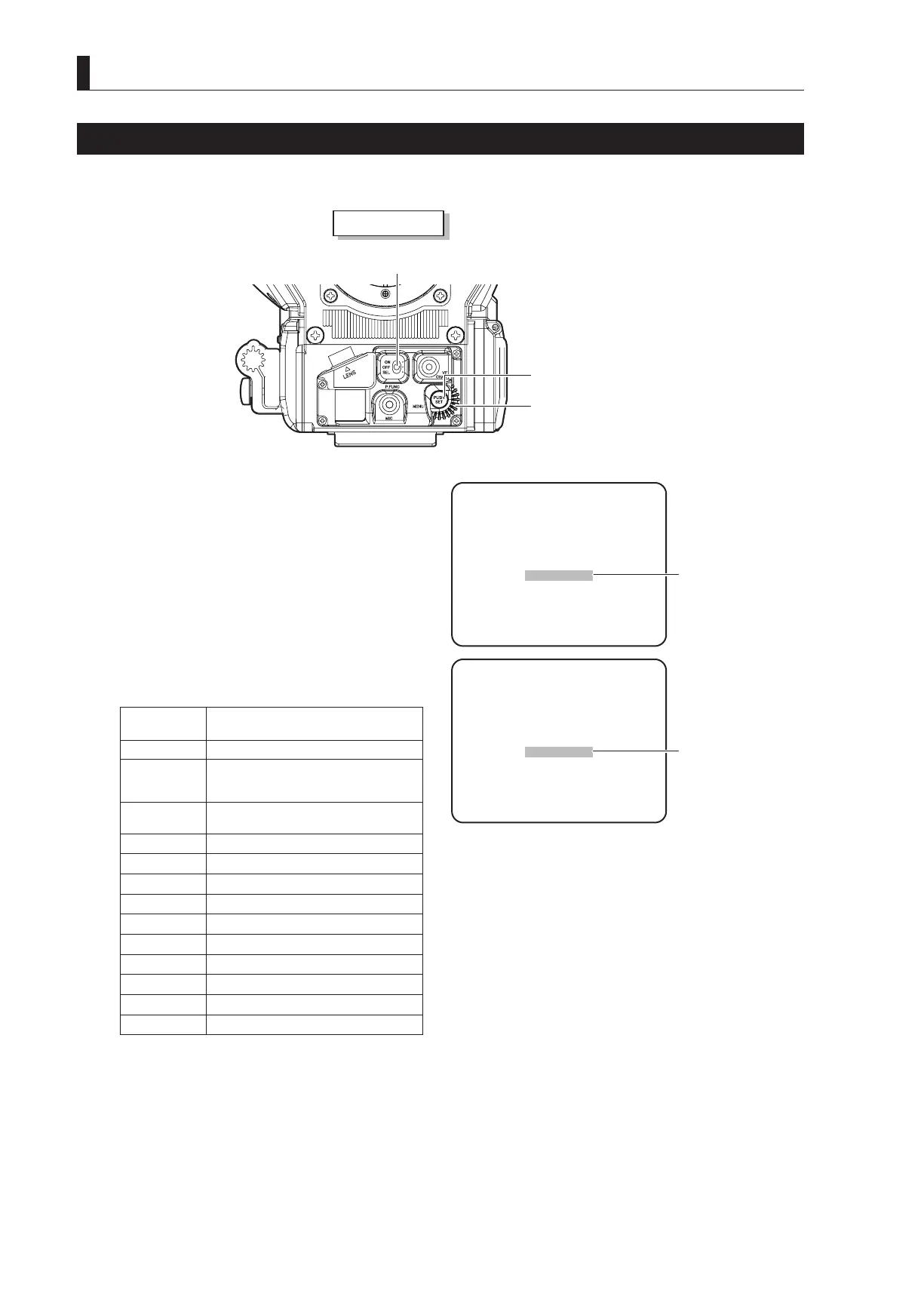
Allocating Functions to the P.FUNC Switch
The user can select a function to allocate to the P.FUNC (Personal Function) switch. By allocating the function used most
frequently, the user can easily operate the camera.
Camera front view
P.FUNC switch
SET button
1 Set the P.FUNC switch on the front of the camera
to SEL.
The selection display ashes.
2 Turn the rotary pulse switch to select the function
to be allocated, and press the SET button.
The selected function is allocated to the P.FUNC
switch.
The following table shows the functions that can be
allocated to the P.FUNC switch:
Selection
Display
Function
SKIN DTL Turns ON/OFF the SKIN DTL function
IRIS+CORR Turns ON/OFF the mode to adjust the
iris by approximately +1/2 STOP when
AUTO IRIS is set
IRIS++CORR Turns ON/OFF the mode to adjust the iris
by +1 STOP when AUTO IRIS is set
AUTO KNEE Turns ON/OFF the AUTO KNEE function
SOFT DTL Turns ON/OFF the SOFT DTL function
SCENE-1 Turns ON/OFF scene file 1
SCENE-2 Turns ON/OFF scene file 2
SCENE-3 Turns ON/OFF scene file 3
SCENE-4 Turns ON/OFF scene file 4
SCENE-5 Turns ON/OFF scene file 5
SCENE-6 Turns ON/OFF scene file 6
SCENE-7 Turns ON/OFF scene file 7
SCENE-8 Turns ON/OFF scene file 8
3 Set the P.FUNC switch to ON.
The allocated function is now activated.
Note:
Setting the P.FUNC switch to OFF will turn the allocated function OFF.
①
The selection display
flashes.
②
The allocated function
is displayed.
P.FUNC SW ENTRY
NO ENTRY
P.FUNC SW ENTRY
SKIN DTL



 To Next Page