Page 40 Manual
A.19 Output Control Screens
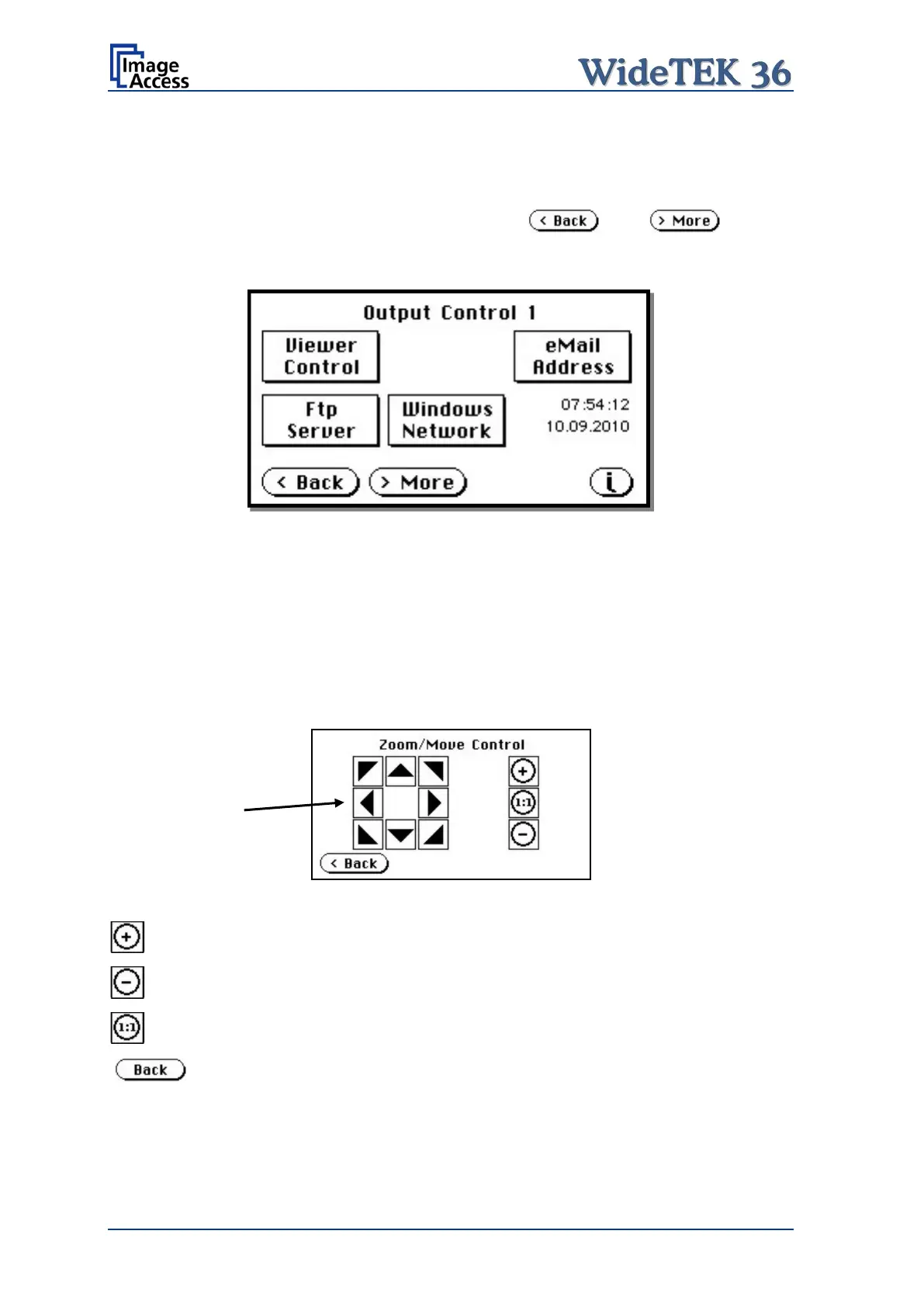
The parameters are set in two screens, Output Control 1 and Output Control 2.
To switch between these two screens use the buttons and .
A.19.1 Output Control 1
Picture 37: Output Control 1
A.19.1.1 Viewer Control
An external monitor can be connected to the WideTEK 36 to show the scanned image
directly.
Touching the Viewer Control button starts the Zoom/Move Control mode. When this
mode is active, the displayed image on the screen can be moved and the zoom factor can
be changed.
Picture 38: Viewer Control
Increases the zoom factor.
Decreases the zoom factor.
Zooms the image to its genuine dimension (100%) without scaling.
Returns to the prior menu.
If the image dimension overlaps the monitor dimension, the navigation keys can be used
to scroll the displayed area on the monitor.
Navigation
keys






 To Next Page