Chapter 2 — Configure Network Settings
IF2 Network Reader User Manual 35
Install and Uninstall Certificates
Once you have determined that you need to install or uninstall a
certificate, use this procedure.
To install or uninstall certificates
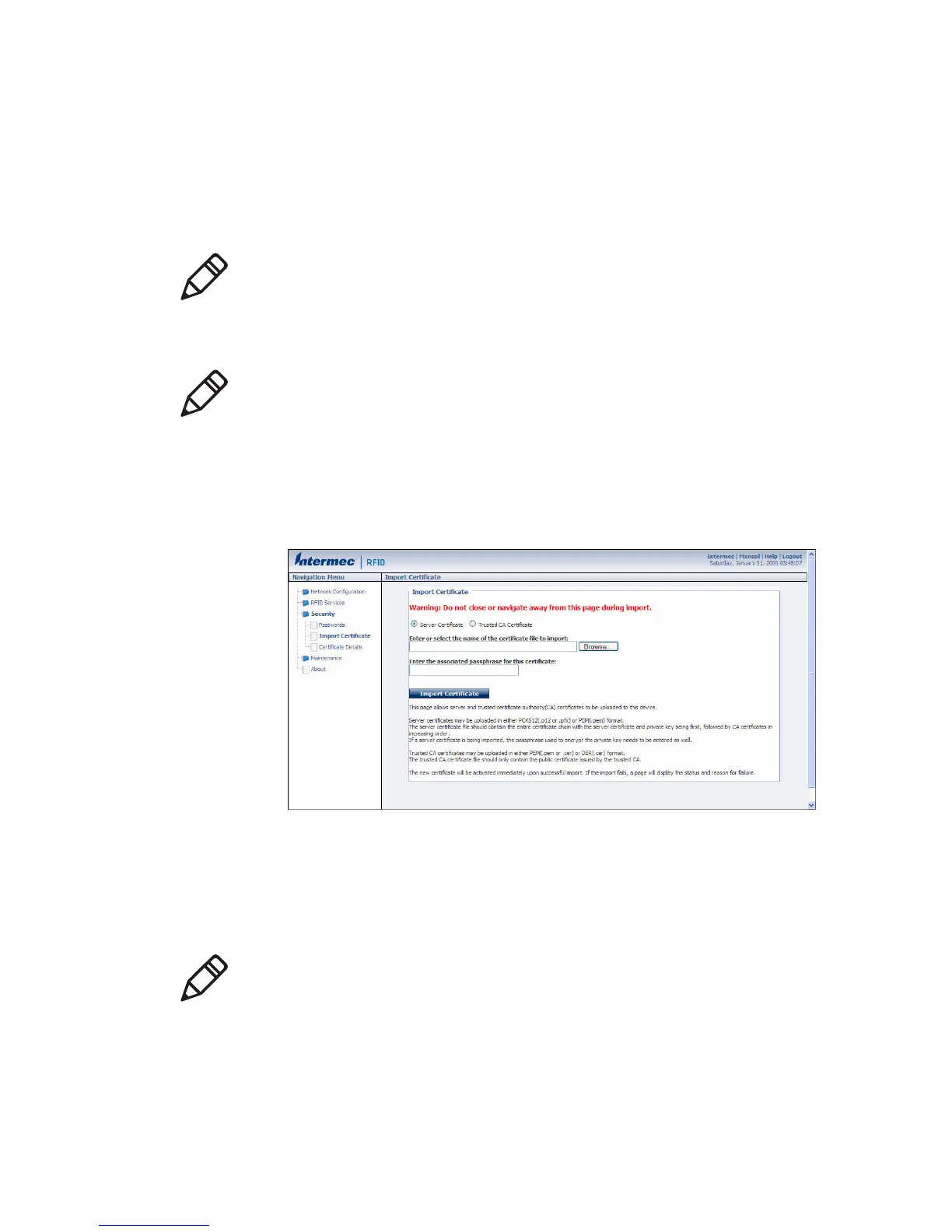
1 From the main menu, click Security > Import Certificate. The
Import Certificate screen appears.
2 Click Browse and follow the prompts to browse to the location of
the certificate you want to install. Or, enter the path to the
certificate in the Enter or select the name of the certificate file
to import entry field.
3 Click Server Certificate or Trusted CA Certificate.
Note: If you follow the procedure to uninstall all certificates, you will
lose the unique server certificate and the trusted CA certificate. You
will need to contact your local representative to purchase new
certificates.
Note: To install or uninstall certificates, you need to access the IF2
through a secure web browser. For help, see “Use the Web Browser
Interface” on page 11.
Note: If you are not using a secure web browser, you will be
prompted to log in again. Click A secure session is available and
log in to the IF2. If a Security Alert dialog box appears, click Yes
to proceed. Repeat Steps 1 and 2.


 To Next Page