6700SR Refrigerated Sampler
13
Chapter 2 Programming
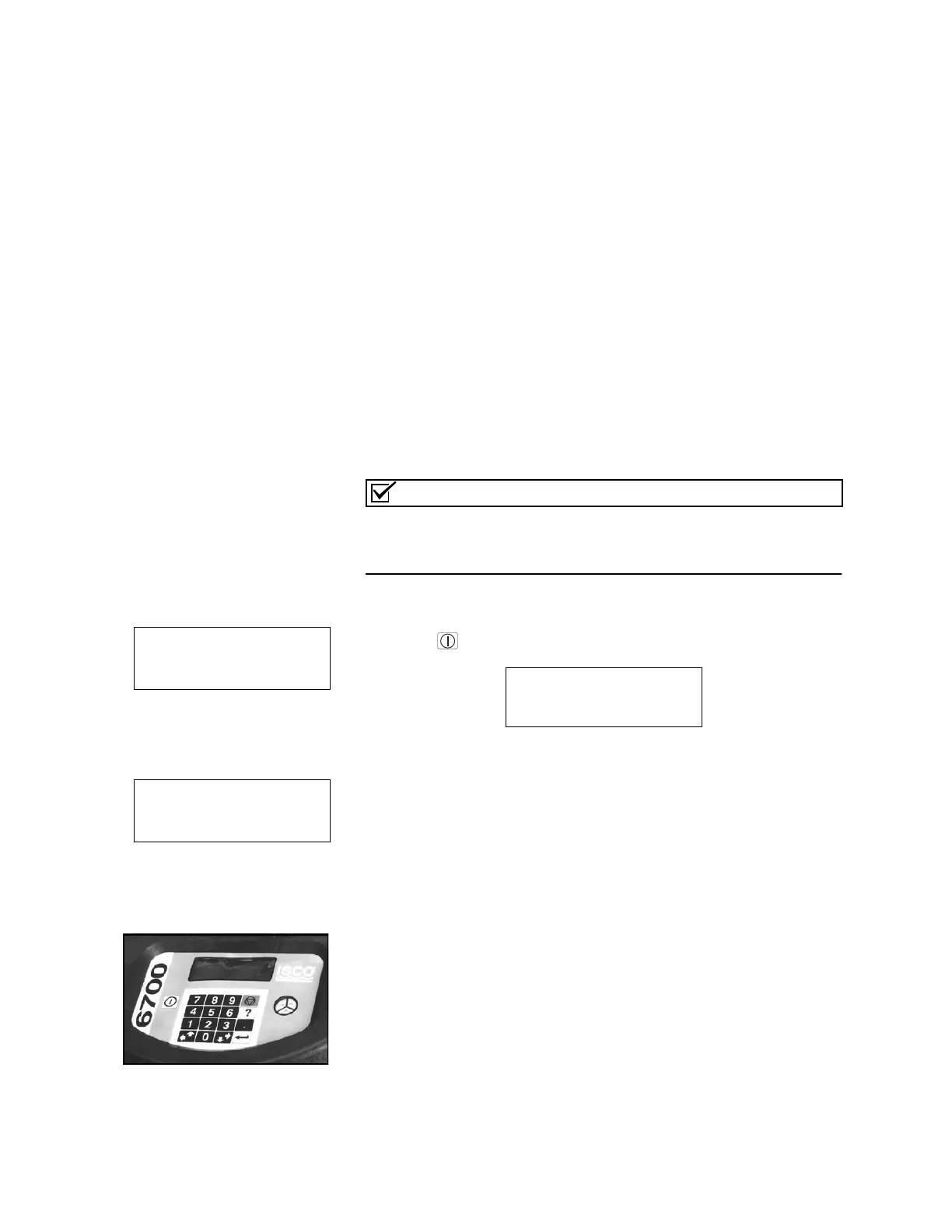
Before programming the 6700, you should become familiar with
its keys and how to use the programming screens. A description
of the keys appears in
Table
5
. There are three types of program-
ming screens:
• Menu screens that let you select an option from a list.
• Number entry screens that let you enter program settings.
• Quick view screens that summarize the program settings.
This chapter shows you how to get started and how to use the menus
with a short programming example. A discussion of more complicat-
ed menu screens follows the example. Next, this chapter explains the
QUICK VIEW/CHANGE screens, the menu tree structure, and the
help and error messages. Finally, it discusses the extended program-
ming screens and provides several programming examples.
Getting Started
Read the
Safety Summary
posted at the front of this manual. It out-
lines the electrical requirements and provides instructions for safe
operation.
Turn the sampler on by pressing the On/Off key. It is labeled with
this icon: . The start-up screen appears first.
It remains on the display for about eight seconds or until you press
a key. It tells you the type of programming screens the sampler is us-
ing currently – standard or extended – and gives you a tip about the
on-line help. The main menu screen (a in the margin) appears next.
If a module is attached, there may be a different screen that ap-
pears first. See the module manual for more information.
Using Menus and Entering Numbers
A menu is a list of options. The main menu has four options:
•RUN
• PROGRAM
• VIEW REPORT
• OTHER FUNCTIONS
The options identify the operations that can be performed from the
menu. For example, to run the sampling program, select RUN; to
modify the program, select PROGRAM.
6700 SAMPLER
STANDARD PROGRAMMING
For HELP at any
screen press ? key.
Chapter Contents
• Getting Started . . . . . . . . . . . . 13
• Using Menus and Entering
Numbers. . . . . . . . . . . . . . . 13
• Stored Data Will Be Lost. . . . . 15
• Quick View Screens . . . . . . . . 19
• Messages . . . . . . . . . . . . . . . . 20
• Warning Messages. . . . . . . . . 21
• Operation Messages. . . . . . . . 21
• Menu Trees. . . . . . . . . . . . . . . 21
• Standard and Extended
Programming . . . . . . . . . . . 22
• One-Part and Two-Part
Programs . . . . . . . . . . . . . 23
• Module Programming . . . . . . . 25
• YSI Sonde Programming . . . . 26
• Programming Examples . . . . . 26
Note
Examples of Menu Screens
Front Panel
a
RUN
PROGRAM
VIEW REPORT
OTHER FUNCTIONS
• To enter a sampling program,
press an arrow key until
PROGRAM blinks. Then,
press enter.
b
NUMBER OF BOTTLES:
124812
24
• Choose the number of bottles
by pressing an arrow key until
the appropriate number
blinks. Then, press enter.


 To Next Page