6700SR Refrigerated Sampler
18
To select a day or days from the menu in h:
1. Press an arrow key until the cursor is on the correct day.
Then, press enter.
2. Repeat these steps until each day you want is blinking.
3. Press an arrow until DONE blinks. Press enter.
To remove days from the list:
1. Press an arrow key until the cursor is on the day you want to
remove. Press enter.
2. When finished, select DONE and press enter.
Menu Screens: Site Descriptions and Program Names
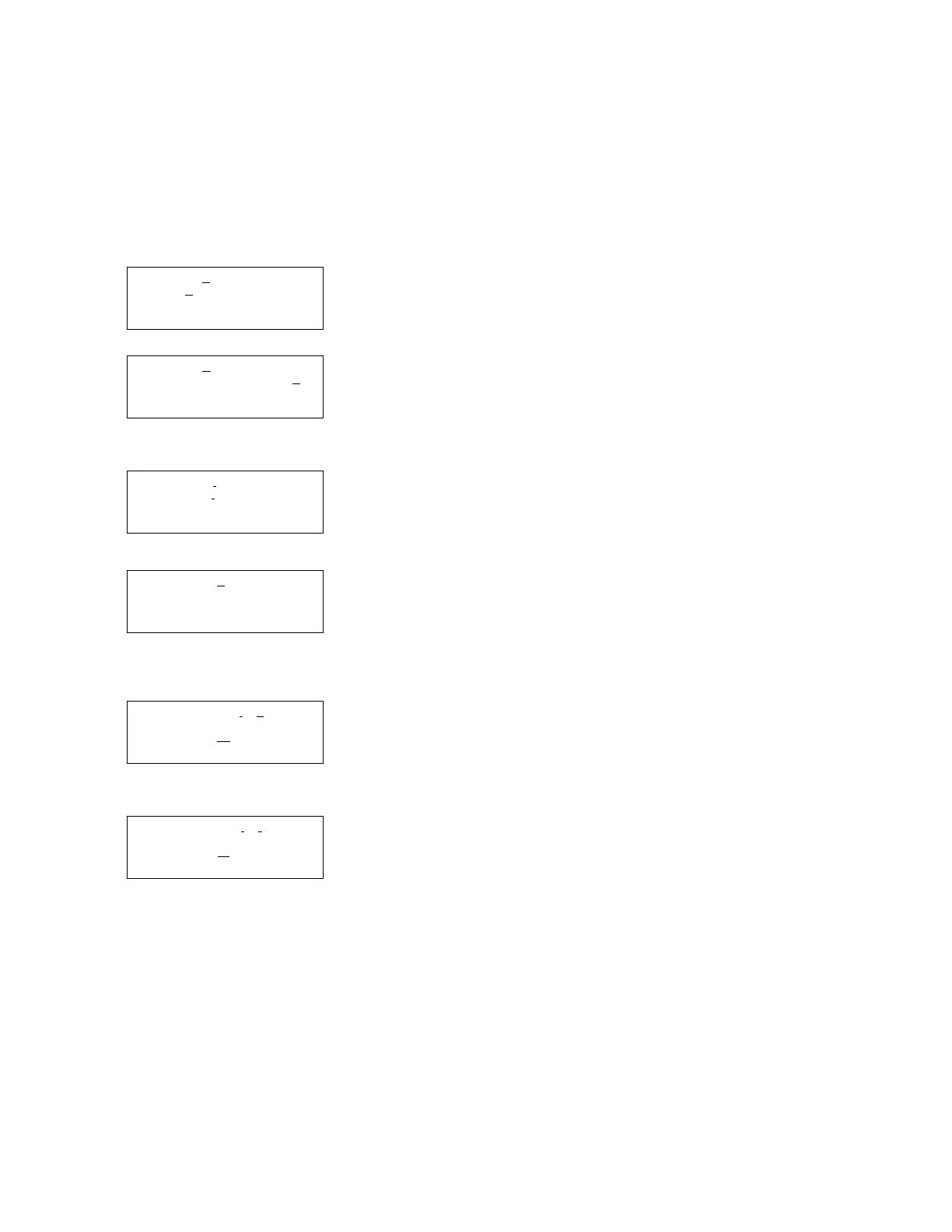
Screen i is a menu screen for entering a site description. A site de-
scription is commonly a number, address, or other short note that
helps identify the monitoring site. Extended programming has a
similar screen that lets you enter program names for stored pro-
grams.
In screen i, line 1 contains a line of text between two quotation
marks. Lines 2 and 3 contain the menu options — numbers, letters,
and punctuation marks — used to spell out the description. In line
3, the space between the ampersand (&) and the double quotes (")
is a space character. Line 4 contains two additional options:
• BACK-UP, an option that moves the cursor on the text line to
the left one character
• DONE, an option that tells the sampler to save the text.
The cursor is the blinking rectangle. It also appears in number-en-
try screens. Its position identifies the current field. When screen i
first appears, the cursor blinks on the first character of the text.
The matching character in lines 2 or 3 also blinks.
When you press enter, the cursor on line 1 moves to the right one
position, and, at the same time, the sampler blinks the matching
character on lines 2 or 3.
To change any character in the text line:
1. Press the left or right arrow until the replacement character
on lines 2 or 3 flashes.
2. Press
↵
(Enter). The replacement character will appear on
the first line, and the cursor will move to the next character.
Repeat steps 1 and 2 until the text in the top line is complete.
3. Finish the entry by selecting DONE. Then, press enter.
Some additional tips for using the text-entry menus:
• Hold an arrow key down for auto-repeat.
• If your description uses all ten spaces in the text line, the sam-
pler automatically moves to the next screen as soon as you add
the tenth character.
• You can enter numbers by pressing the number keys.
• Erase characters by replacing them with a space character.
• Select the BACK-UP option to move the cursor to the left.
Using the Site Description or
Program Name Menus
The sampler has two text-entry
menus, one for site description and
another for an extended-program
name. They work in the same way.
This example demonstrates both by
changing the description from
“FACTORY051” to “SITE 29.”
i
SITE: “
F
ACTORY051”
ABCDE
F
GHIJKLMNOPQRST
UVWXYZ-& “0123456789
BACK-UP DONE
j
SITE: “
S
ACTORY051”
ABCDEFGHIJKLMNOPQR
S
T
UVWXYZ-& “0123456789
BACK-UP DONE
• Press the Down-Right arrow
until the
S
on line 2 blinks.
Then, press enter.
k
SITE: “S
I
CTORY051”
ABCDEFGH
I
JKLMNOPQRST
UVWXYZ-& “0123456789
BACK-UP DONE
• Press the Up-Left arrow until
the
I
blinks. Press enter.
l
SITE: “SI
T
TORY051”
ABCDEFGHIJKLMNOPQRST
UVWXYZ-& “0123456789
BACK-UP DONE
• Continue to press the arrow
keys to select the characters
T, E, and space. Press enter
after selecting each character.
m
SITE: “SITE
29
_
”
ABCDEFGHIJKLMNOPQRST
UVWXYZ-&
_"
0123456789
BACK-UP DONE
• Press 29 on the keypad, then
Up-Left until space blinks.
Press enter.
n
SITE: “SITE
29 ”
ABCDEFGHIJKLMNOPQRST
UVWXYZ-&_"
0123456789
BACK-UP
DONE
• Press the Down-Right arrow
until DONE blinks. Press
enter.


 To Next Page