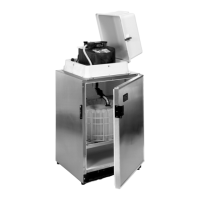
6700SR Refrigerated Sampler
25
Selecting an Extended Program
To select an extended program, follow the steps in Example 4.
Module Programming
The module programming screens contain a branch of setup screens
that let you specify the units of measure and data storage interval.
Some module setup screens are available to you even when no mod-
ule or rain gauge is attached to the sampler. When you attach a 700
Series Module to the sampler, the sampler adds an additional set of
screens needed to program the module. Because each model is differ-
ent, the sampler adds a different set of screens. The module’s screens
work in the same way as the sampler’s screens. Menu charts for the
modules appear in the manuals shipped with each module.
1
6700 SAMPLER,
EXTENDED PROGRAMMING
For HELP at any
screen, press ? key.
Press the
On/Off
key to turn the sampler on. Press
↵
(Enter) to clear the
start-up message.
If the words “STANDARD PROGRAMMING” appear on the second line of
the start-up message, the sampler is using the standard programming
screens. To see the extended screens, type
6700.2
at the main menu shown
in step 2.
2
RUN “EXTENDED 1”
PROGRAM
VIEW REPORT
OTHER FUNCTIONS
Select PROGRAM from the main menu.
3
PROGRAM NAME:
"EXTENDED 1"
SITE DESCRIPTION:
"______"
Select PROGRAM NAME: "EXTENDED 1" from the quick view menu.
4
SELECT NEW PROGRAM
CHANGE PROGRAM NAME
Select SELECT NEW PROGRAM to change the program.
You can go through QUICK VIEW screens quickly by pressing
↵
(Enter) at
each screen. You can also change settings in quick view screens; see
Changing Settings in a Quick View Screen on page 19.
5
“EXTENDED 1”
“EXTENDED 2”
“EXTENDED 3”
“EXTENDED 4”
Select the name of the extended program you want to use.
Each program’s name appears on the same line. If you inadvertently give
two programs identical names, you can still identify them by their location
on the screen.
•
•
•
6
PROGRAMMING COMPLETE
RUN THIS PROGRAM
NOW?
YES
NO
To run the program immediately, select YES. To run the program later,
select NO.
7
RUN “EXTENDED 2”
PROGRAM
VIEW REPORT
OTHER FUNCTIONS
Example 4 Selecting a Stored Extended Program


 To Next Page