6700SR Refrigerated Sampler
19
To leave the menu before completing the entry, press Stop. The
sampler will display this menu:
Select YES to save your entry. Select NO to leave the original de-
scription (or program name) unchanged.
Quick View Screens
Quick view screens are a special type of menu screen. They show
the current program settings and let you move quickly through the
program. You must change the programming style to QUICK
VIEW/CHANGE to see the quick view screens.
Paging Through Quick View Screens
The arrows in the corners of each quick view screen are menu op-
tions that let you move from one quick view screen to another.
• Select the reverse arrow (
↑ ) to go to the previous screen.
• Select the forward arrow (
↓ ) to go to the next screen.
•Press Stop to return to the main menu.
Because the forward arrow is always blinking when the screen ap-
pears, you can simply press enter to go to the next quick view
screen, making it easy to page through the screens.
Example 3 Changing the Programming Style
Changing Settings in a Quick View Screen
Although the quick view screens offer you a quick way to see the
program settings, they also provide you with a way to change set-
tings. Using quick view screens to change settings is sometimes a
faster way to change a program because you can go quickly to the
setting or settings that needs updating.
To change the program settings in a quick view screen:
• Press an arrow until the setting blinks. Press enter. The 6700
then displays the screen used to change the setting.
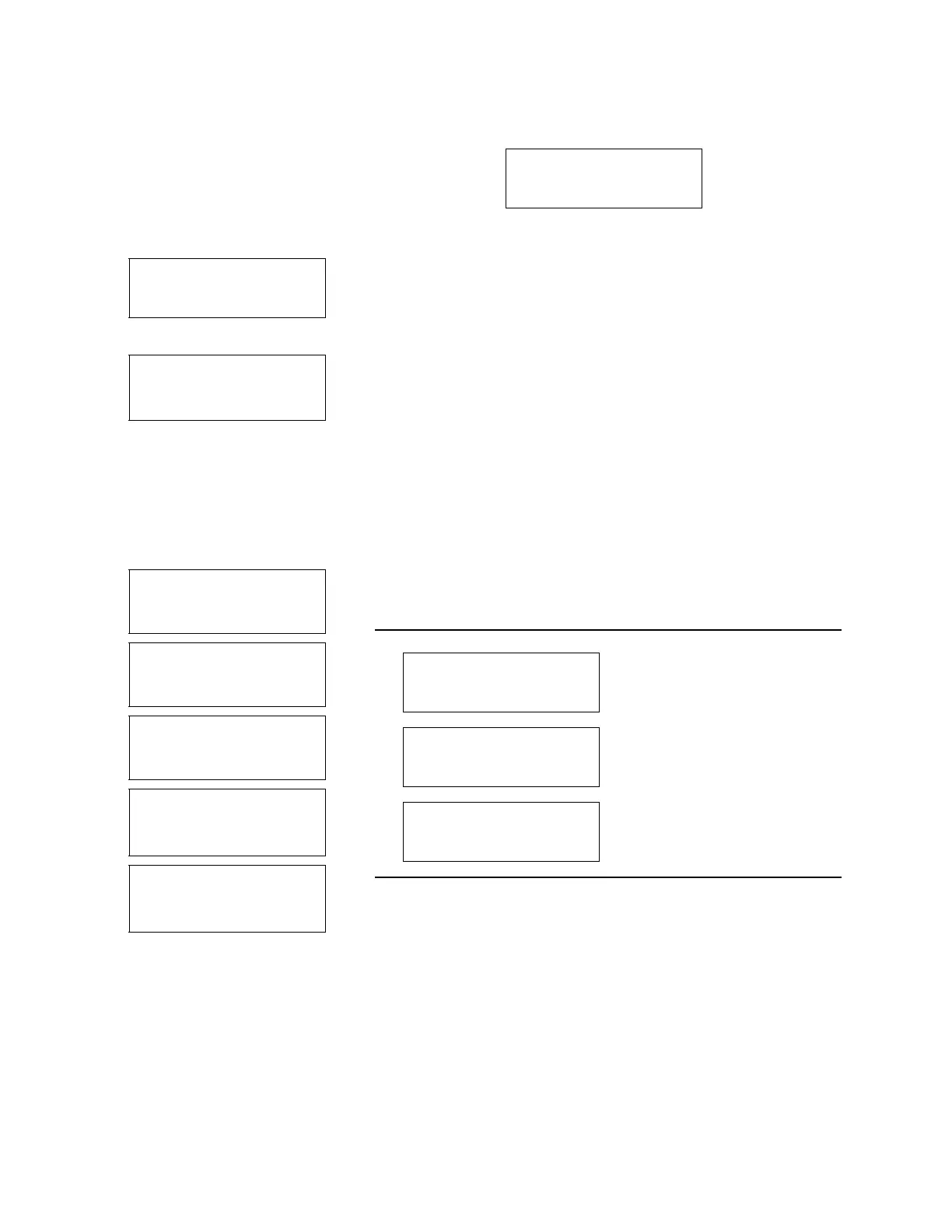
SAVE CHANGES?
YES NO
1
RUN
PROGRAM
VIEW REPORT
OTHER FUNCTIONS
Select OTHER FUNCTIONS.
2
MAINTENANCE
MANUAL FUNCTIONS
PROGRAMMING STYLE
Select PROGRAMMING STYLE.
3
PROGRAMMING STYLE
NORMAL
QUICK VIEW/CHANGE
Select QUICK VIEW/CHANGE.
Quick View Screens in
Standard Programming
o
RUN
PROGRAM
VIEW REPORT
OTHER FUNCTIONS
• To see the quick view screens,
select PROGRAM.
p
↑
SITE DESCRIPTION:
“SITE 29 “
↓
•Select
↓
for the next quick
view screen. If
↓
is blinking,
press
↵
(Enter).
•Select
↑
for the previous quick
view screen.
• Press Stop for the main menu.
• All quick view screens work
the same way.
q
↑
24, 1000 ml BTLS
10 ft SUCTION LINE
↓
r
↑
PACING:
TIME, EVERY
0 HOURS, 15 MINUTES
↓
s
↑
DISTRIBUTION:
SEQUENTIAL
↓
t
↑
200 ml SAMPLES
↓
u
↑
FIRST SAMPLE: 08:00
MO TU WE TH FR
↓


 To Next Page