This Device Input fields for information utilized by higher level services.
Serial Number The electronic serial number. It is printed on a label at the rear of the
device.
Name Give the device a meaningful name that may be used by name services
and SNMP management.
Location The place where the D*AP4 is located.
Admin / Contact e-mail address of a person in charge.
Graphical User Interface [Onair max / Preset max, Onair max / Preset min,
Onair min / Preset max, Last Used]
Defines the appearance of the parameter panes in the ON AIR vs.
the PRESETS area (which one will be visible).
Device Time Allows you to set the device clock. At the factory it is set
to UTC (Coordinated Universal Time).
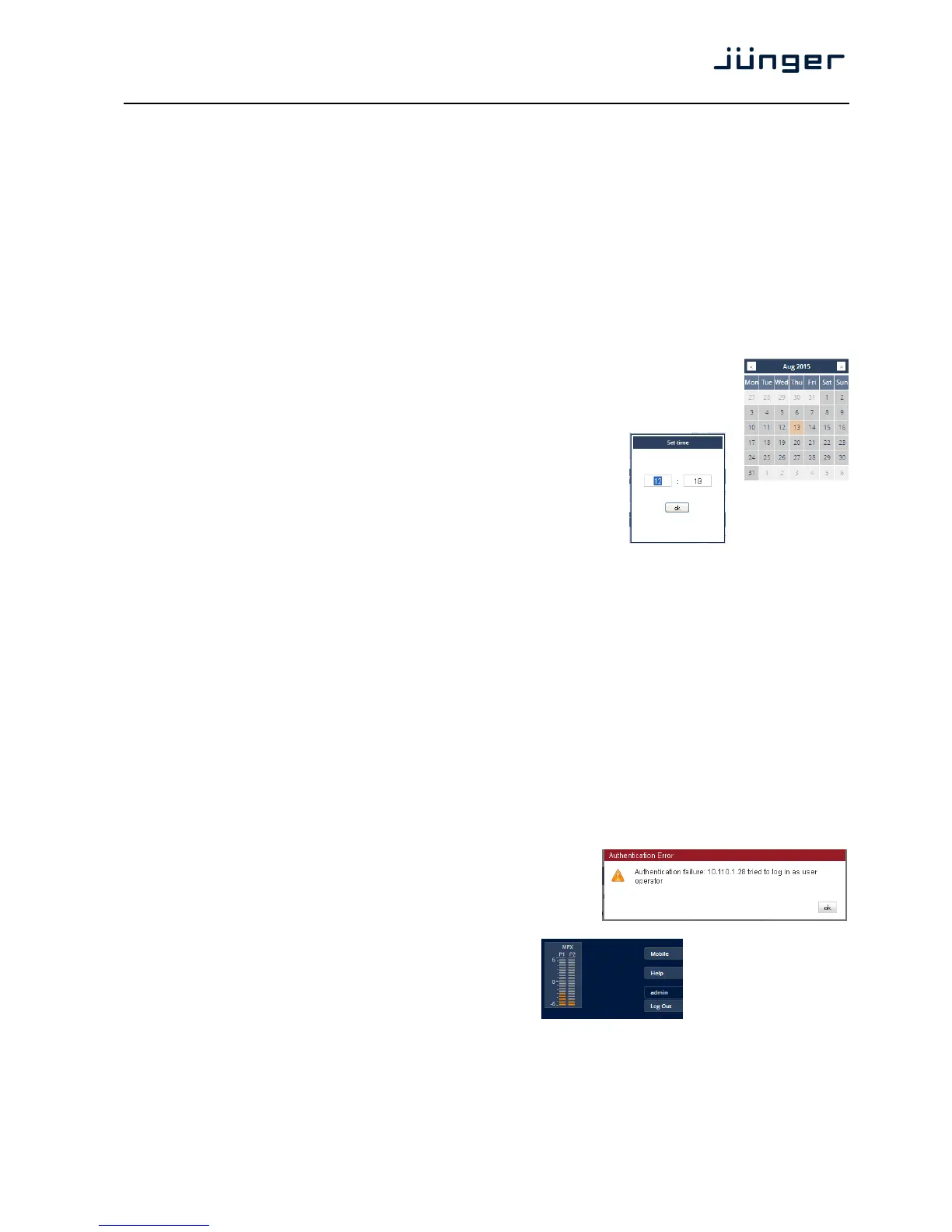
Date If you click into the Date input field, a calendar tool:
Time If you click into the Time input field,
you will be able to
set the device time.
Authentication To prevent non-authorized people from
changing D*AP4 settings the
administrator may assign passwords for
either the admin and/or an operator. While the admin is allowed to set
everything, an operator is just allowed to load presets. Parameters will be
reset if the operator attempted to change it.
Enable [ON / OFF]
The administrator may turn authentication OFF.
Change Password for [admin / operator]
Select which password you will set / change
Password type in a password
Default passwords are: admin (for admin) and operator (for operator).
Repeat repeat that password
Important Note! The authentication may be enabled / disabled form the console interface as well
(see page 8 "1: Manage Password") via USB connection but also via Telnet! If you have higher security
demands you should turn the Telnet server off. Authentication will be turned off and passwords will be reset if
one initializes the device to factory default (see Reboot - page 19, INIT/RESET rear button - page 4).
If there was an authentication failure, the admin will be notified at
the next proper login about such conditions. The pop up appears
for each login that has failed. It shows the IP address of the device
that caused the authentication failure.
After a correct login the status "who" (e.g. admin)
and a <Log Out> button are available from the GUI:
Network IP address setup, see above:
getting started – IP setup of the D*AP4
–
via web browser
IP Address A proper address for your network – default [10.110.xxx.yyy]
Netmask The net mask of your network – default [2555.255.0.0]
Gateway The optional gateway address – default [0.0.0.0]



 To Next Page