156 | 13 Global menus and settings
• Tx/Rx: At the bottom right, the two buttons must always be kept in mind because the
settings that you are going to change with the following buttons can have an effect
on the transmission (Tx) or on the reception (Rx) alternatively.
• Chan: The CHANNEL button allows you to change the track status from OFF to ON on
one of the 16 MIDI channels.
• Shift: The SHIFT button allows you to act on the tonality transposition applied on each
part of the sound module.
• Routing: With the ROUTING button you can set the individual parts in
o LOCAL ONLY, MIDI OUT: What you play from the keyboard is sent to the
internal sound generator of EVENT-X and, at the same time, to the MIDI
OUT port.
o LOCAL ONLY: No MIDI data is sent to the MIDI OUT port.
o MIDI OUT ONLY: With this setting the normal MIDI transmission takes
place, while what you play from the EVENT-X keyboardhas no effect on
the internal sound generator.
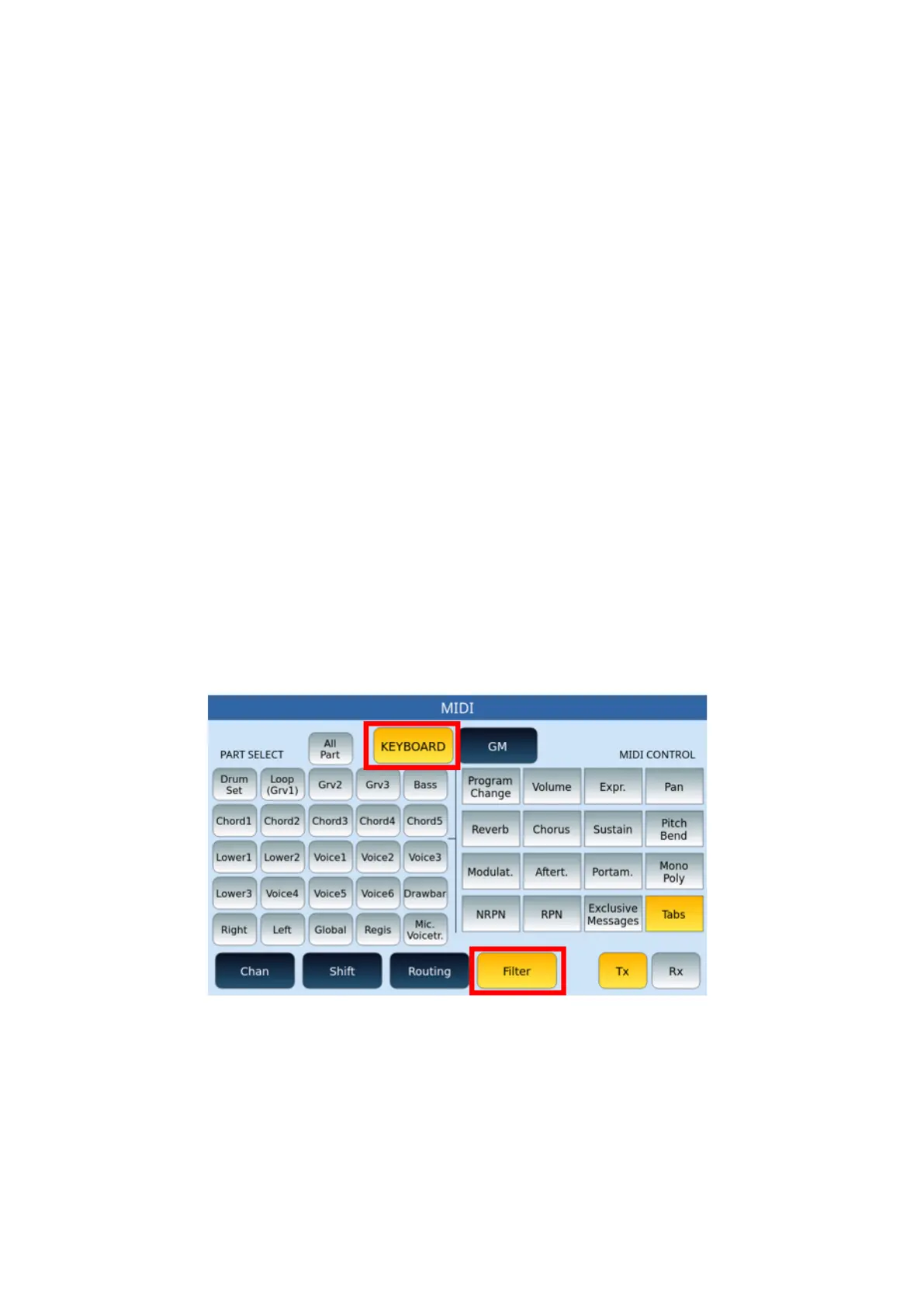
• Filter: As can be seen from the video page example below, the FILTERbutton allows
you to filter MIDI controls in a granular way by single part or on all parts (ALL PARTS).
The Filter button calls up two different video pages depending on the MIDI
KEYBOARD or GM configuration. Let's see both.
FILTER page forKEYBOARD:
Options:
• On the left side of the screen (PART SELECT), use to select which individual parts you
want to activate a filter on.
• On the right part of the screen (MIDI CONTROL), activate/turn on the specific filters
for the different MIDI controls.
• Always keep in mind the above about TX/RX buttons to apply transmit and/or receive
filters.


 To Next Page