Chapter 2 Performing an Investigation 35
Printing an Investigation Report
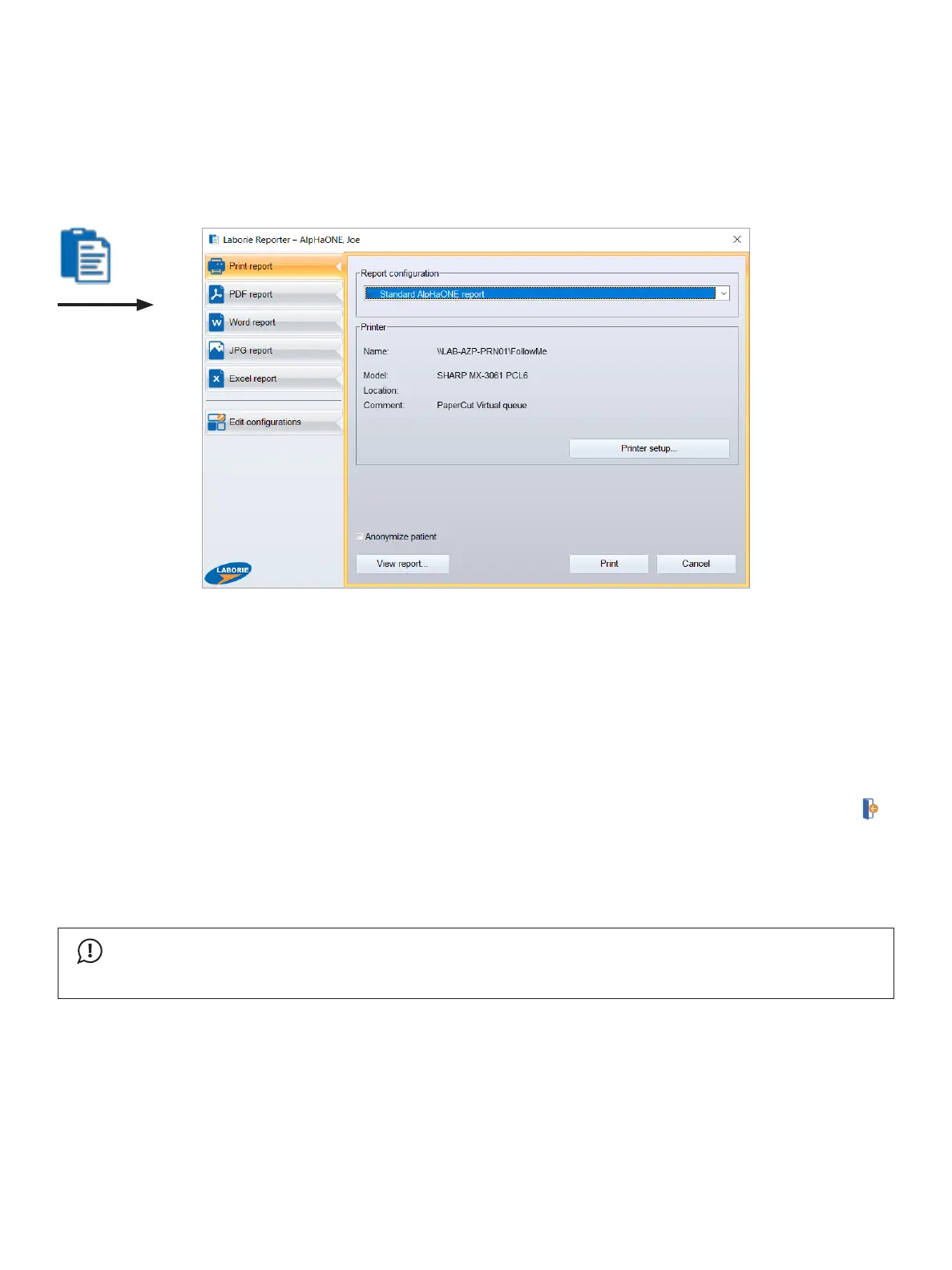
ClicktheReporter button to open the Laborie Reporter dialog box (Figure2-21);clickPrint to print the report. In
addition to printing a hardcopy version of the report, you also can export it to different formats such as PDF or
MicrosoftWord.Also,youcanprepareuser-denedcongurationsofreports.Youcanndmoreinformationabout
the Reporter module in the separate Reporter manual, in PDF format, which you can access via the Manuals menu in
the Database module.
Figure2-21: The Print Report Dialog Box
Printing Multiple Reports Simultaneously
IntheDatabasemodule,youcanprintmorethanonereportatatime(e.g.,allreportsfortheday).Youcanndmore
information in the separate Database manual, in PDF format, which can access via the Manuals menu in the Database
module.
Exiting the Laborie Database Module
ToexittheLaboriealpHaONEapplication,youmustreturntotheDatabasemoduleandthenclicktheExit button ( ).
Turning Off the Computer
AfteryouclosetheLaboriealpHaONEapplication,youcanturnoffthecomputerbyclickingtheStart button on the
Windows Start menu (located in the lower-left corner of the screen) and then select Shutdown.
IMPORTANT
To prevent the loss of any data, be sure to exit the Laborie alpHaONE application before shutting down the
computer.



 To Next Page