64 Laborie alpHaONE User & Service Manual LBL-01791 [B]
Event display settings
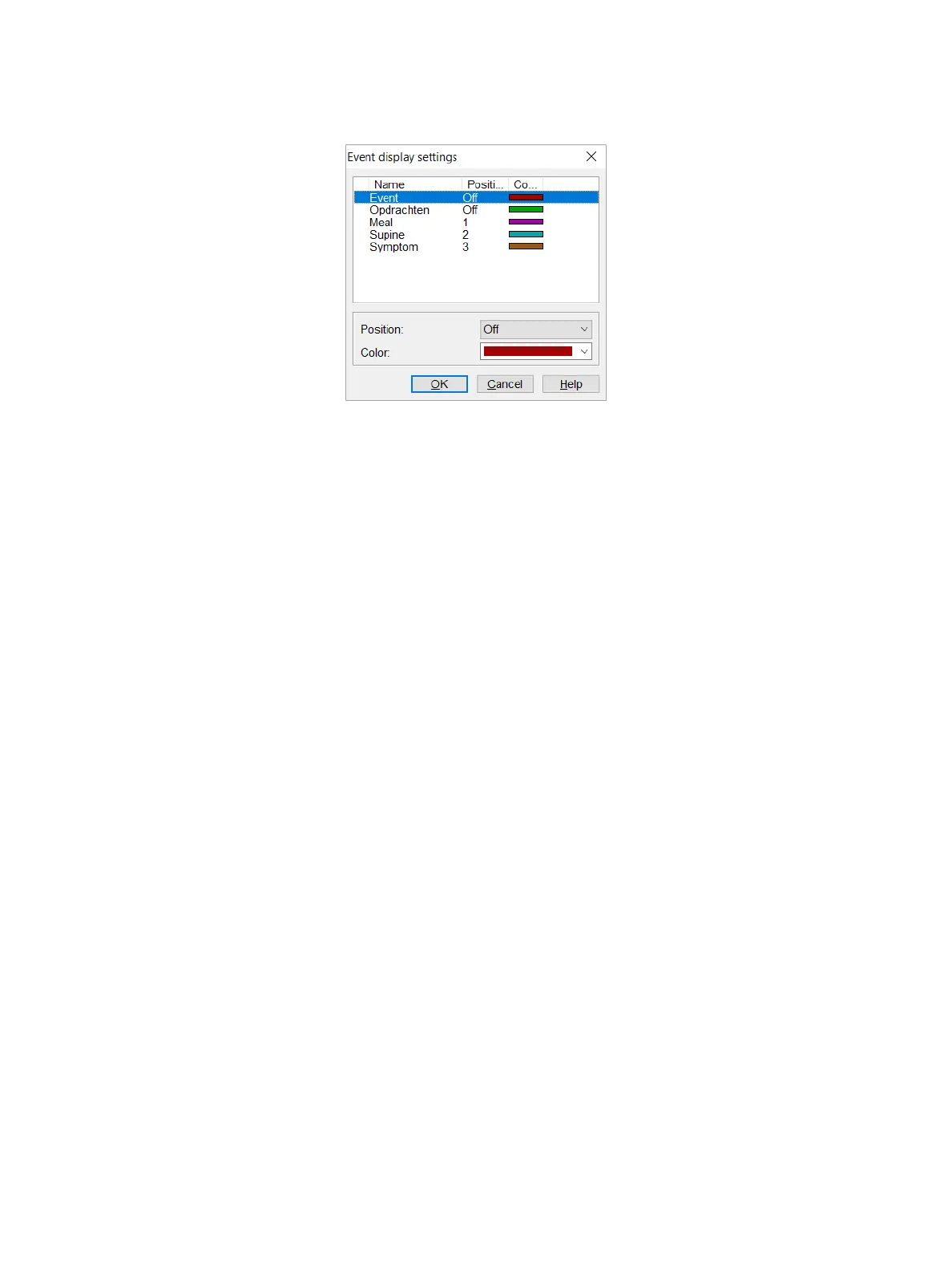
On the menu bar, choose Settings > Eventdisplaysettings to display the dialog box presented in Figure4-31.
Figure4-31: The Event Display Settings Dialog Box
The event display settings determine the following:
•
Which events will be displayed in the diary on the screen
•
Atwhatpositiontheeventwillbedisplayed
•
The color of the event
Place the mouse pointer on the event that you want to change.
Conguring the Diary
On the menu bar, choose Settings > Congurediary to display the Congurediary dialog box. You can create a
diarythatcontainsallthediarypagesyouneed.ClicktheAddbuttontoenteranewdiarynameanddeneallother
settings.ClickOK to save the settings.
For the Laborie and Symptom events, you can change the settings for Full name, Analysis type, and Showseconds.
You cannot change the Full name setting for Supine and Meal periods. This can be changed only in the Measurement
module (see the section “TheEditProtocolDialogBox” on page 37).
When the analysis type is Symptom,theeventwillbeincludedintheSAPanalysisresultsintheSymptomanalysis
report (see the section “PatientInstructions” on page 36).
Start/Stop time
Choose Settings > Start/Stop timetodeneonepartoftheinvestigationtobeanalysed(starttime,stoptimeand/
or duration). You can print the selected graph and corresponding results in the investigation report. If you turn off this
setting, the original data will be available again. The start/stop time can also be set in the investigation protocol (see
the section “TheEditProtocolDialogBox” on page 37).



 To Next Page