Key Description
Function keys that are assigned to the variable functions
displayed at the bottom of the screen.
3.2 Operating Principles
Use the alphanumeric keypad to enter characters directly into editable elds.
•
Numeric elds: Can only contain numerical values. Press a key of the
keypad to enter a number.
•
Alphanumeric elds: Can contain numbers and letters. Press a key of the
keypad to enter one of the characters written above that key. To toggle
through the characters, press the key several times until the required
character is displayed. For example: A>B>C>2>A>B>...
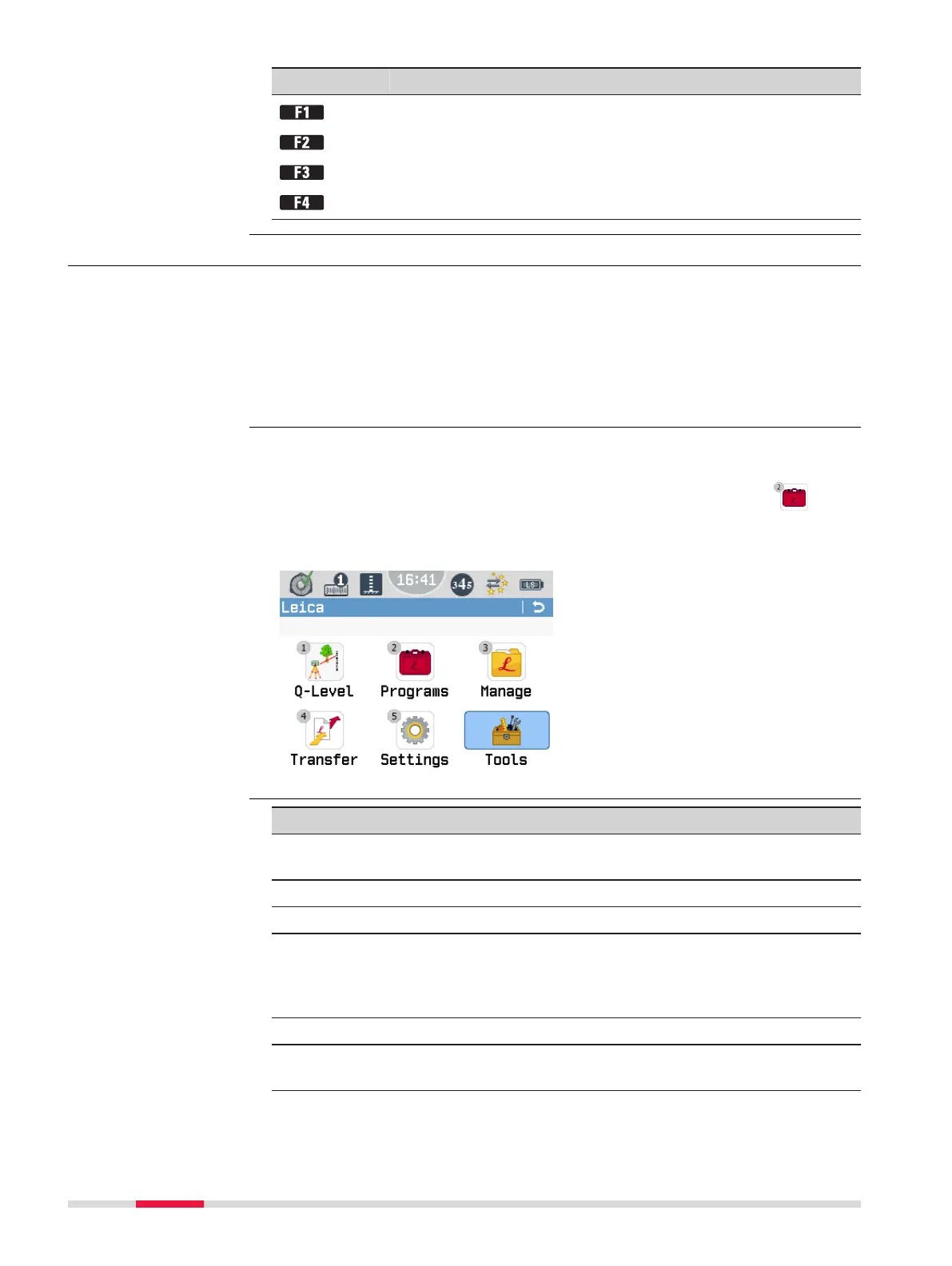
Within the menu screens, you can select a menu option by pressing a key on
the alphanumeric keyboard. To select a menu option, press the respective
number that is displayed at the upper left corner of the menu icon
.
Example:
☞
Press 2 on the alphanu-
meric keyboard to open
the menu Programs.
Key Description
ESC key Deletes any change and restores the previ-
ous value.
Left navigation key Moves the cursor to the left.
Right navigation key Moves the cursor to the right.
Softkey Insert If alphanumeric mode is activated: Inserts a
whitespace at the cursor position.
If numeric mode is activated: Inserts zero at
the cursor position.
Softkey Delete Deletes the character at the cursor position.
Softkey Clear Deletes all characters entered into the input
eld.
Edit Fields with
Alphanumeric Keypad
Select a menu option
with alphanumeric
keypad
Keys for editing input
elds
20 User Interface


 To Next Page