Icon Description
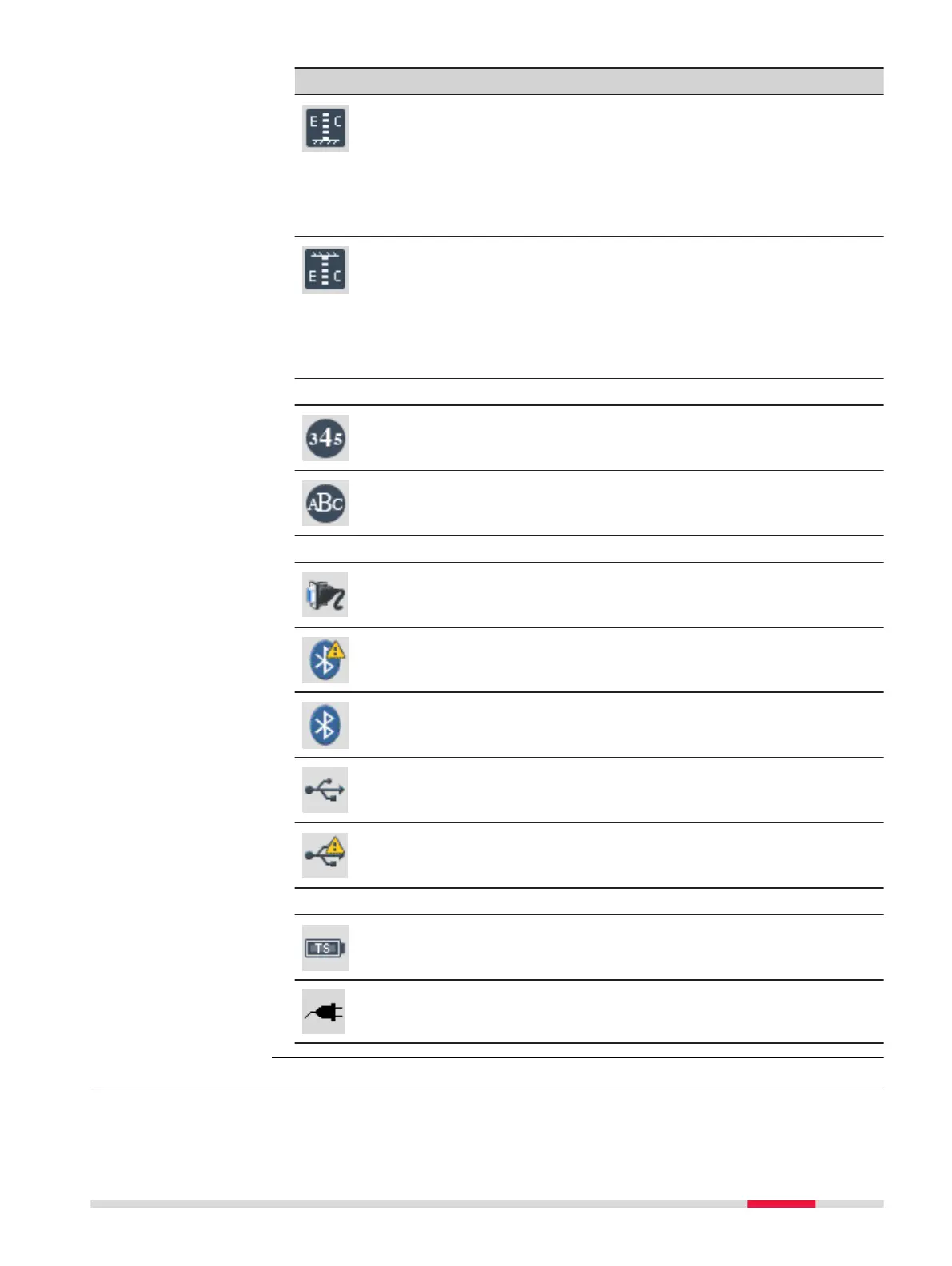
The orientation of the staff is set to upright. It is only pos-
sible to take measurements with the 0-mark at the bottom
of the staff. Tap the icon to change the orientation to
inverse.
The earth curvature correction is set to On. Refer to 6.2
Regional Settings for details on how to set the earth
curvature correction to Off.
The orientation of the staff is set to inverse. It is only pos-
sible to take measurements with the 0-mark at the top of
the staff. The measured values are negative. Tap the icon to
change the orientation to upright.
The earth curvature correction is set to On. Refer to 6.2
Regional Settings for details on how to set the earth
curvature correction to Off.
Keypad Mode
Keypad is set to numeric mode. Tap the icon to switch to
alphanumeric mode or use the softkey ABC.
Keypad is set to alphanumeric mode. Tap the icon to switch
to numeric mode or use the softkey 123.
Interface Setting
Only available on LS15 instrument:
RS232 communication port is selected. Tap the icon to open
the Interface Settings screen.
Bluetooth communication port is selected, but inactive. Tap
the icon to open the Interface Settings screen.
Bluetooth communication port is selected and active. Tap
the icon to open the Interface Settings screen.
Either the mini USB or LEMO-to-USB (only LS15) communica-
tion port is congured and connected. Tap the icon to open
the Interface Settings screen.
Either the mini USB or LEMO-to-USB (only LS15) communica-
tion port is congured but disconnected. Tap the icon to
open the Interface Settings screen.
System Status
The battery symbol indicates the level of the remaining bat-
tery capacity, 100% full shown in the example. Tap the icon
to open the Info screen.
The instrument is connected to an external power supply.
3.5 Softkeys
Softkeys are selected using the relevant F1 to F4 function key. This chapter
describes the functionality of the common softkeys used by the system. The
Description
User Interface 23


 To Next Page