1. Copy the rmware and language le into the system directory (e.g.
D:\system\) on the USB memory stick.
☞
Loading a rmware le always requires to load a language le simul-
taneously. Before you start the process, ensure that the system dir-
ectory of the USB memory stick contains the rmware le and at
least one language le.
2. Connect the USB memory stick to the USB interface within the bat-
tery compartment.
3.
Select Tools from the Main Menu.
4.
Select Load FW from the Tools Menu.
5.
•
To load rmware and language les together, select F1 Firm-
ware.
The Select File! screen is displayed. Select the rmware le
from the system directory of the USB memory stick.
Press Cont to display the Upload Languages! screen.
•
To load only one or several language les, select F2 Lan-
guage(s) only.
The Upload Languages! screen is displayed. To dene which
languages you want to load, select Yes or No for each language
le. At least one language must be set to Yes.
6. To start loading the les, press Cont. Once the les are successfully
loaded, the system shuts down and restarts again automatically.
12.6 Compass
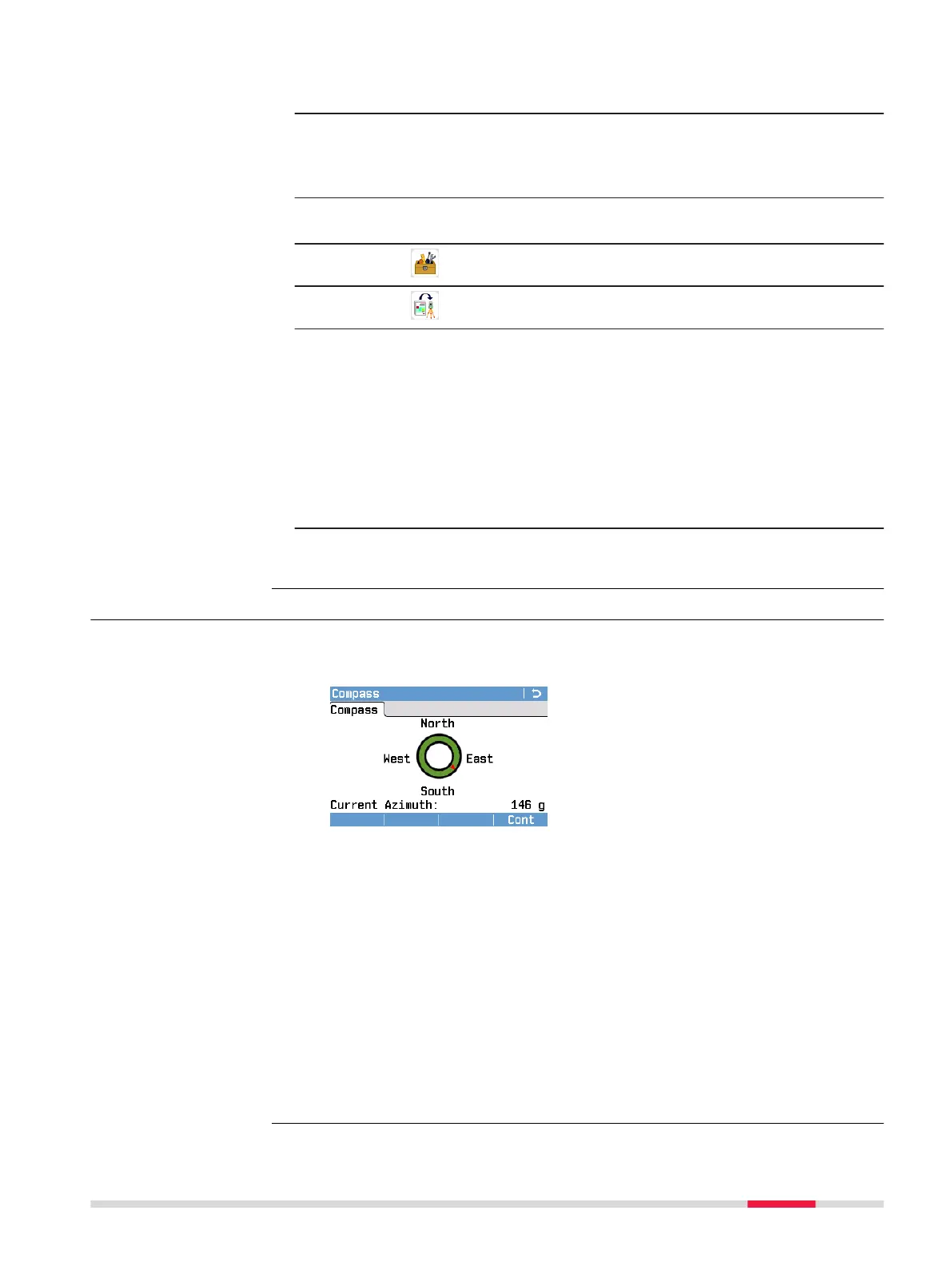
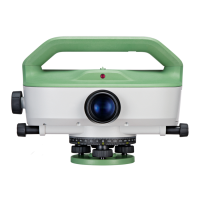
The digital compass is only available on the LS15 instrument.
The Compass screen displays the current compass reading.
You can use the digital compass to turn the instrument to a specic direction.
For each measurement taken with an LS15 instrument, estimated coordinates
are stored for the measured point. The estimated coordinates can be impor-
ted into Innity to visualise the direction of a level line.
☞
The digital compass is sensitive and can be interfered by magnetic
elds. Avoid using the compass in areas or environments that may
interfere with the quality of the compass measurements. The inter-
ference can affect the accuracy and quality of the coordinates/posi-
tions determined.
☞
For correct measurement results, it is recommended to calibrate the
compass each time you set up the instrument. For this purpose, you
can dene the compass calibration screen as the start screen. Refer
to 6.1 Work Settings.
Description
Tools 85


 To Next Page