It is possible to limit the point search to a particular job or to search the whole
storage. The search procedure always nds xpoints before measured points
that full the same search criteria. If several points meet the search criteria,
then the results are ordered according to the entry date. The instrument nds
the most recent xpoint rst.
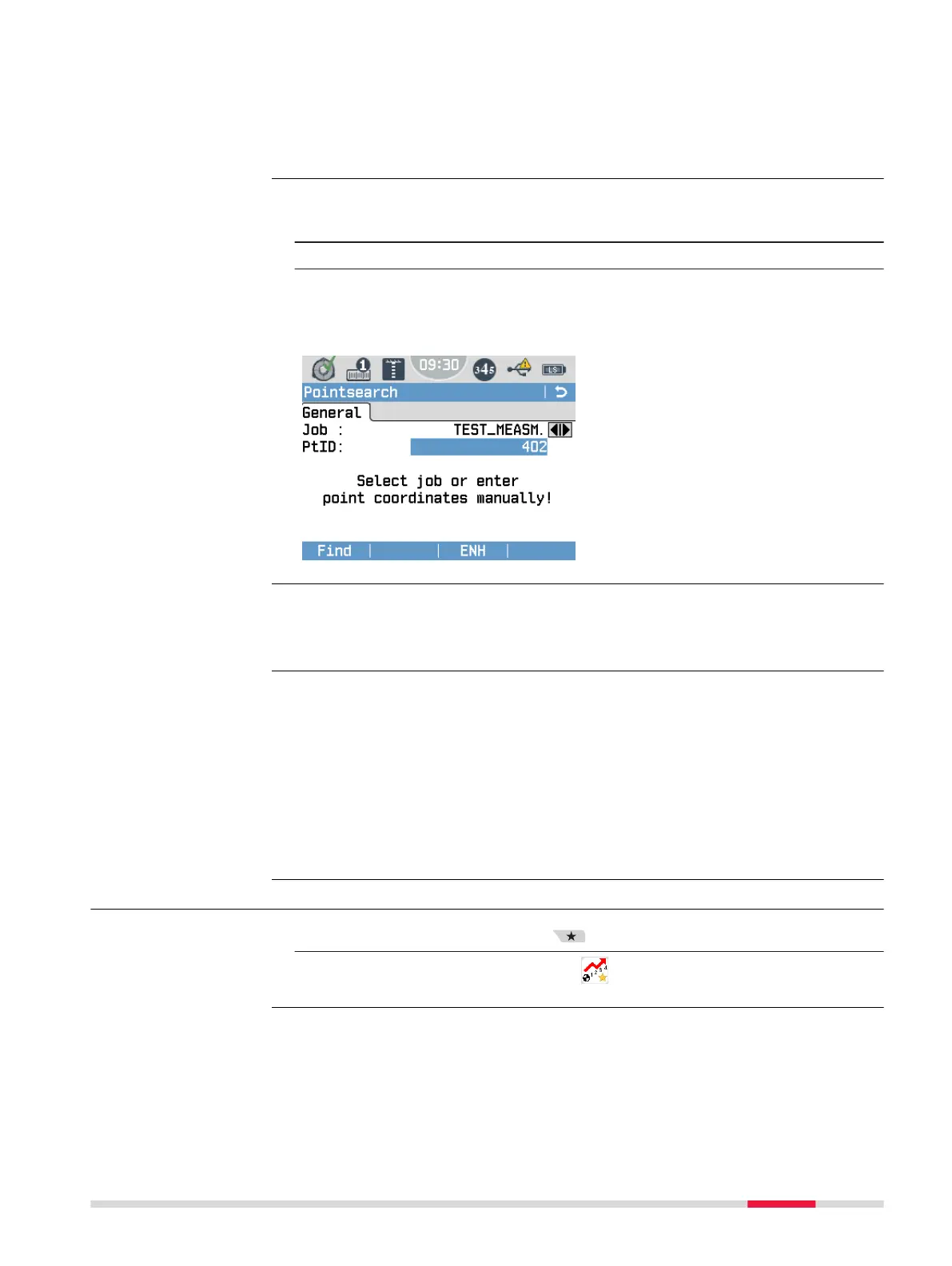
You can search directly for xpoints by entering a specic point ID:
1. Select a specic job or the option All Jobs.
2. Enter a specic point ID and press the ENTER key.
Press Find to start the point search.
All points within the selected job and with the corresponding point ID are
found. Use the Navigation keys to toggle through the found point IDs.
Find
To search for matching points
within the selected job.
ENH
To create a point and enter its
coordinates.
The wildcard search is indicated by a "*". The asterisk is a place holder for any
following sequence of characters. Wildcards should be used if the point num-
ber is not fully known, or to search for a batch of points.
* All points are found.
A All points with exactly the point number "A" are found.
A* All points starting with "A" are found, for example, A9, A15, ABCD,
A2A.
*1 All points containing only one "1" are found, for example, 1, A1,
AB1.
A*1 All points starting with "A" and containing only one "1" are found,
for example, A1, AB1, A51.
7.1.3 Point ID & Incrementation
1. Press the Favourites key.
2.
Within the page Setting, tab PtID Incr.
Within the Point ID & Incrementation screen, you can dene default point
IDs. You can also dene the increment by which point IDs shall be incremen-
ted.
Direct search
Wildcard search
Examples of point
searches
Access
Dene a default point
ID and incrementa-
tion
Programs 49


 To Next Page