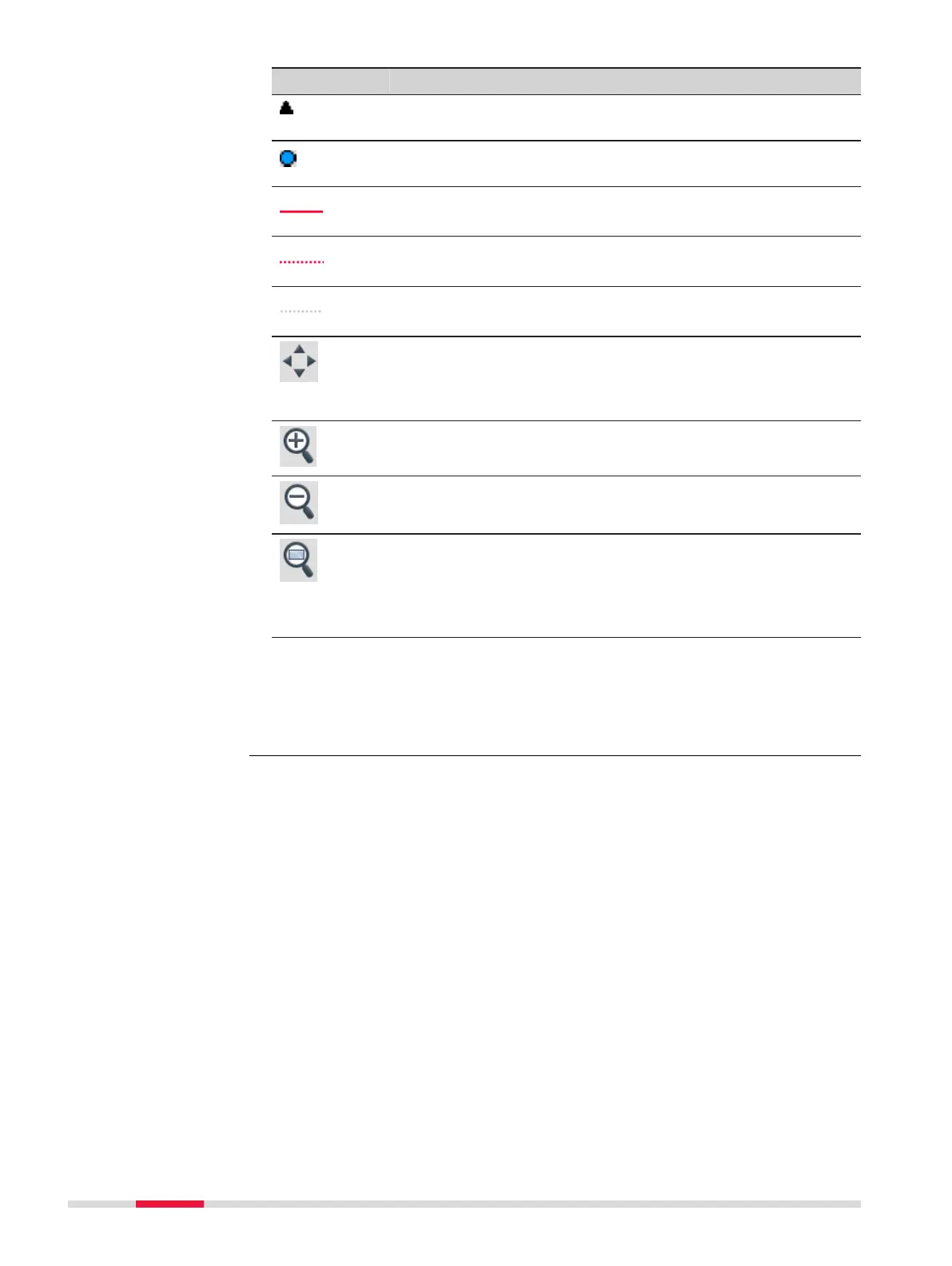
Symbol Description
Position of the levelling staff (foresight or backsight). The ID
of the measured points is displayed in black.
Intermediate point / Set-out point. The ID of such a point is
displayed in blue.
Measurement in the line, to a turning point
Measurement to an intermediate or set-out point
Current viewing direction of the instrument.
The t-to-screen icon ts all displayable data into the screen
area, according to lters and the map conguration, and
using the largest possible scale.
Tap on the icon or press the softkey Fit (F3).
To zoom into the map.
Tap on the icon or press the softkey Zoom + (F1).
To zoom out of the map.
Tap on the icon or press the softkey Zoom - (F2).
The t-to-window icon zooms to a specied area.
To specify a rectangular area drag the stylus across the
screen in a diagonal line.
To dene diagonally opposite corners of a rectangular area,
tap twice on the screen where the corners shall be.
☞
To move the view of the map up and down as well as left and right,
tap on the screen with the stylus, hold and move. You can also use
the navigation keys. Moving the map is useful when you have
zoomed in on a view, and want to move the view around to see
other areas of interest.
80 MapView


 To Next Page