Using the Main Menu14
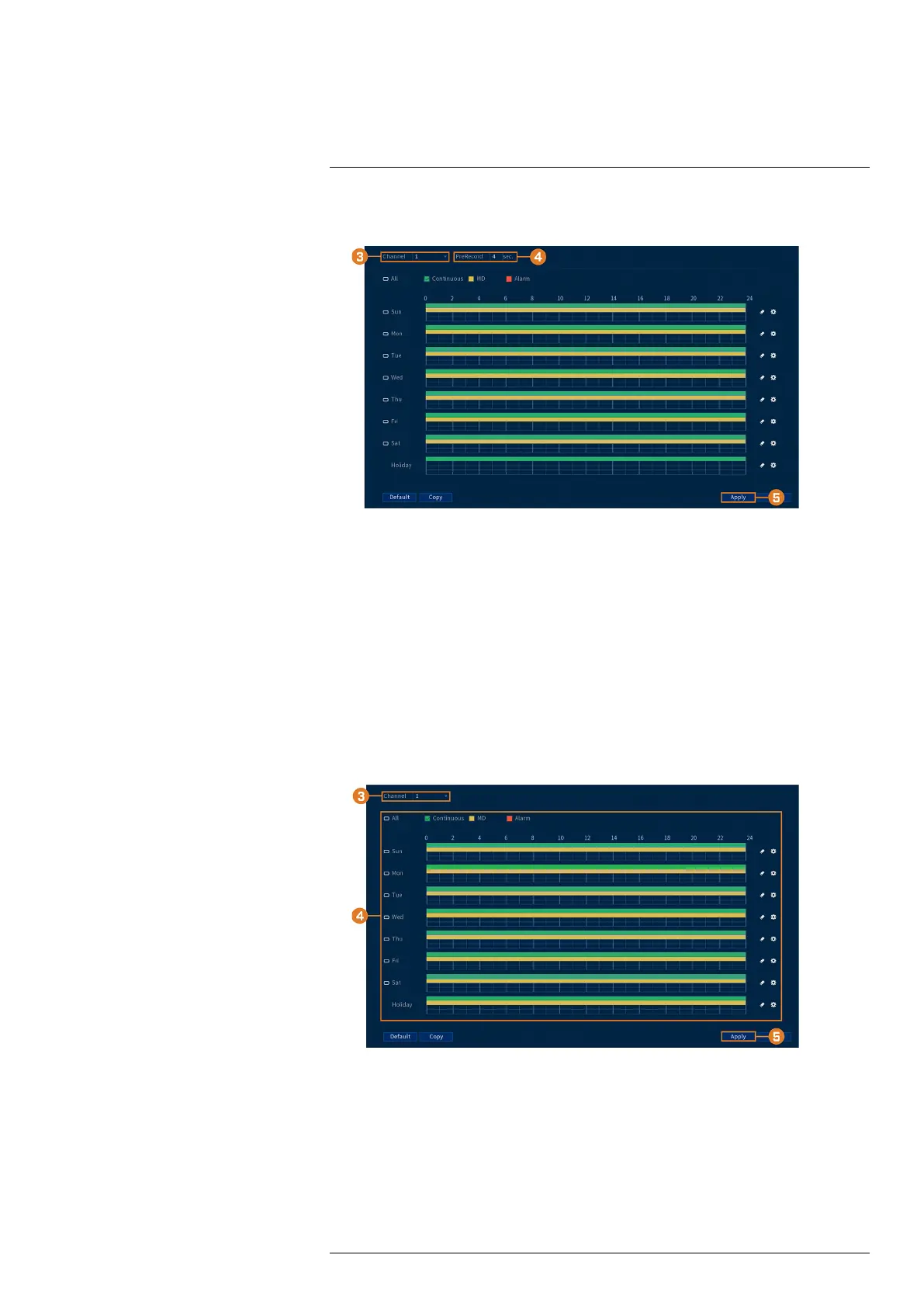
2. Click STORAGE. Click the SCHEDULE tab on the side panel, then Record on the top
panel.
3. Under Channel, select the channel you would like to configure or select All.
4. Set the duration for pre-recording in seconds.
5. Click Apply.
6. (OPTIONAL) Click Copy to apply the settings for the current channel to one or more other
channels (see 14.11 Copying Settings to Another Channel, page 71 for full instructions on us-
ing the copy function).
14.8.4 Setting the Snapshot Schedule
You can set a schedule for recording snapshots from the cameras.
To set the snapshot schedule:
1. From the Live View display, right-click to open the Quick Menu, then click Main Menu.
2. Click STORAGE. Click the SCHEDULE tab on the side panel, then Snapshot on the top
panel.
3. Under Channel, select the channel you would like to configure or select All.
#LX400111; r. 3.0/56507/56507; en-US 65




 To Next Page