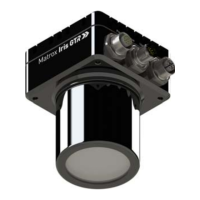
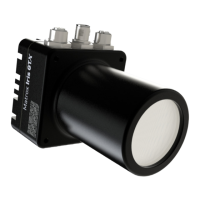
Powering and connecting to your Matrox Iris GTR 23
• Liquid lens connector (not depicted). Used to provide automatic focusing of your
Varioptic Caspian C-39N0-160-I2C or C-39N0-250-I2C lens. Automatic
focusing can be configured using a MIL application.
To use your Matrox Iris GTR, perform the following:
1. Connect an external power supply and your third-party I/O devices to the Digital
I/O and power connector of your Matrox Iris GTR using the provided cable.
If you have purchased the Matrox Iris GTR starter kits, use the open-ended digital
I/O and power cable and the Matrox Iris GTR breakout board, included in the
kit, to make the connections. For details regarding the Matrox Iris GTR
breakout board camera connector, refer to the Powering and connecting section, in
Appendix F: The Matrox Iris GTR breakout board.
❖ Note that the Matrox Iris GTR breakout board is for development purposes and
not industrially protected.
If you have purchased the Matrox Iris GTR breakout board separately, you can
make your own cable. Alternatively, you can use the GTR-CBL-PWR/3 open-wire
digital I/O and power cable from Matrox; however, you must use a custom cable
to connect it to a power supply. For more information regarding the pin-out of
your Matrox Iris GTR power and I/O connector, refer to the Digital I/O and power
connector subsection of the Matrox Iris GTR connectors section, in
Appendix B: Technical reference.
2. Connect your display device and USB device to the VGA/USB connector of your
Matrox Iris GTR using the VGA/USB cable (either the cable from the starter kit
or GTR-CBL-VGAUSB).
Alternatively, you can build your own. For more information regarding the pin-out
of your Matrox Iris GTR VGA/USB connector, refer to the VGA/USB connector
subsection of the Matrox Iris GTR connectors section, in Appendix B: Technical
reference.
There are multiple ways to connect devices to the VGA/USB cable. If connecting
to a display device that has a VGA connector available, we recommend using it.
To connect your Matrox Iris GTR to a display device and one or more input
devices (such as a keyboard and mouse), connect a USB hub to the USB connector



 To Next Page