Page | 12
2.4 Managing Your Network from the Mercku App
After setting up your Mercku account, you can "bind" the M6 to your phone's Mercku App
for remote and on-site access to the network. The M6 network may only be bound to a
single device at any given time.
1. Connect your device to your router's wireless network.
2. Open the Mercku App on your device and follow instructions on the screen.
2.5 Using the Mercku Web Portal
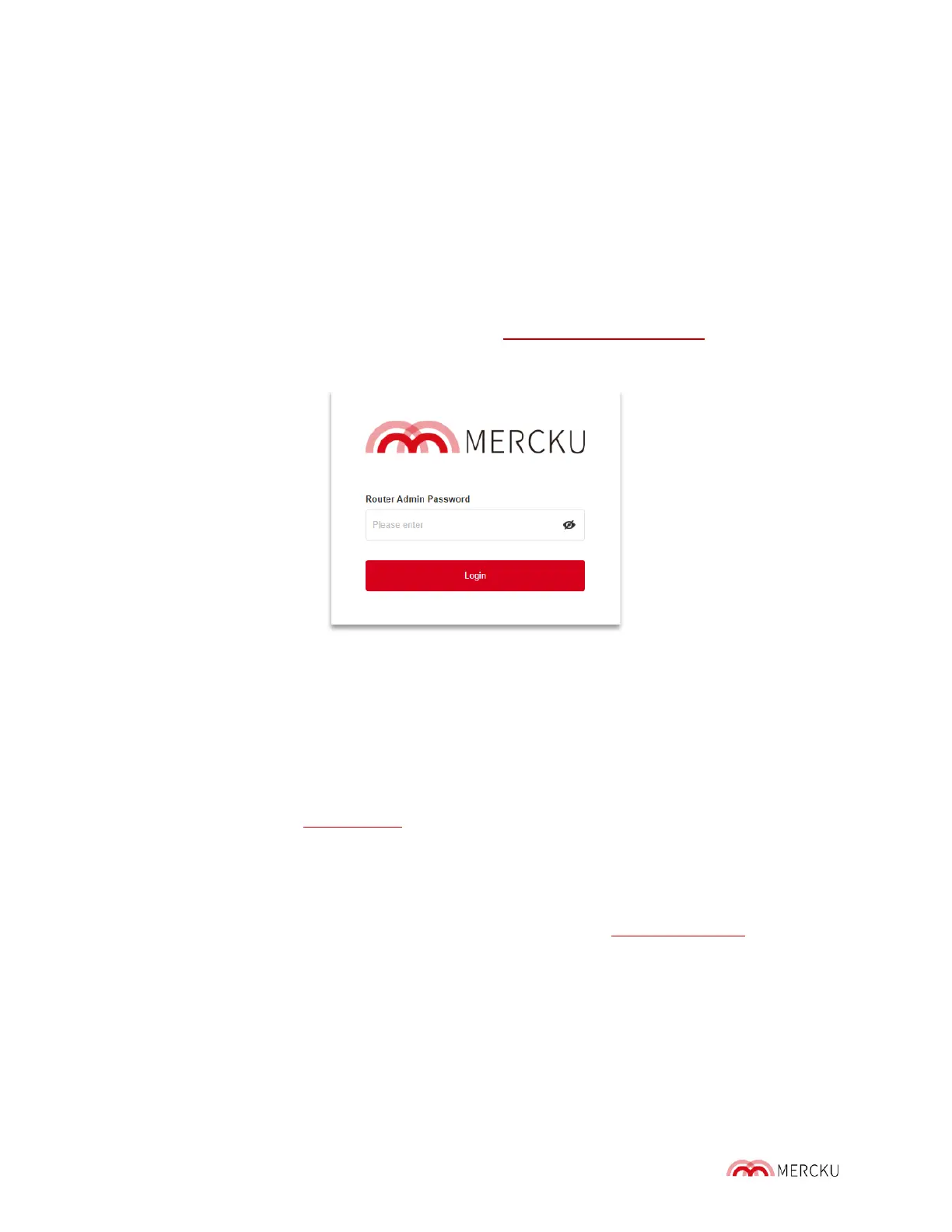
1. Connect to the Mercku network and go to http://mywifi.mercku.tech.
2. Enter your Router Admin Password to access the portal and manage your network.
2.6 Unbinding Your Router
Unbinding a device dissociates your router from the Mercku App and your account.
Please ensure that you are using the latest App version. There are two different ways to
unbind your M6 from your account:
• Open the Mercku App and log in > Click Settings > Select Unbind
• You can also factory reset your M6 router to unbind your account
2.7 Time Zone Settings
When you first set up your router, please ensure that your system ' s time zone is correct.
This will ensure that any time-based system functions, such as parental controls, are
operating as expected.
The time zone may be updated in either the Mercku App or the Portal.
Using the Mercku App:
1. Open the Mercku App on your mobile device.
2. Go to Settings > Timezone
3. Select your time zone from the list.


 To Next Page