Page | 75
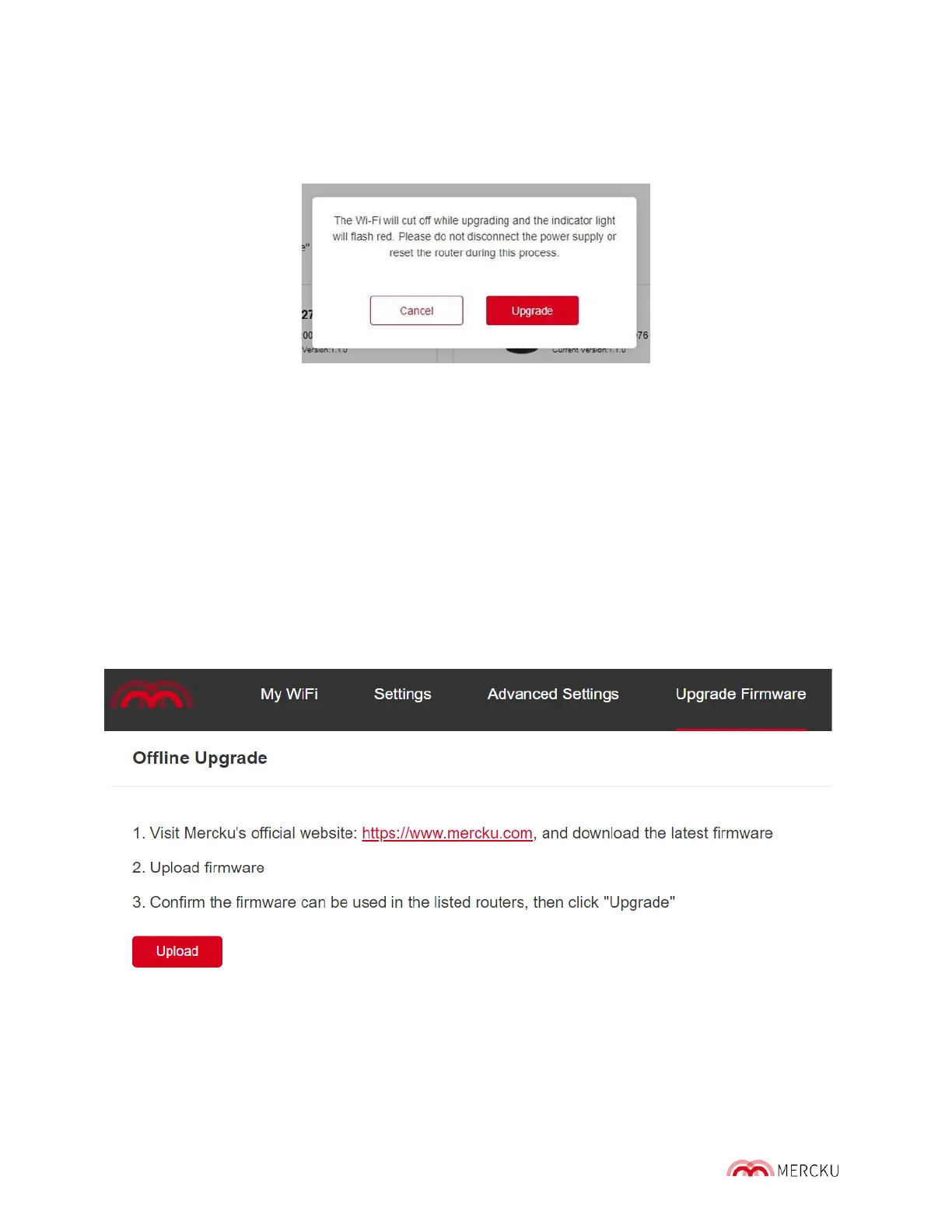
3. Click Upgrade Firmware > Select Offline Upgrade > Upload > Select the firmware you
would like to update your Mercku device(s) to.
4. Select the devices you wish to upgrade (multiple selections are allowed) > Upgrade.
5. A message will pop-up > Select Upgrade and wait for the firmware to be updated.
6. After the upgrade, you will be re-directed to the homepage. Click on List and check if
the firmware version of the device is correct.
11.2 Automatic Upgrade
Automatic firmware upgrades allow you to upgrade the M6 firmware on a pre-set to avoid
interrupting the local Wi-Fi. There are two ways you can upgrade the firmware version of
your Mercku nodes to the latest version: online upgrade and offline upgrade. Online
upgrades may be conducted using either the Mercku App or Portal, while an offline upgrade
may only be completed through the Mercku Portal.
Using the Mercku App:
1. Open the Mercku App on your mobile device
2. Settings > Upgrade Firmware > Click “Timer” on the top right


 To Next Page