Page | 26
When managing your Mercku devices you can do the following:
• Rename your device
• See the role of the device (Mesh Gateway or Mesh point)
• View serial number
• Firmware version
• View IP address/LAN MAC address
• Reboot or factory reset your router
• Delete a mesh node
4.3.2 Reboot
If your Mercku device is not working as expected, you can reboot it using one of these three
methods:
1. Manual Reboot: Unplug the device, wait 1 minute, and plug the device back in.
2. Using the Mercku App:
a. Open the Mercku App on your mobile device
b. Under My Wi-Fi> Select Wi-Fi point
c. In the wireless topology diagram > Select the device you would like to reboot
> press Reboot
3. Using the Mercku Portal
a. Visit http://mywifi.mercku.tech and log in using your Router Admin Password
b. Under My Wi-Fi> Select Router Management > Click on List > Click Reboot
beside the device you would like to reboot
4.3.3 Factory Reset
Factory resetting your Mercku device restores all settings to their factory defaults and
deletes all node connections that were manually added. However, it will not change the
firmware version on the device. There are three ways you can factory reset your router:
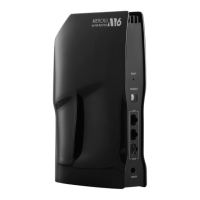
1. Manual factory reset: Use the pin to press and hold the Reset button of your M6 for
approximately 5 seconds until the LED indicator light starts blinking red, then
release.
2. Using the Mercku Portal:
a. Visit http://mywifi.mercku.tech, and log in using your Router Admin Password
b. Under My Wi-Fi > Select Router Management > Click on List > Click Factory
Reset beside the M6 node you would like to factory reset


 To Next Page