Page | 89
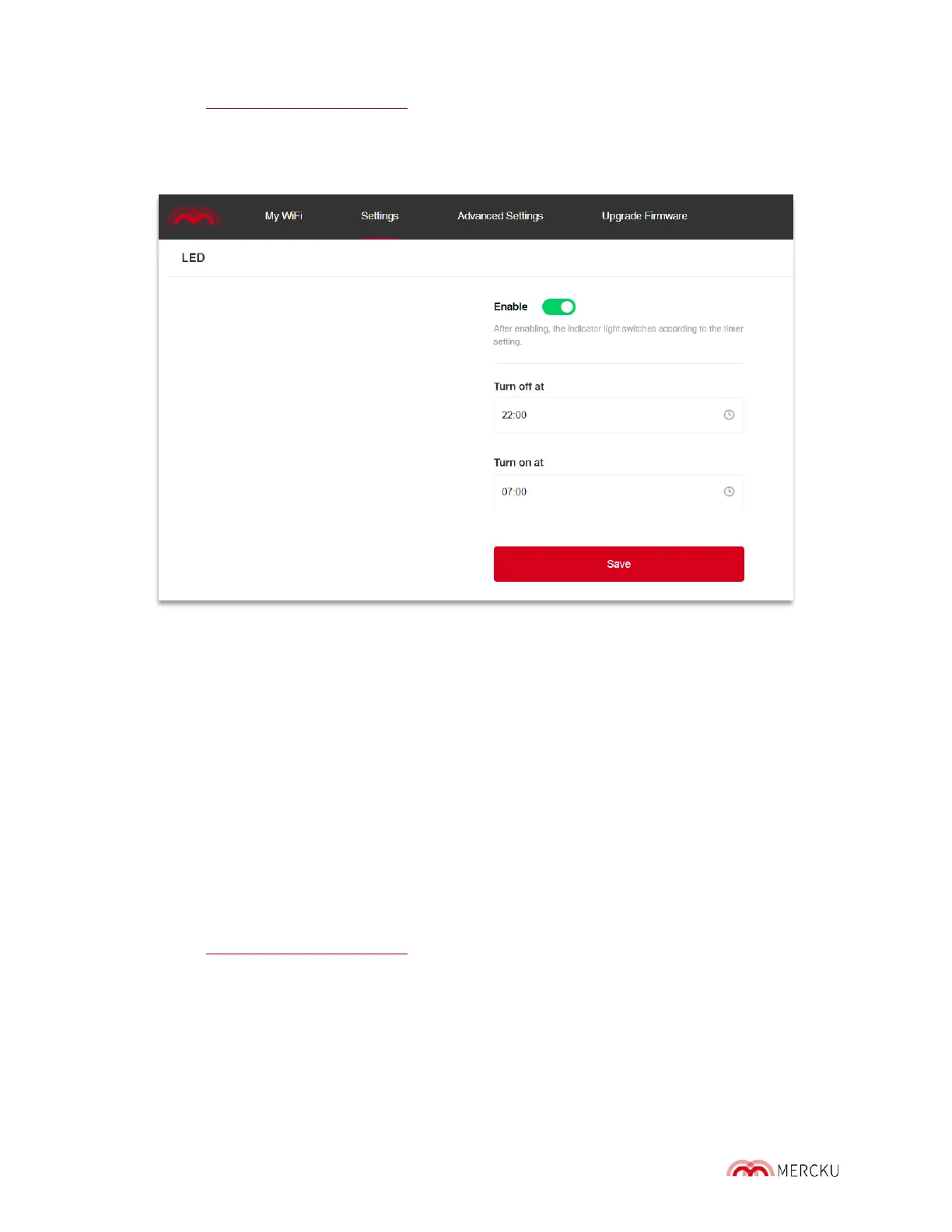
1. Visit http://mywifi.mercku.tech, and log in using your Router Admin Password
2. Select Settings > LED
3. Click the toggle to enable LED control, and set the time at which your router’s LED
turns off, and set the time at which it turns back on.
1.3.0-3. Wi-Fi 5 Compatibility Switch
When certain Wi-Fi 5 devices (e.g. laptops, wireless cards) are unable to see the M6 SSID
on their network list, we recommend enabling this Wi-Fi 5 switch.
Using the Mercku App:
1. Open the Mercku App on your mobile device
2. Select Settings > Wi-Fi Settings
3. Press the Wi-Fi 5 Compatibility toggle to enable this switch and press save
Using the Mercku Portal
1. Visit http://mywifi.mercku.tech, and log in using your Router Admin Password
2. Select Settings > Wi-Fi Settings
3. Click the Wi-Fi 5 Compatibility toggle to enable this switch and click save.


 To Next Page