Page | 74
Using the Mercku Portal:
1. Visit http://mywifi.mercku.tech, and log in using your Router Admin Password
2. Go to Upgrade Firmware > Online Upgrade
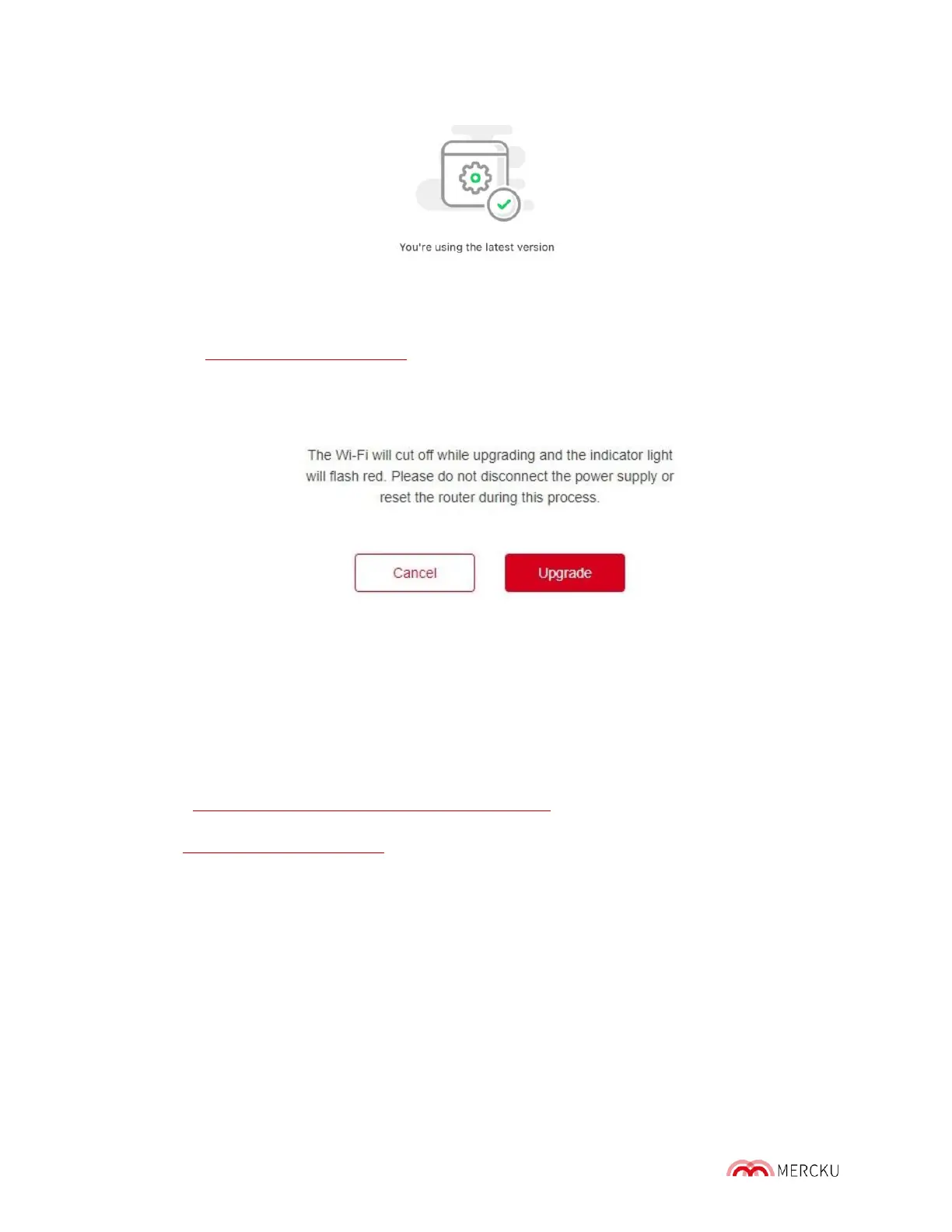
3. Select all the M6 node that you wish to upgrade > Click Upgrade
4. The message below will appear, click on Upgrade:
5. After the upgrade, you will be re-directed to the homepage. Click on My Wi-Fi> Router
Management > List to check in the list if the version of the device is correct.
11.1.2 Offline Upgrade
An offline upgrade can only be completed through the Mercku Portal.
Using the Mercku Portal:
1. Go to https://www.mercku.com/support/download/ and download the desired firmware
versions for your M6.
2. Visit http://mywifi.mercku.tech, and log in using your Router Admin Password.


 To Next Page