Page | 34
5.2 Smart Connect
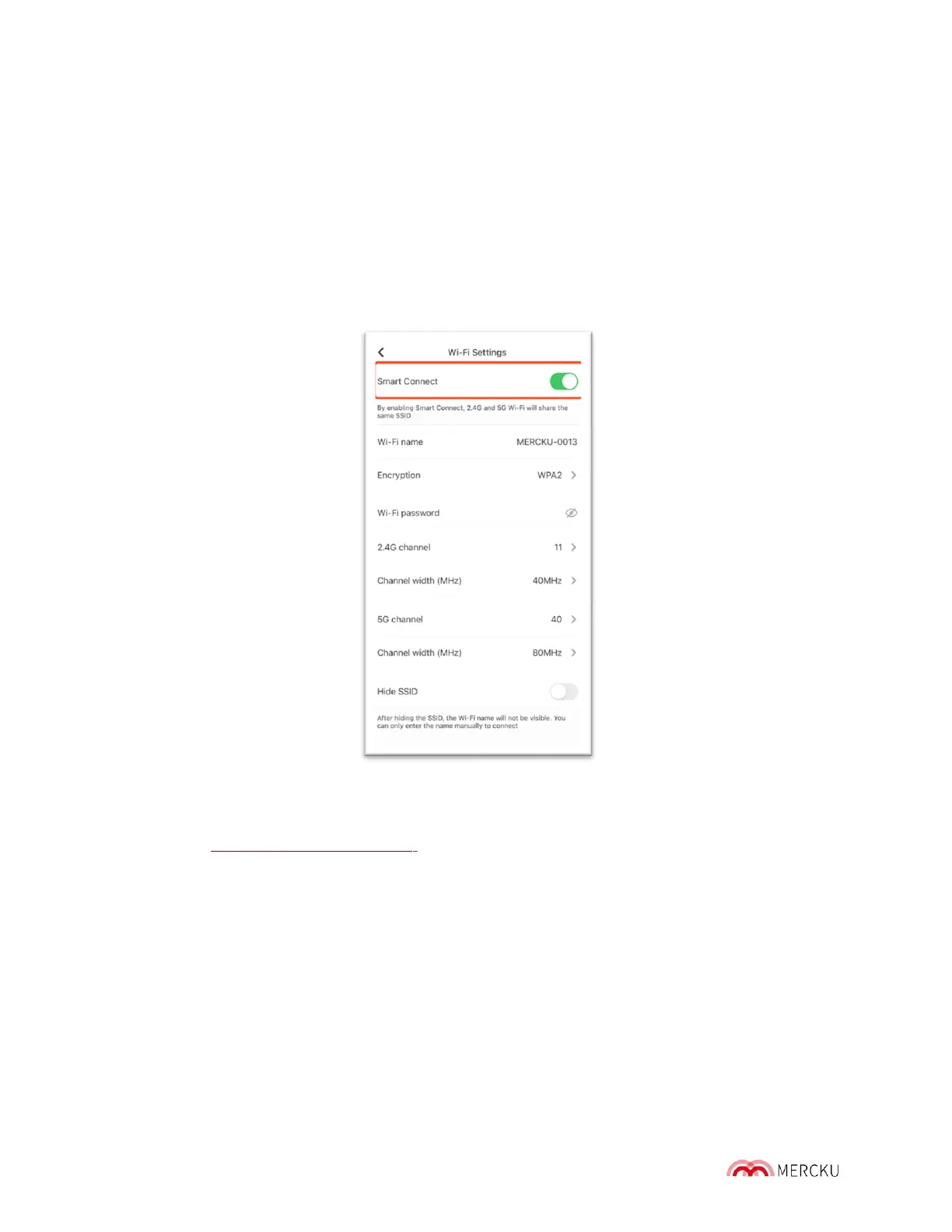
Smart Connect combines both the 2.4 GHz and 5 GHz networks into a single SSID. This
enables your device to connect automatically to the appropriate network depending on your
device's hardware capabilities. Smart Connect is on by default, so if you would like to split
the 2.4 GHz and 5 GHz networks you can do the following to turn off this function:
Using the Mercku App:
1. Open the Mercku App on your mobile device
2. Select Settings > Select Wi-Fi Settings > Click Smart Connect to turn it off.
Using the Mercku Portal
1. Visit http://mywifi.mercku.tech, and log in using your Router Admin Password
2. Under Settings > Select Wi-Fi Settings > Click the slider beside Smart Connect


 To Next Page