Page | 32
Using the Mercku Portal:
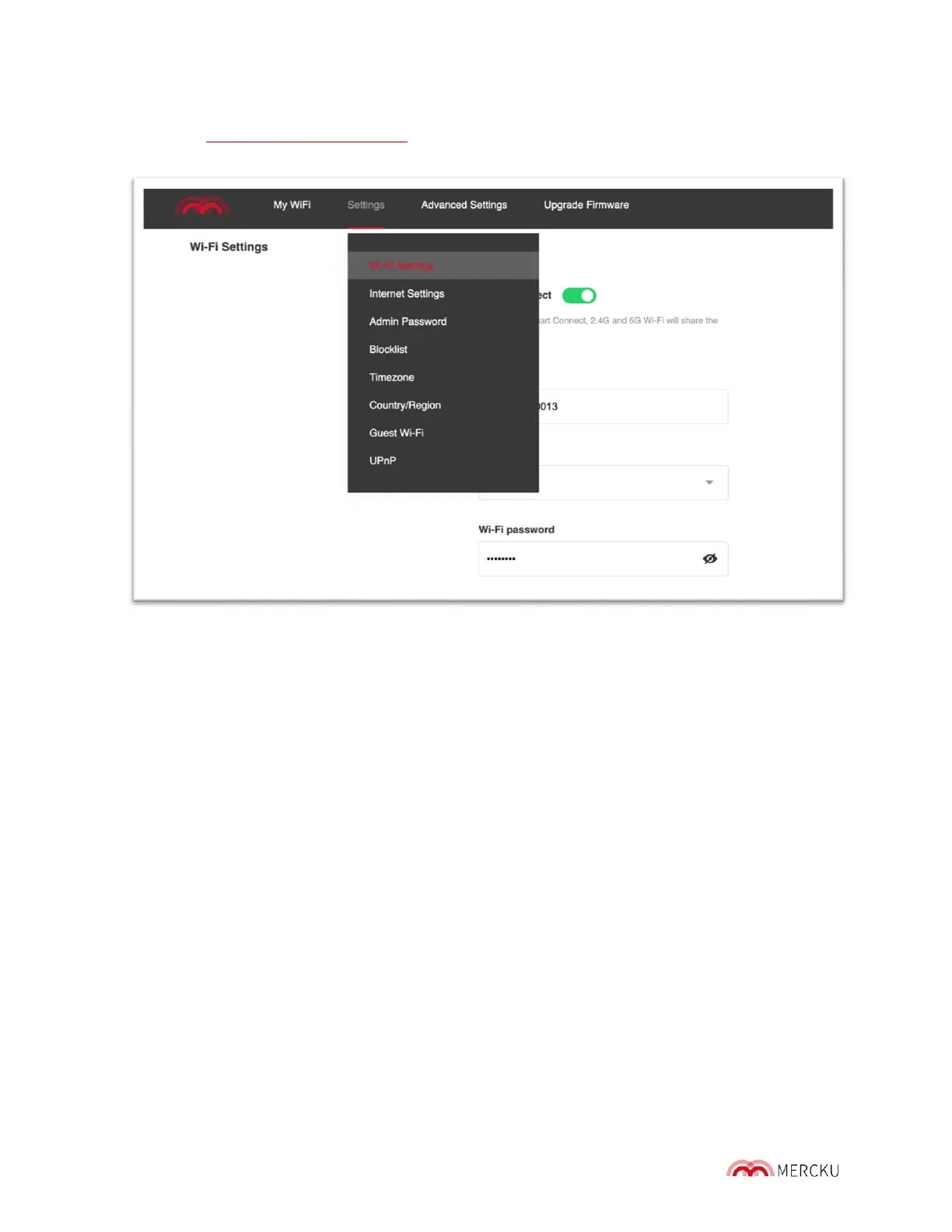
1. Visit http://mywifi.mercku.tech, and log in using your Router Admin Password
2. Under Settings > Select Wi-Fi Settings > Enter new or edit SSID under Wi-Fi name
3. Change your Wi-Fi password under the Wi-Fi password field
Under the Wi-Fi Settings screen, you can also choose to hide your SSID using the Hide
SSID toggle. By hiding your SSID, your Wi-Fi name will not be visible to the public and
you can only connect by entering the name manually.
5.1.2 Change Router Encryption
Router encryption encodes the data transmitted between your devices and your M6 router.
The default encryption method the M6 uses is WPA2. The default encryption method may
also support old Wi-Fi devices without WPA2, and supports WPA3. However, such devices
may not have an optimal performance while using this encryption type. I f there are no such
devices in your home, we recommend using WPA2.
If you would like to change your router encryption, you can do the following:
Using the Mercku App:
1. Open the Mercku App on your mobile device
2. Select Settings > Wi-Fi Settings > Encryption > Select preferred encryption type


 To Next Page