Page | 17
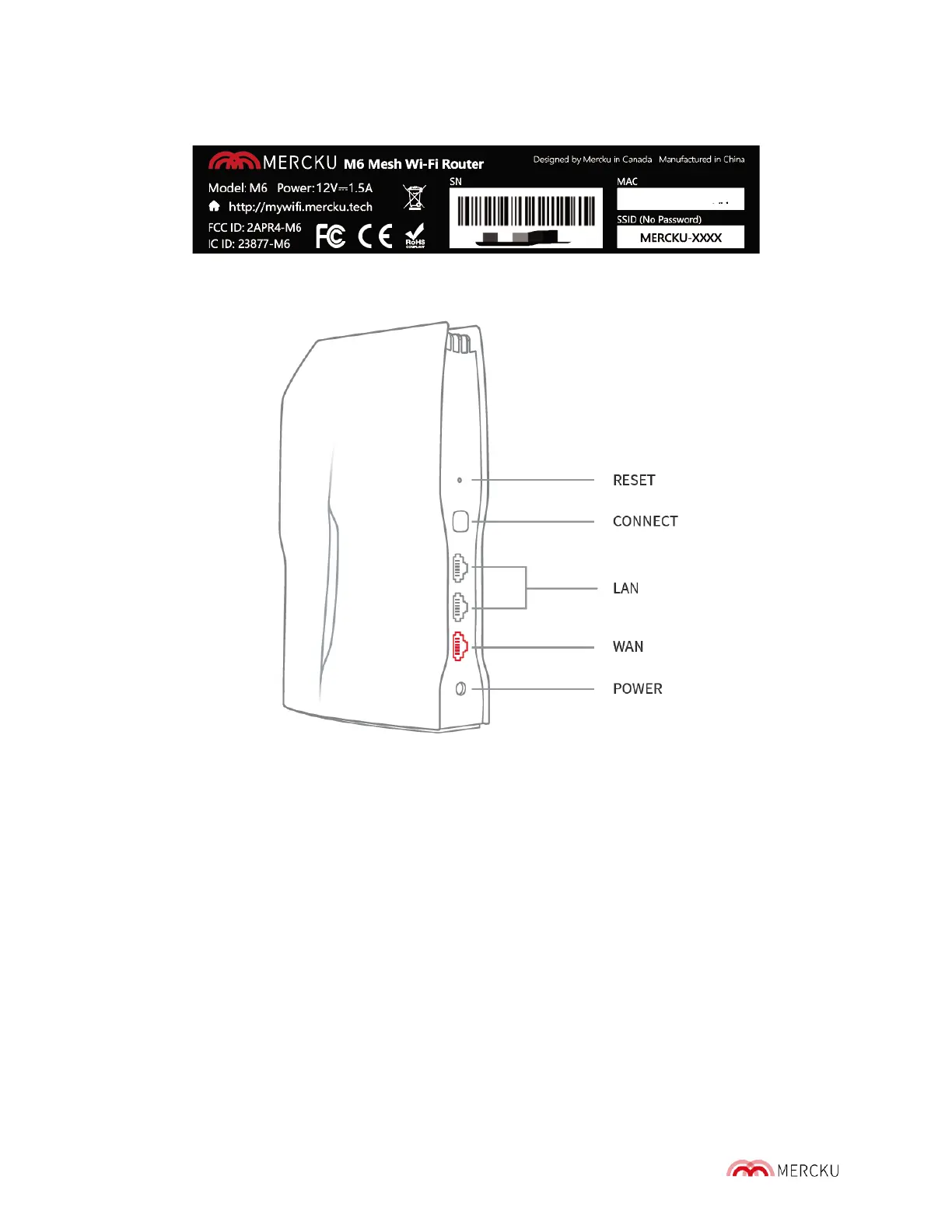
Please note that the name of the network is shown at the bottom of the router as shown
below:
3.3 Connect a Device to Your M6 via Ethernet Cable
Whether your M6 is being used as your main router or as a wireless node, you can establish
wired internet connectivity to devices such as computers, laptops, or gaming consoles.
Simply plug in your device's ethernet cable to the LAN port of the M6. When the M6 is
powered up, a red light shows up, and the LED light in front of the router will change to
white once a successful local connection has been established.
3.4 Adding an M6 Node to Your Existing Mesh
There are 3 different ways to add an M6 node to your existing mesh network:
1) Without using the Mercku App or Portal:
a. Plug in the power to the M6 node and wait until the LED indicator is orange
b. Press the "Connect" button on the main M6 router
c. Press the "Connect" button on the M6 node


 To Next Page