Page | 23
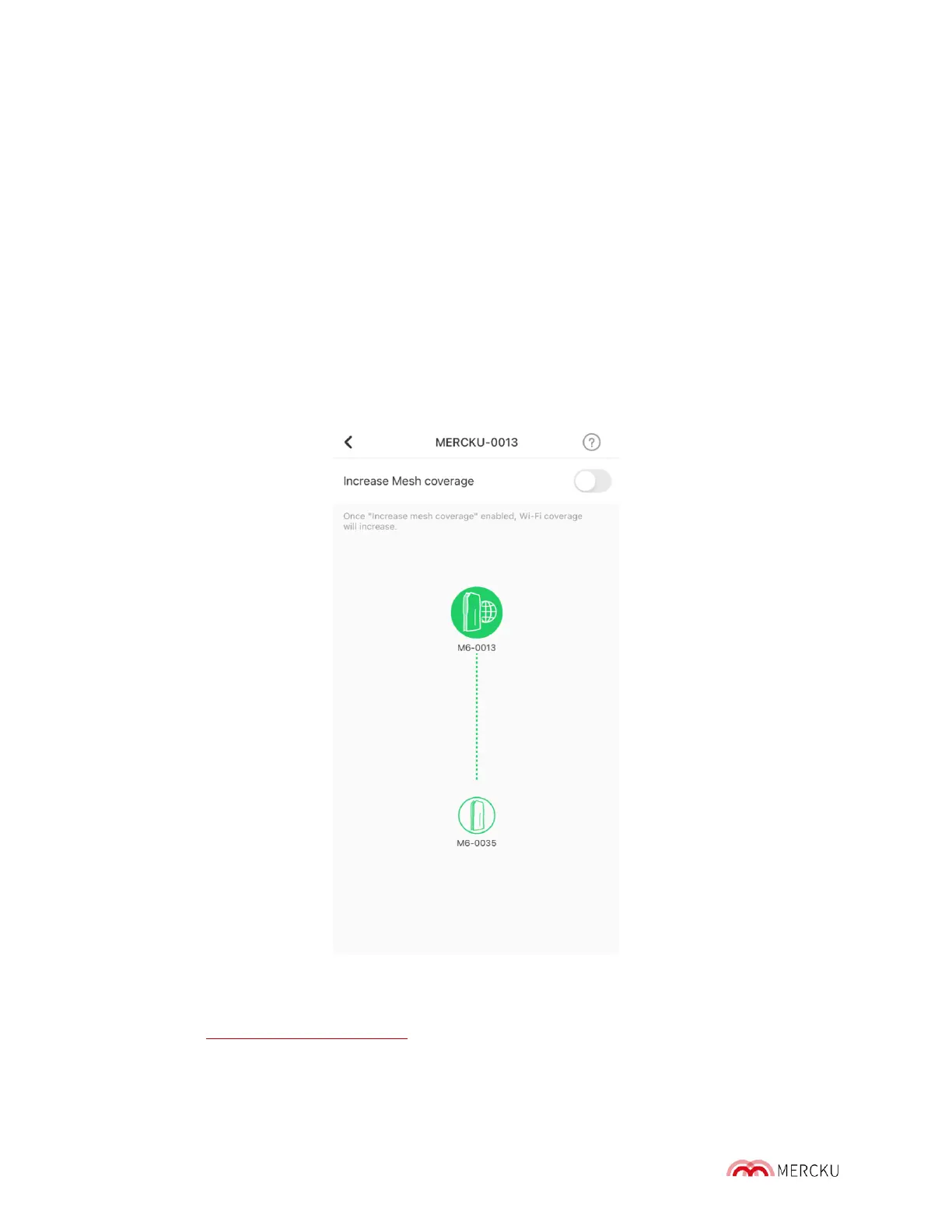
4.1 Increase Mesh Coverage
Increase mesh coverage is a feature that manages communication between mesh units on
the Mercku network. When disabled, Mercku mesh units will decide which of the bands is
stronger and will connect to it automatically. When this feature is enabled, you will force all
units to stay only on the 2.4 GHz band in order to improve the reach of your mesh system.
If you need a strong signal for a distant connection, it is recommend ed you enable this
function.
How to toggle " I ncrease Mesh Coverage" on the Mercku App:
1. Go to the Mercku App and select Wi-Fi point. You will see the Increase Mesh
Coverage on the top of the page.
2. Press the slider to toggle Increase M esh Coverage on and off.
How to toggle " I ncrease Mesh Coverage" on the Mercku Portal:
1. Visit http://mywifi.mercku.tech, and log in using your Router Admin Password.
2. On your dashboard you will see the toggle for I ncrease Mesh Coverage under the
Mesh Topology section.
3. Click the slider button to toggle Increase Mesh Coverage on and off.


 To Next Page