Page | 59
Using the Mercku Portal:
1. Visit http://mywifi.mercku.tech, and log in using your Router Admin Password
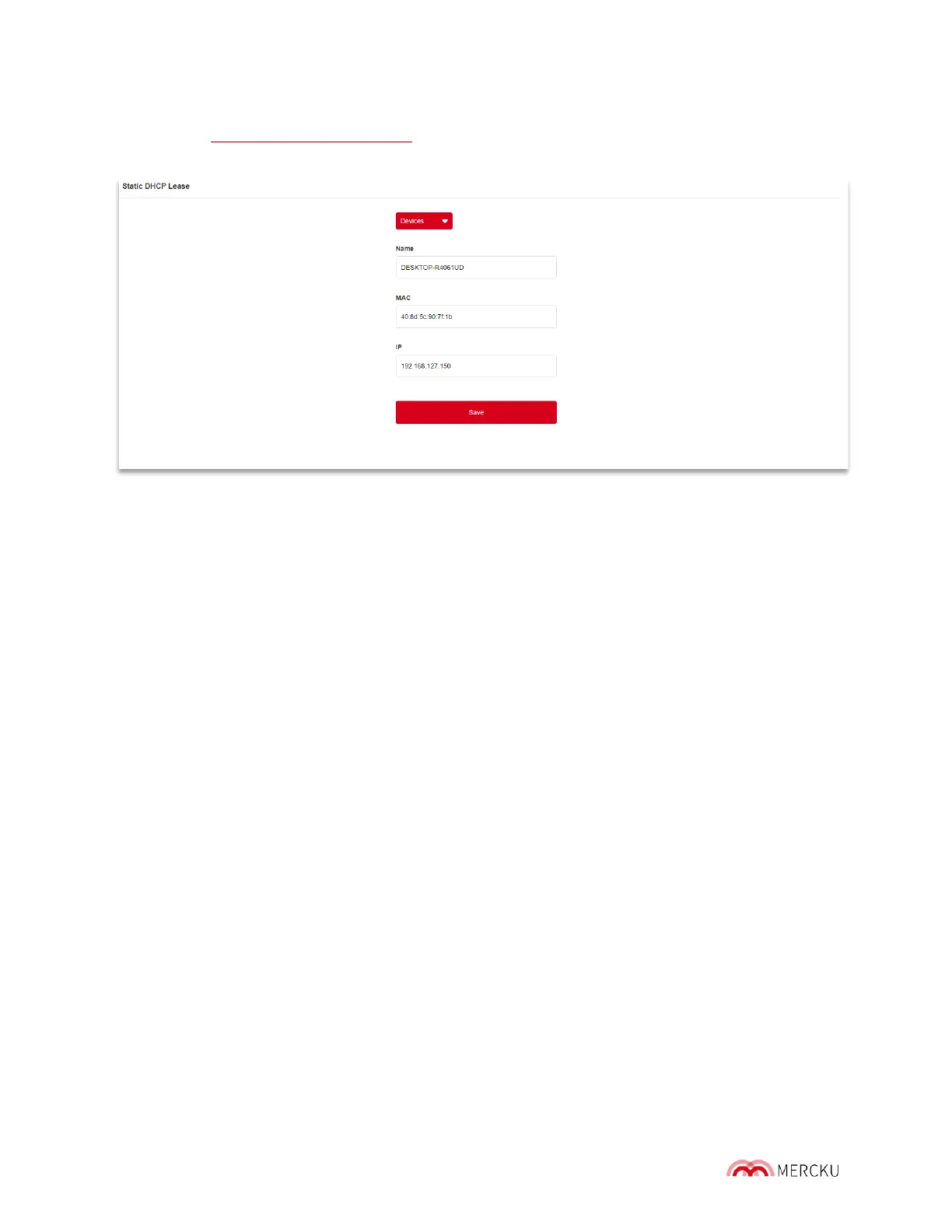
2. Select Advanced Settings > Static DHCP Lease > Add
How to configure a static DHCP lease:
Select the device you want to assign the static IP address to from the "Devices" dropdown
list or input the MAC address of the device that you want to assign the static IP address to,
and then assign an IP for this device. It is highly recommended that the static IP address
you assign is included in the DHCP IP address pool.
9.5 Clone MAC Address
Sometimes a MAC address clone is needed because the ISP limits connectivity to only one
identified MAC address at the point of registration. If you change the device that was
initially connected to your ISP, you often need to call up tech support to change the MAC
address associated with your account. To avoid this, you can clone the MAC address of the
identified MAC address when you registered.
The M6 supports router WAN MAC Clone feature. You will be able to modify the MAC
address of the router WAN with this function on.
Cloning your MAC address can be completed through the Mercku App or Portal.
Using the Mercku App:
1. Open the Mercku App on your mobile device
2. Settings > Advanced Settings > Clone MAC Address > Custom MAC


 To Next Page