36 37
5.2.1 Selecting the delivery mode
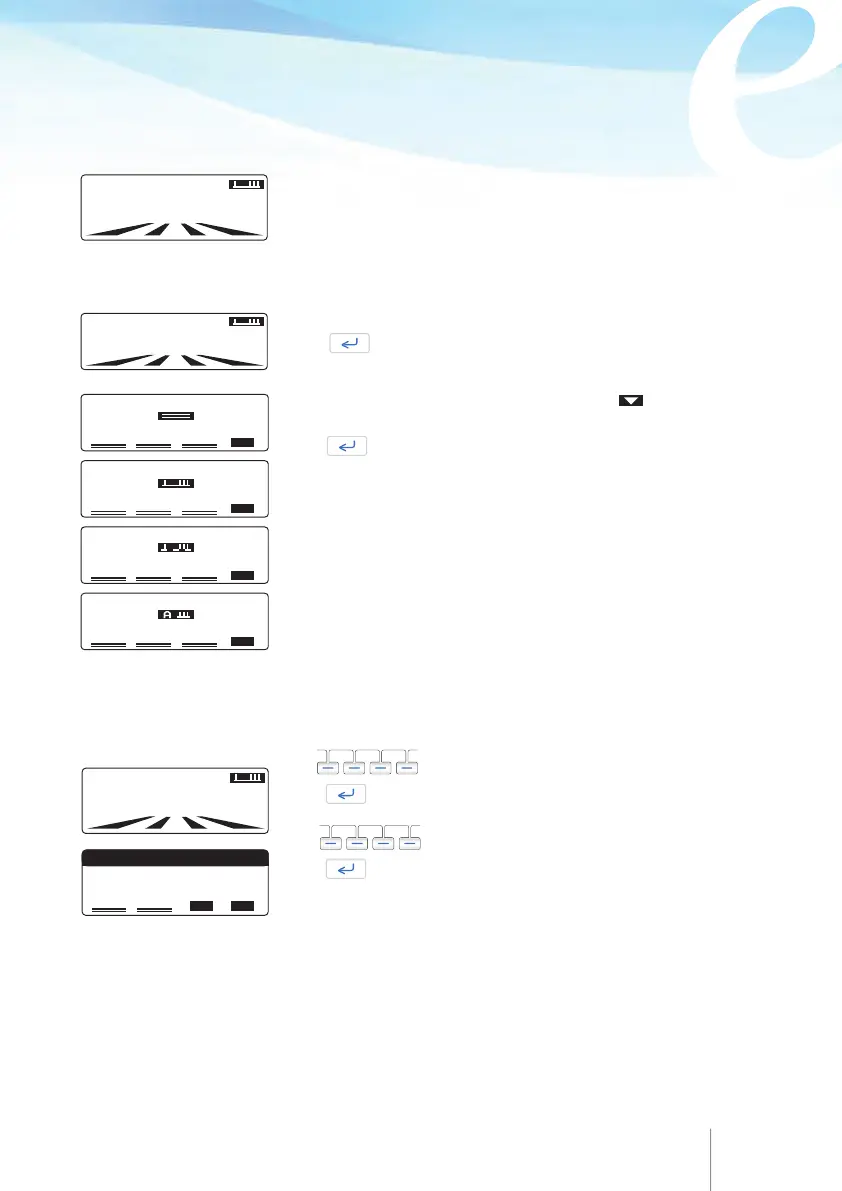
After turning ON the pump, the delivery mode is displayed graphically on the upper right
corner on screen.
If the mode displayed on the screen after turning on the pump, is not the one desired by
the user, then the process below needs to be followed in order to select a new mode:
‘New patient – program’ allows the user to program the pump and start a new infusion.
If a protocol library has been uploaded to the pump (via Rythmic™ Evolution Therapy
Manager application), ‘New patient – program’ will provide access to all protocols of that
library, please refer to Chapter 5 paragraph 5.3
“Programming through protocol library.”
Moreover, the selection of “New patient-program” starts a new event log.
The user will have access to “New patient-program” only after turning on the pump and
entering the programming code.
Note: The default delivery mode is the “Continuous + Bolus”
mode. After initial use, the mode displayed on the screen will
be the one set at the previous infusion.
5.2.2 Programming with the last used delivery mode
If the mode displayed on the screen is the one desired by the user, then the process
below needs to be followed:
Turn ON the pump, enter the selection mode code and
press .
Select the desired mode using the key marked . For each
delivery mode a dedicated/ relevant symbol appears.
Press to confirm the selected mode. Then continue
programming as described below. The selected mode will be
automatically appear the next time the pump will be turned ON.
Use to enter the programming code.
Press .
Use to select “New patient – program”.
Press .
CODE:
0000
CODE:
0000
NEW PATIENT -PROGRAM
NEW BAG
RESUME AFTER POWER OFF
CODE:
0000
SELECT MODE
CONTINUOUS
SELECT MODE
CONTIN+BOLUS
SELECT MODE
BOLUS
ONLY
SELECT MODE
AUTO BOLUS



 To Next Page