9.
Press to start the data transfer.
64 65
4.
Turn the pump ON, enter the resume after power OFF code and confirm.
5.
Or, if the pump is ON move to “
PUMP ON HOLD
” screen.
22 DEC 02 -22:45
PUMP ON HOLD
HISTORY
PROTOCOL
PROGRAM
STOP
SINCE 22 NOV 2003 13 : 45
INFUSED BOLUS
45.0 ml DEMAND 67
GIVEN 7
hr / hr CLEAR
PRINT INFUSION:
SINCE
17 JAN 2013 19:45
6.
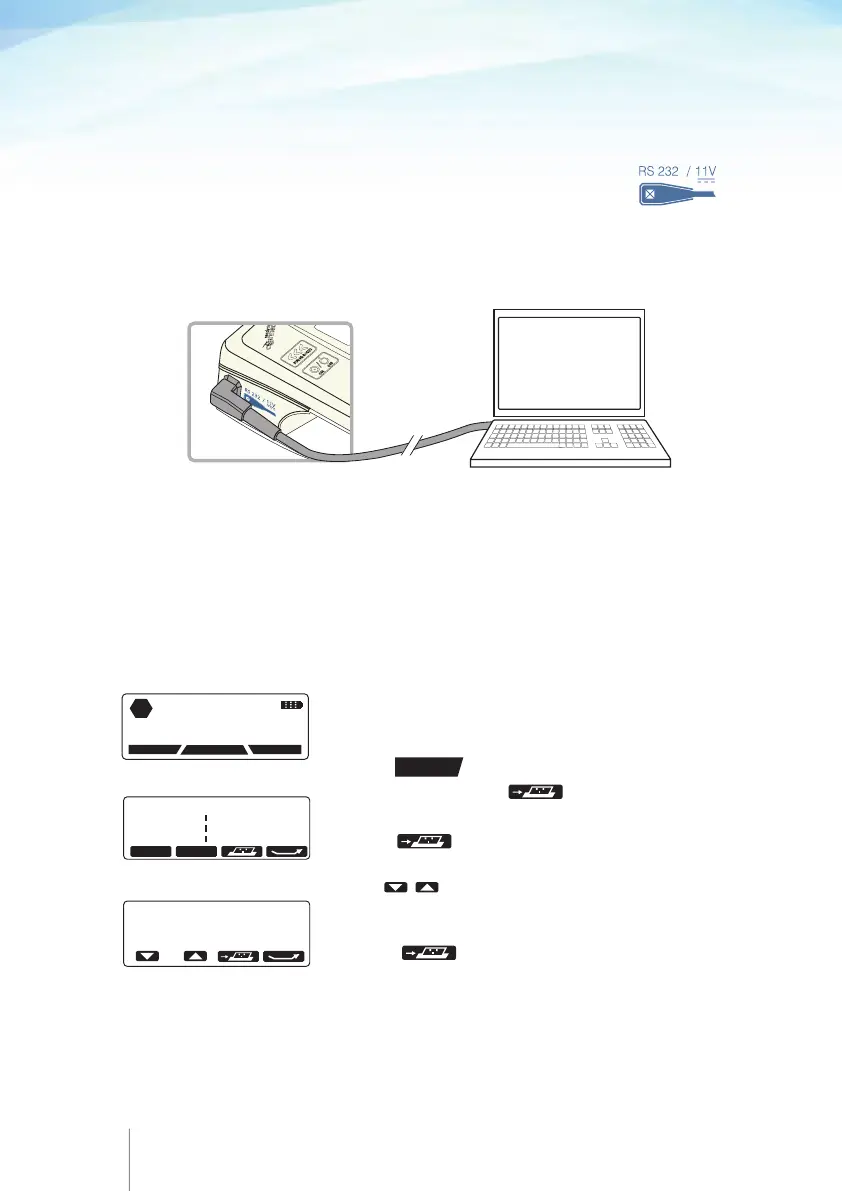
Press
HISTORY
key to enter history menu.
The data transfer key should appear.
7.
Press to access the printing menu.
8.
Use arrow to select the infusion period you wish
to upload to the PC.
3.
Run the “Rythmic™ Data Manager” software at the PC. For detailed information
regarding the operation of “Rythmic™ Data Manager”, please refer to “Rythmic™
Manager Pack” DFU.
2.
Connect the other side of the MicrelCom cord to the PC.
In order to perform event log upload of the infusion data please follow the instructions
shown below:
1.
Connect the MicrelCom cord to the pump into the socket labelled
on the pump.



 To Next Page